





Visual form building
Build it once. Use it wherever shoppers need it.
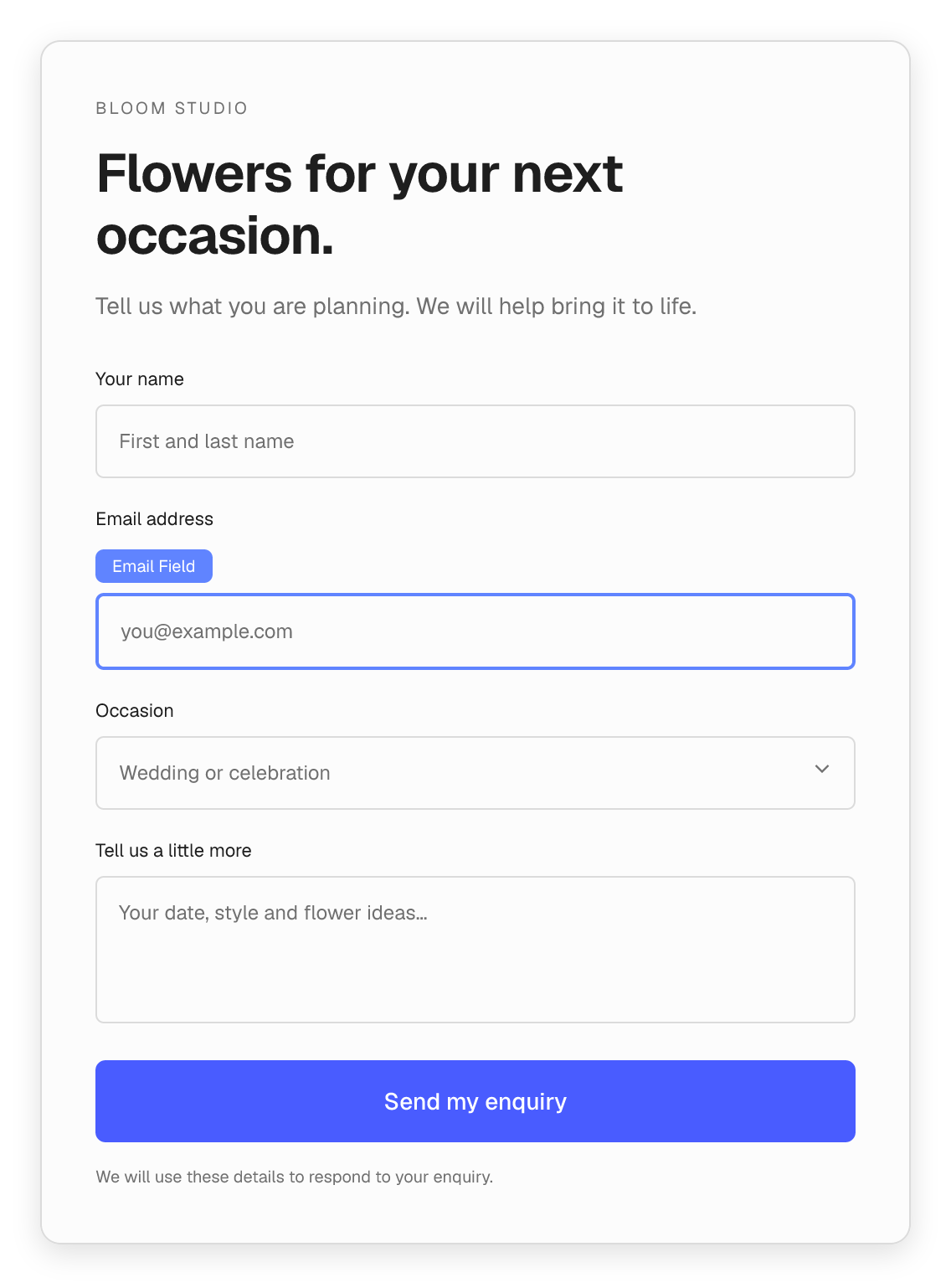
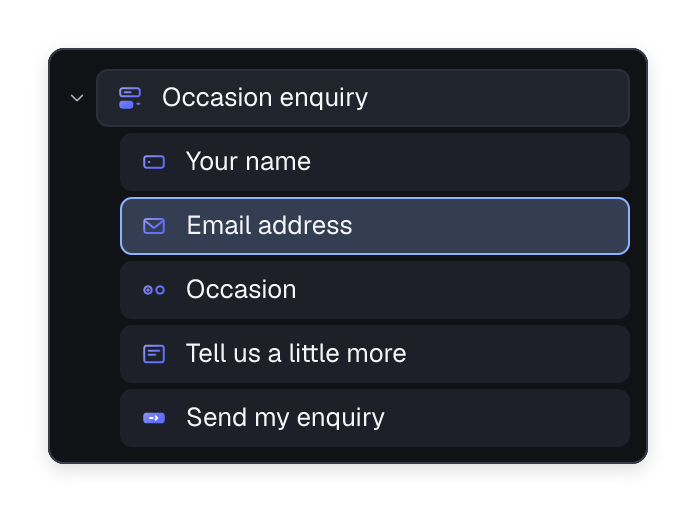
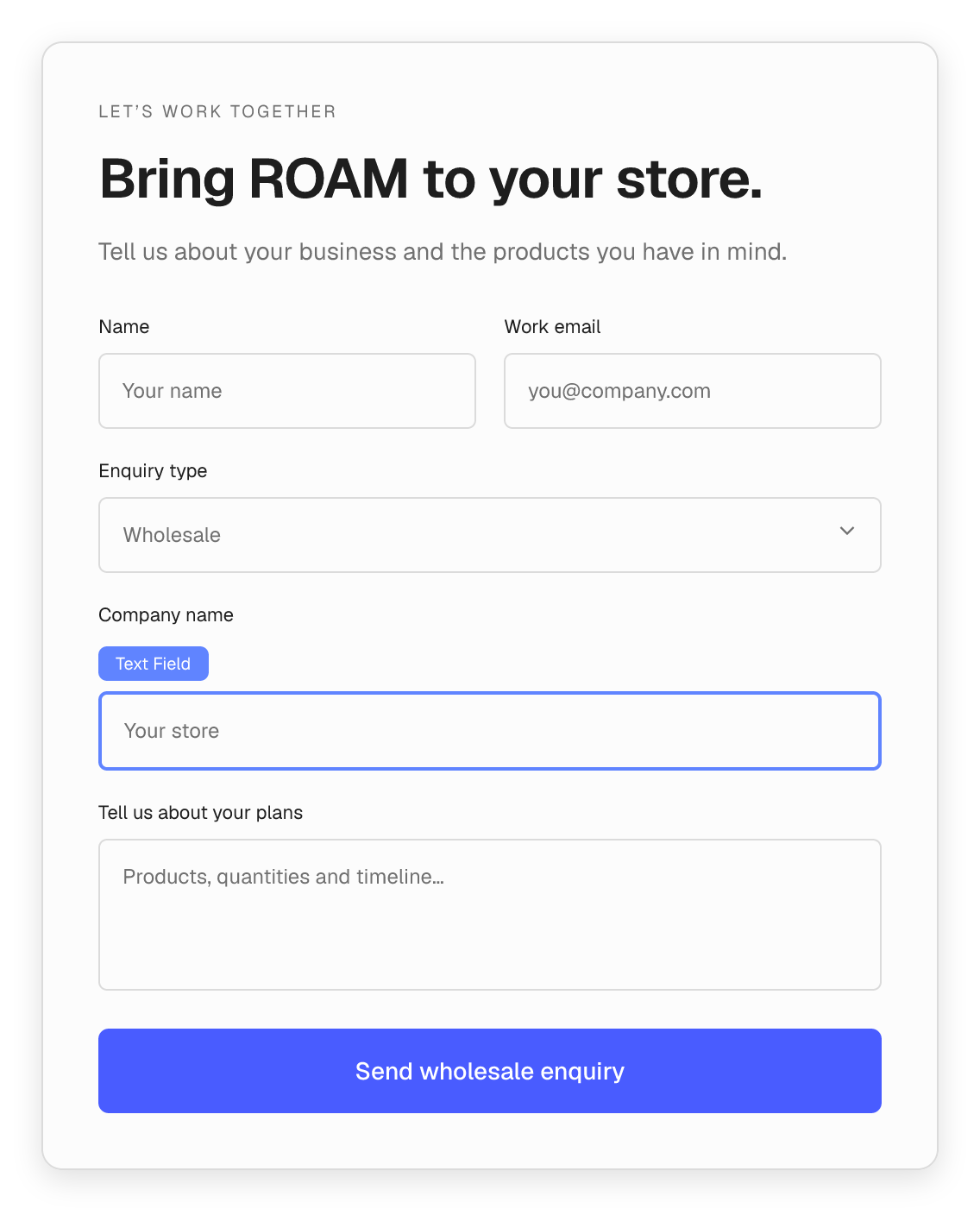
Create a reusable form from familiar Flatsome blocks. Insert it into a page, a product layout or a popup, then edit the same form wherever it is used.
- Start from a contact or newsletter layout, or build your own.
- Combine field blocks with headings, copy and layout groups.
- Style the form to match your store’s existing design.
Relevant follow-up questions
Ask the next question only when it matters.
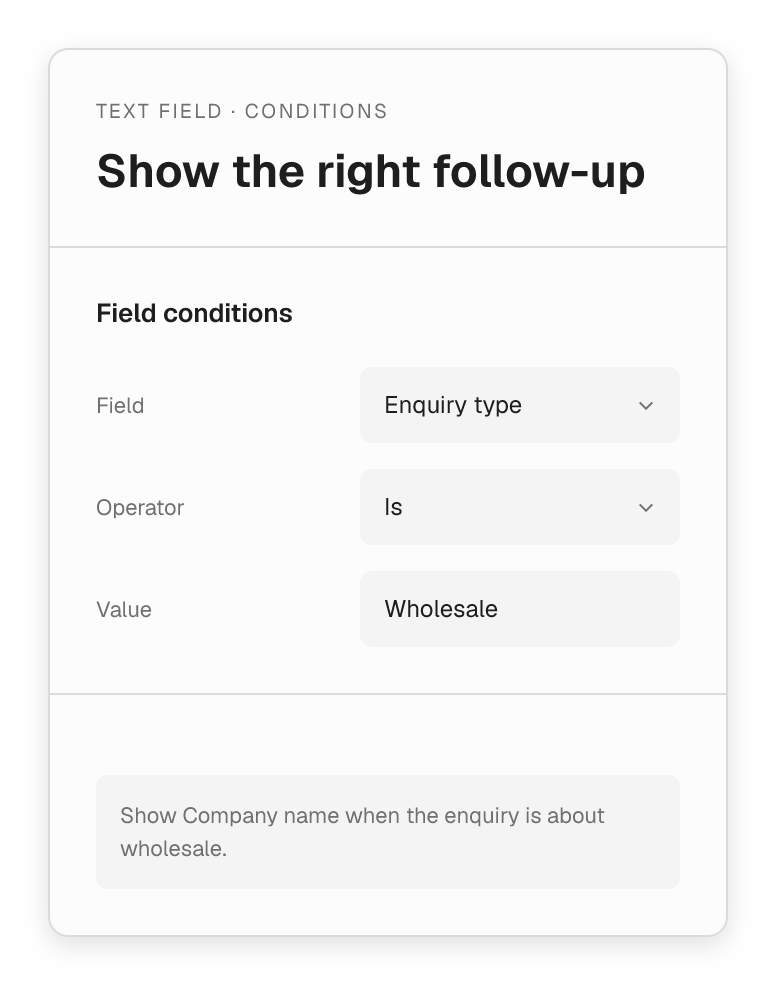
Tailor an enquiry to the shopper’s answer. Show company details for a wholesale request, or a relevant follow-up field for a particular product question.
- Show or hide fields based on another field’s value.
- Use choices to give shoppers a clear set of options.
- Group related fields into a readable form layout.
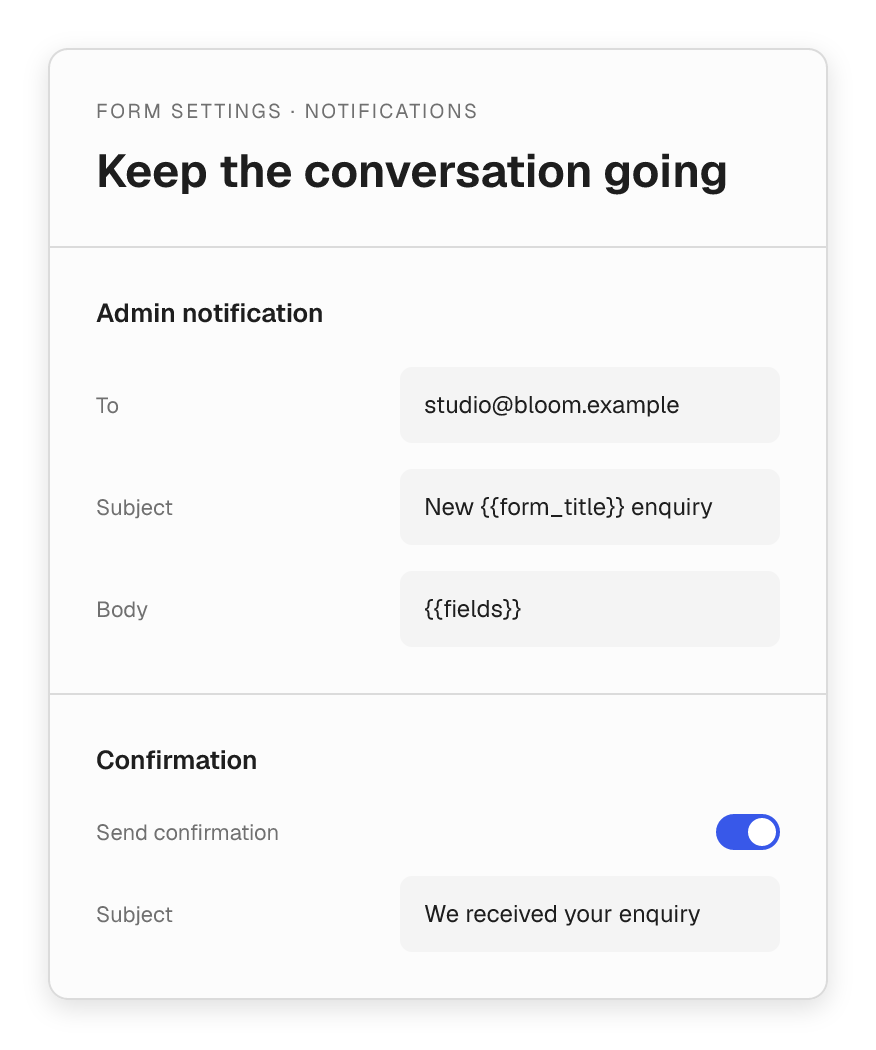
Entries & follow-up
Keep every useful conversation in reach.
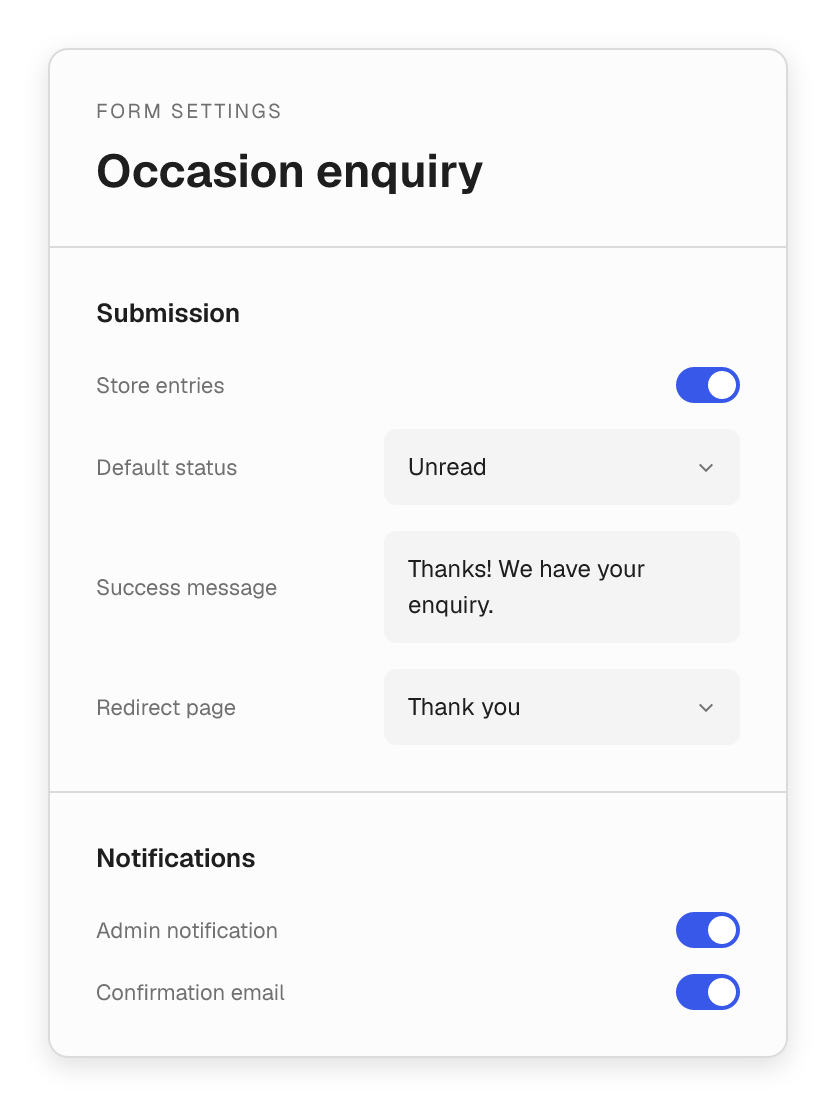
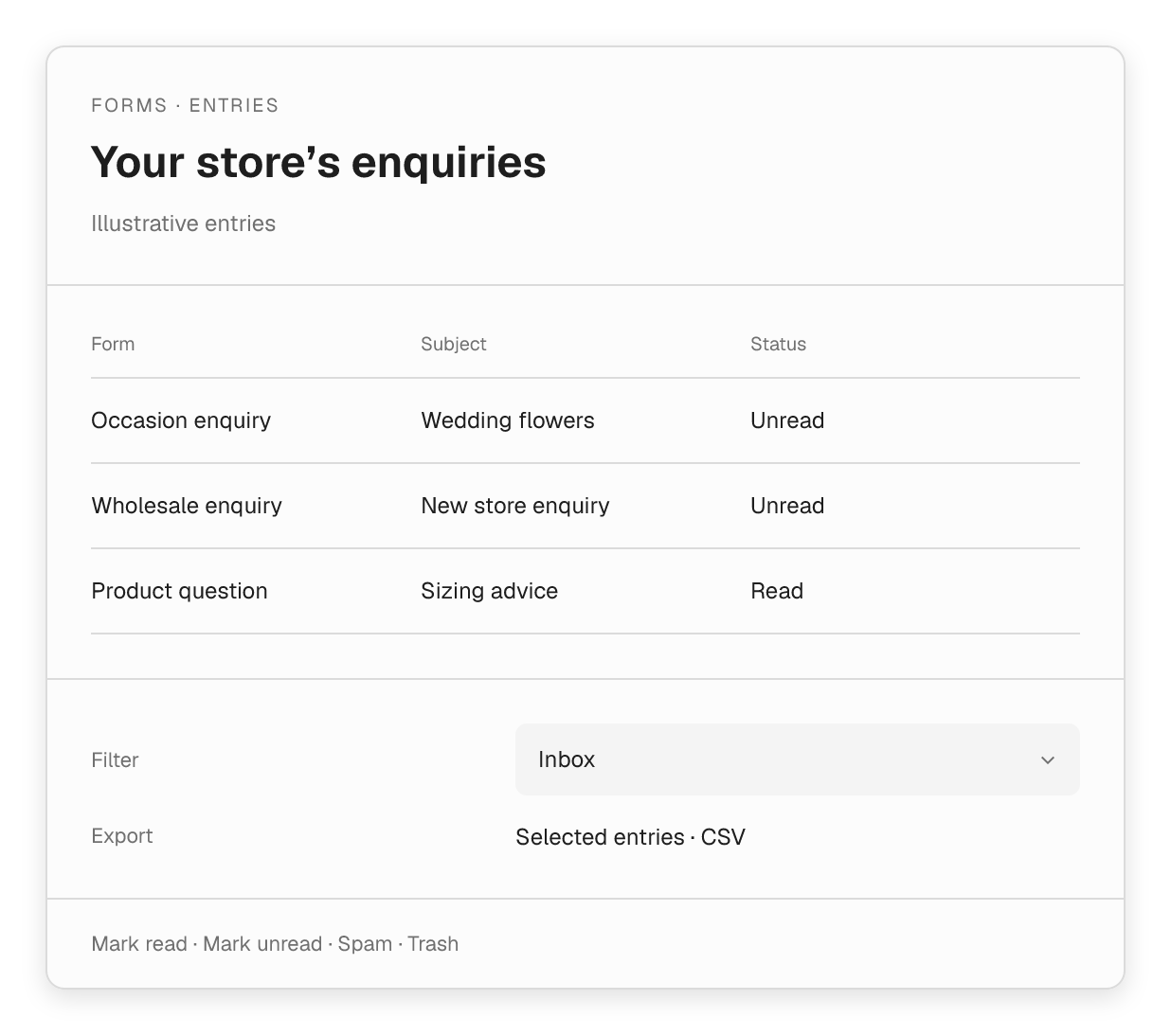
Choose whether to store submissions, then review the responses in your form’s inbox. Keep your team informed and let shoppers know their message arrived.
- View submissions and mark them read, unread or spam.
- Export selected entries as CSV.
- Configure team notifications and a confirmation email.
- Set a success message or redirect to a thank-you page.
Demo forms
Try it yourself.
These are real Flatsome forms running on this page. Type in the fields, switch the options and hit submit. The demos don’t send or store anything.
Floating labels · Field groups · Consent checkbox
Demo: Contact form
Labels rest inside the fields and float up as you type. Placeholders appear as a hint on focus.
Dropdowns · Radio choices · Smart follow-ups
Demo: Product enquiry
Pick “Sizing & fit” to get a size question, or “Availability” for a back-in-stock switch. The follow-up changes with the answer.
Conditional fields · Prefix & suffix · Labels above
Demo: Wholesale enquiry
Choose “A business” to reveal the company details group and an extra product range option.
Date & time · Switches · Number limits
Demo: Booking request
Date and time pickers side by side, a number field with limits, and switch-style options. Turn on “Handwritten card” to get a follow-up field.
Attached group · Hidden labels · One-line layout
Demo: Newsletter signup
The email field and button join into a single control. The label is hidden visually but still read by screen readers.
Meet shoppers at the right moment.
Give customers a way to hear more from your brand, ask a question or start a bigger conversation.
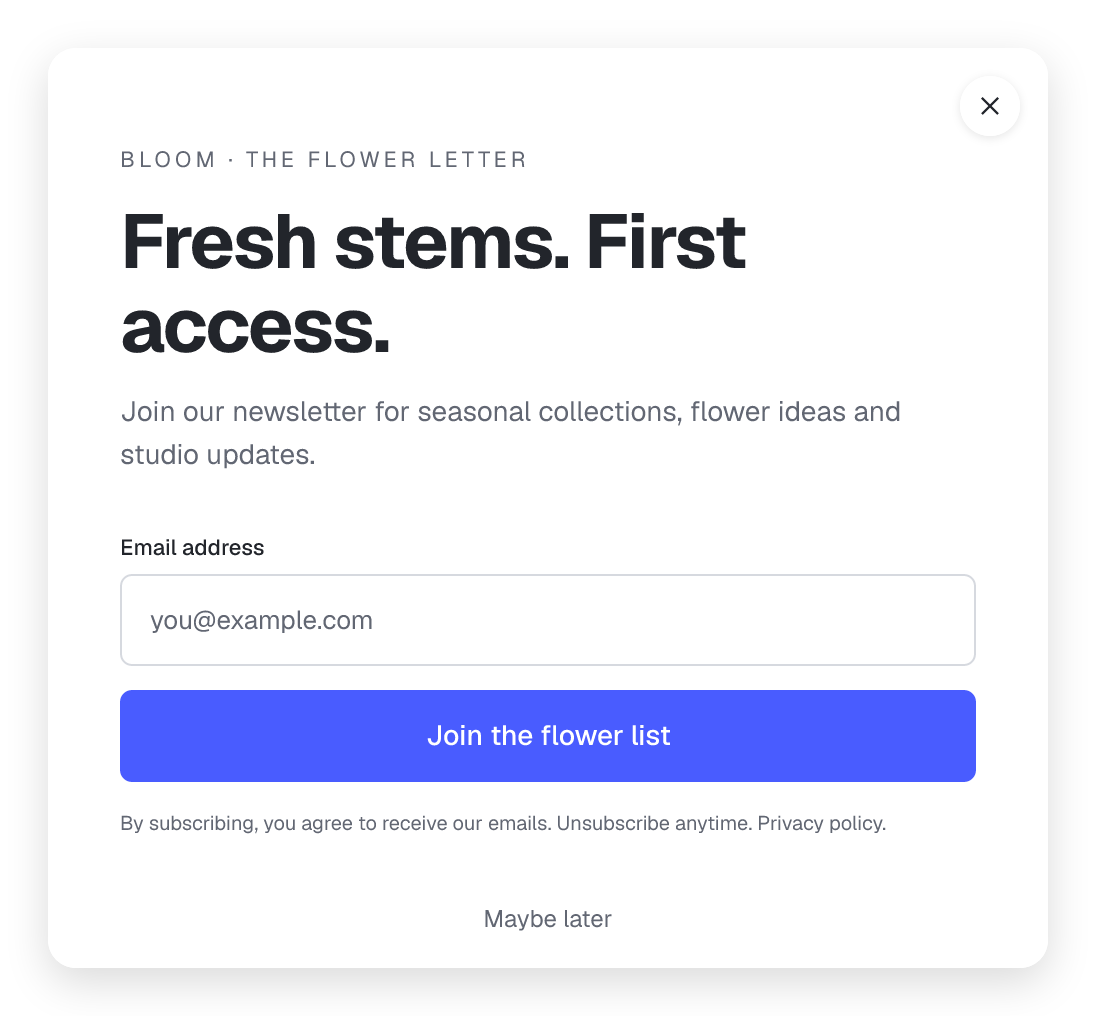
Grow the list behind your next launch.
Invite shoppers to hear about seasonal collections and store updates. Put the signup in a campaign page, footer or popup.
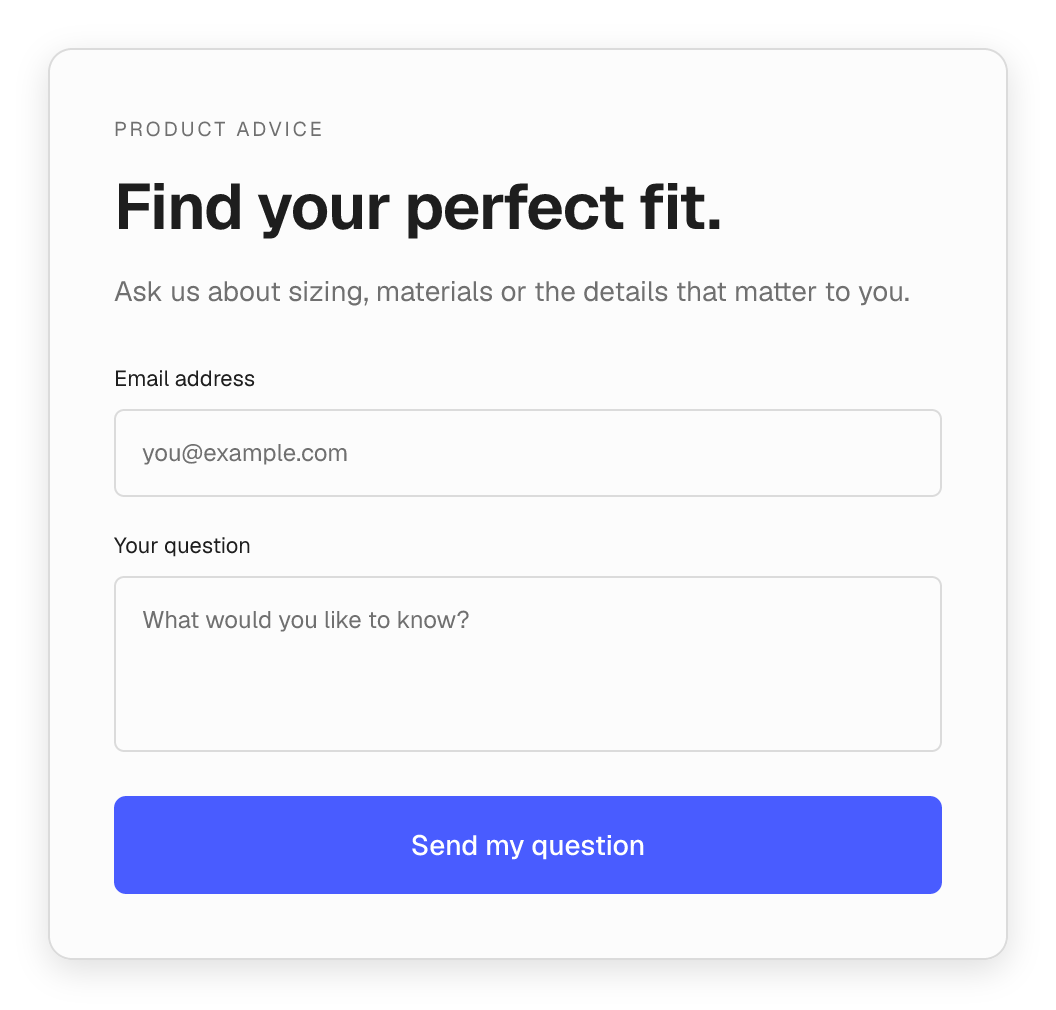
Help them choose with confidence.
Add an enquiry form beside product information so shoppers can ask about fit, materials or details before ordering.
The fields your store conversations need.
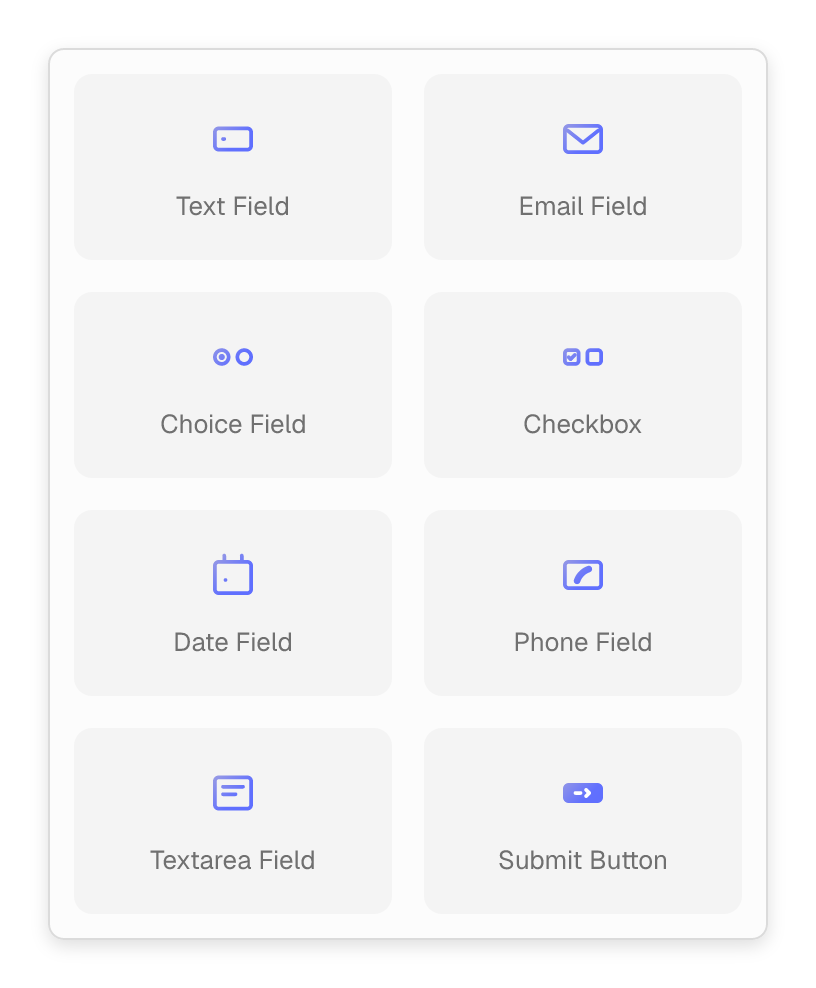
Build a short signup or a more detailed enquiry with native form blocks. Choose the questions that help you respond.

Text Field
Names, company details and short answers.

Email Field
A clear place to leave a reply address.

Choice Field
Selects, radio choices and option groups.

Checkbox
Preferences, confirmations and consent choices.

Date Field
Dates for events, requests or enquiries.

Phone Field
A contact number when the conversation needs one.

Textarea
Room for product questions and detailed requests.

Submit Button
A clear next step in your store’s own style.
Manage forms as part of your store.
Keep submission handling, retention and form updates in the same WordPress workflow.
Control stored entries
Set whether a form stores responses and choose its retention period. Stored submissions can be reviewed and removed from the inbox.
Built-in submission checks
Field validation, a honeypot and rate limits help protect the form submission flow.
Work with an agent
When the Forms and MCP modules are enabled, permitted agents can create and update reusable forms. Entry tools require administrator access.