
Blocks can fade, slide, or scale into view as visitors scroll, or move in step with the scrollbar. Animations are set per block in the Effects panel and play on the published site.
Add an animation
- Select the block, open the options menu of the Effects panel, and add Scroll animation.
- Under Play, choose Enter to play once when the block scrolls into view, or Scroll to follow the scrollbar in both directions.
- Pick an Animation: Fade In, Fade In Left, Fade In Right, Fade In Up, Fade In Down, Scale In, Blur In, Flip In X, or Flip In Y. Adjust Distance, Scale, or Blur when the animation has one.
- For an Enter animation, choose the play button at the top to replay it on the canvas.
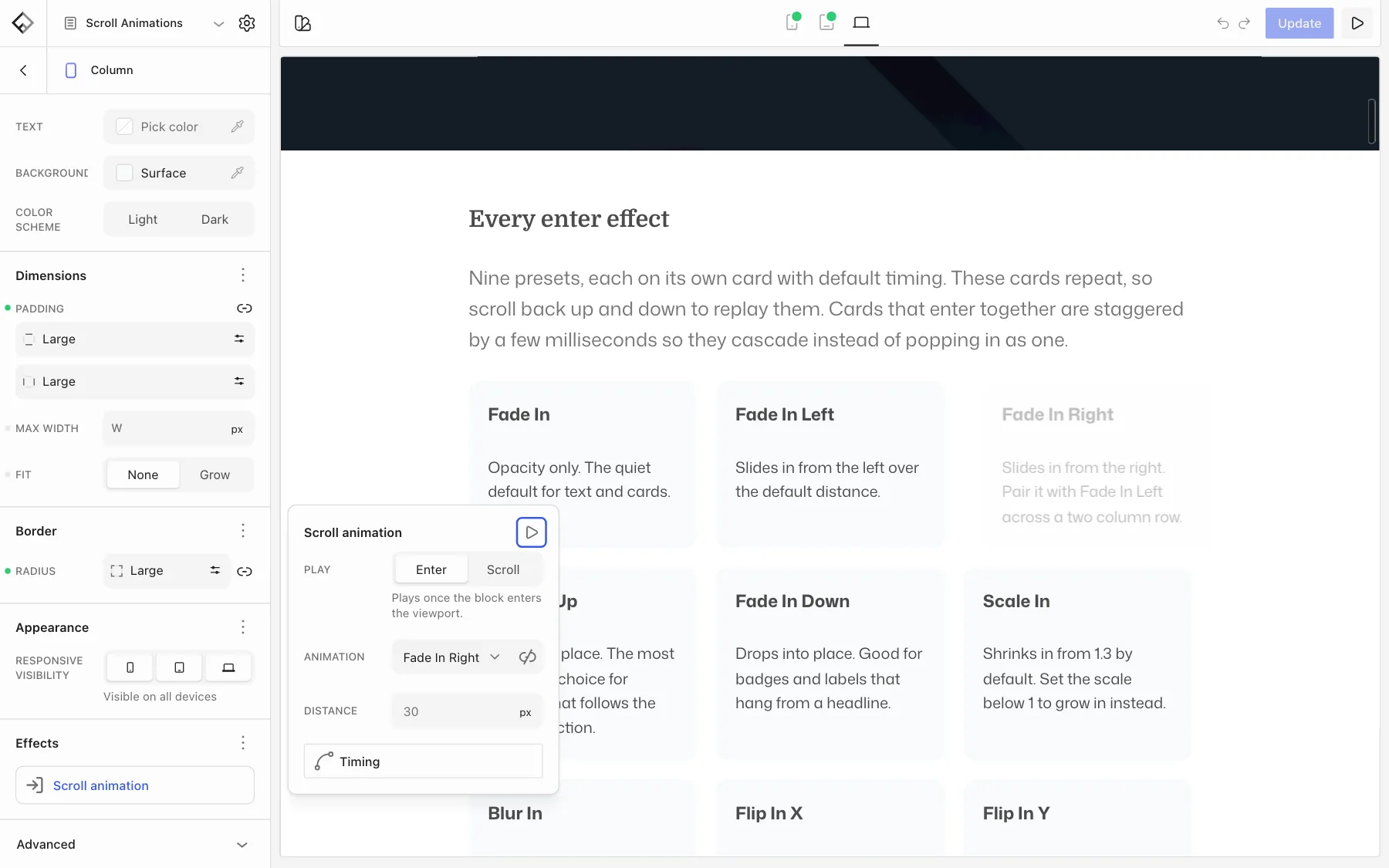
Blur In, Flip In X, and Flip In Y only play on enter. For your own starting state, choose Custom and set Opacity, Move, Scale, and Rotate. Unlink preset turns a preset into values you can edit.
Timing and scroll range
- Timing (Enter): Easing, Duration, and Delay. Turn on Repeat to play the animation every time the block enters the viewport instead of once.
- Scroll range (Scroll): Start and End set where the animation runs, from 0 when the block enters the viewport to 100 when it leaves. Timeline set to Parent moves the blocks in a container in step.
Animate children one after another
Containers such as Section, Row, Column, Flex, Banner, Gallery, Posts, and Products also offer Stagger animation. It plays the animation on each child in turn, with Stagger under Timing setting the delay between them.
Parallax
- Scroll parallax moves the block slower or faster than the page. Below 0 is slower, above 0 is faster.
- Mouse parallax shifts the block as the mouse moves. Above 0 follows the cursor, below 0 moves against it.
- Background images in Section and Banner layers have their own Parallax setting on the Image layer, where -10 keeps the image fixed. See Add a video background to a banner for layers.
Reduced motion
Visitors who ask their device to reduce motion see blocks at rest, without animation or parallax. If reduce motion is turned on for your own computer, the Builder shows a notice that the effects may not play there.