


The shop page, product categories, and product tags all use the Product Catalog template. Change it once and every listing page follows.
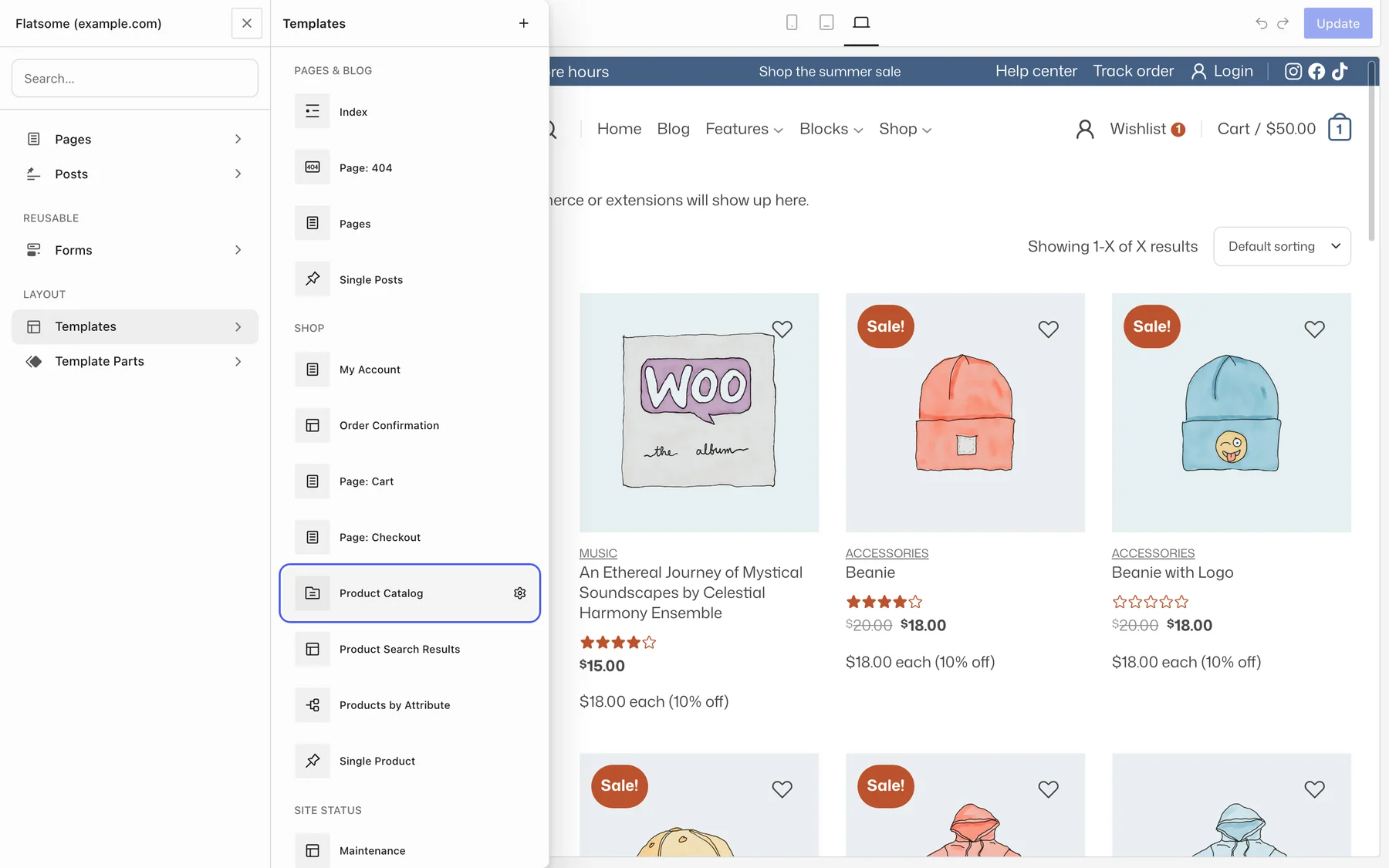
Open the template
- Open the Flatsome Builder and choose Templates in the editor navigation.
- Open Product Catalog.
What the template contains
- Store Notices at the top of the section.
- A row with Breadcrumbs, the results count, and the sorting dropdown.
- A filters column beside the products, with active filters and Product Filters for category, price, rating, attributes, and stock status.
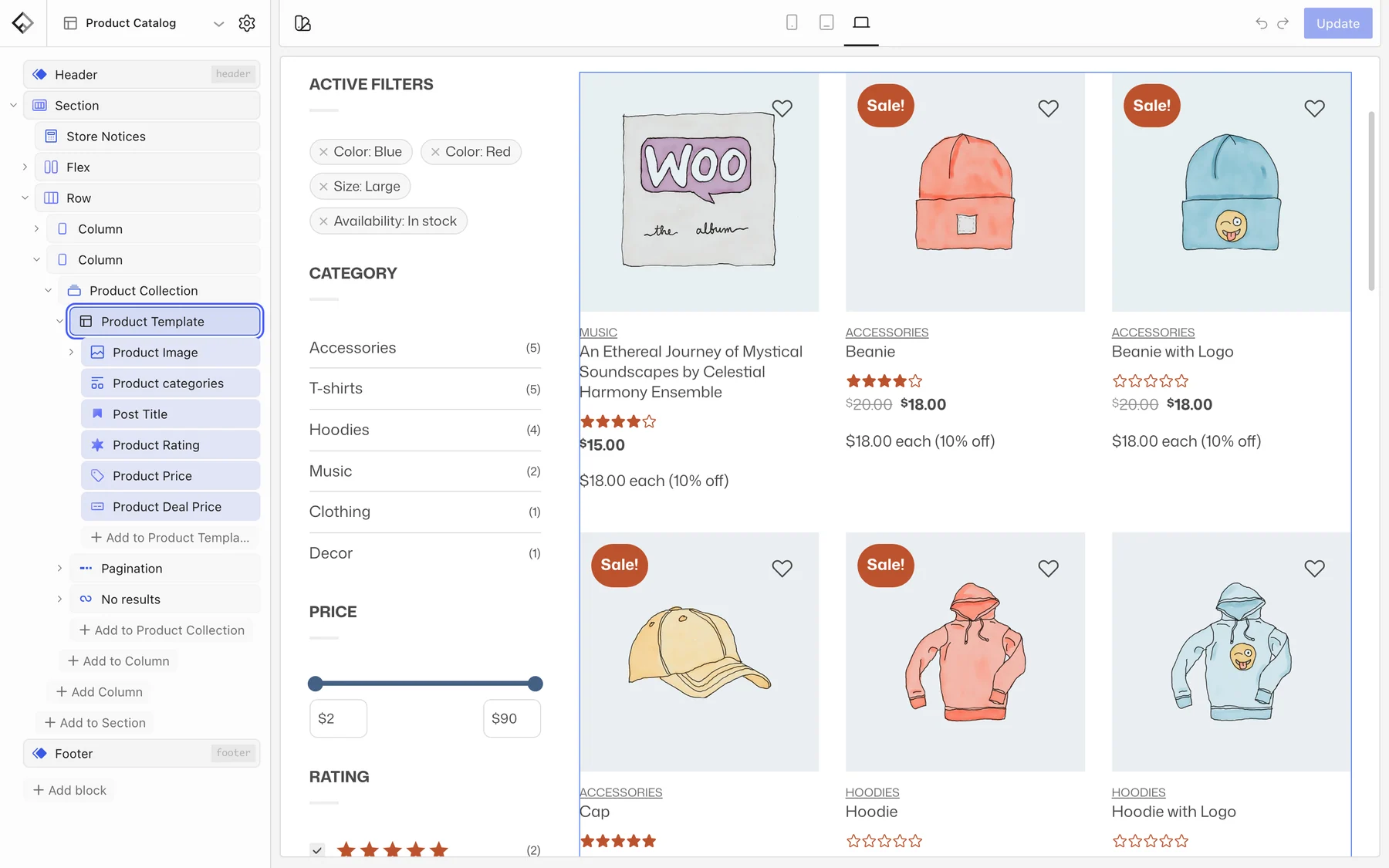
- The Product Collection that lists the products, with a Product Template defining each card, and pagination.
Change the product cards
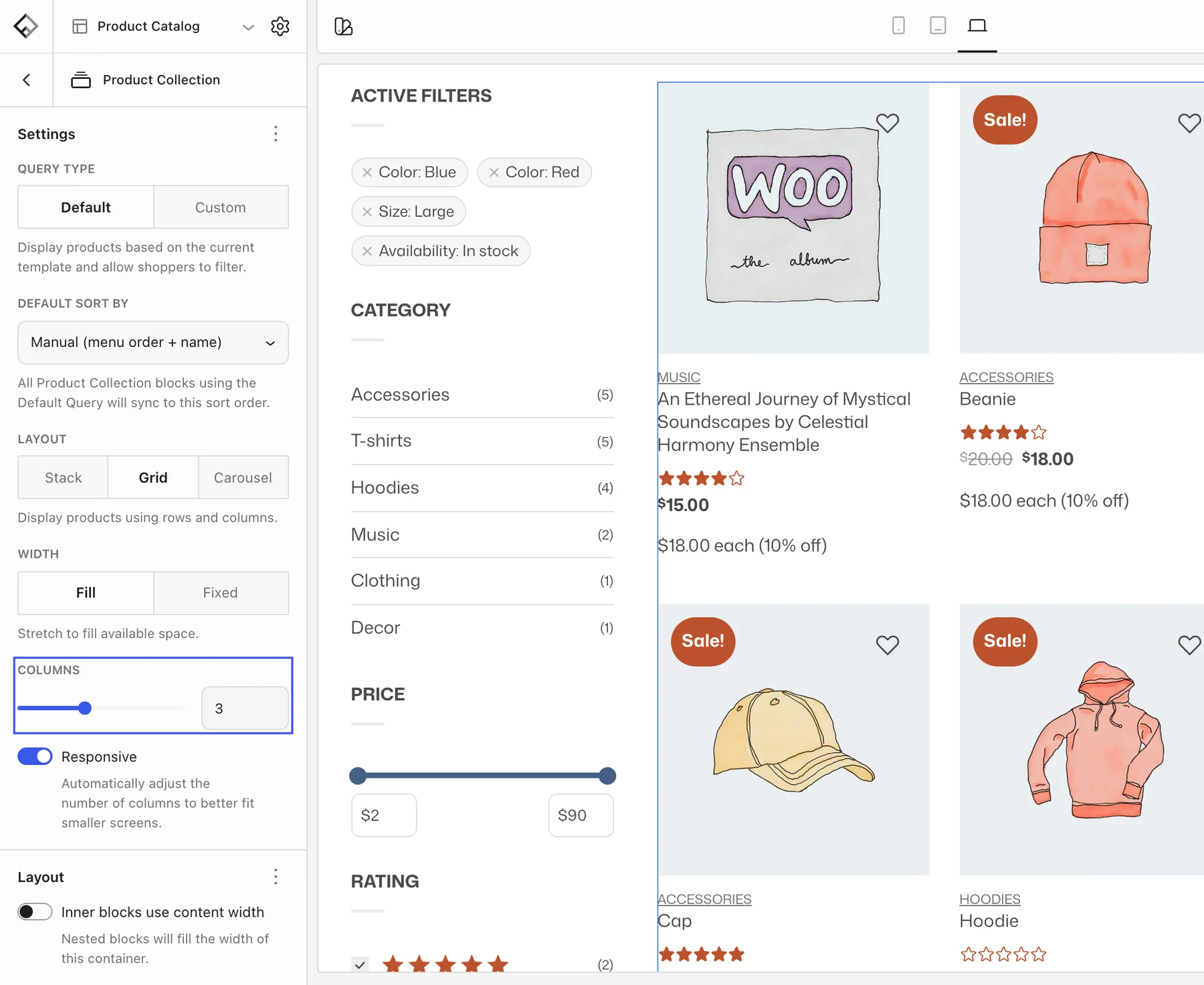
Select the Product Template inside the collection. Its inner blocks are repeated for every product: Product Image with a hover image, Product Badge, Quick View and Wishlist buttons, Post Title, Product Price, Product Rating, and category. Add or remove blocks, change their order, and style them, and every card updates. The number of columns is set on the Product Collection block.
Change the page header
The top of the template is a normal Section that holds the store notices, breadcrumbs, results count, and sorting. Give it a background color or image, change its height, or replace it with the Page Header pattern in the Featured style from the inserter for a full-width, dark header. The default template has no title, so add a Post Title block to it if each category should show its own name.
A banner or layout for one category
- Under Templates, choose Add template and pick Products by Category.
- Choose Category (For a specific item) and select the category.
- Build the page: for example a Banner block with the campaign image above the product collection. Copy the collection blocks from Product Catalog so the listing behaves the same.
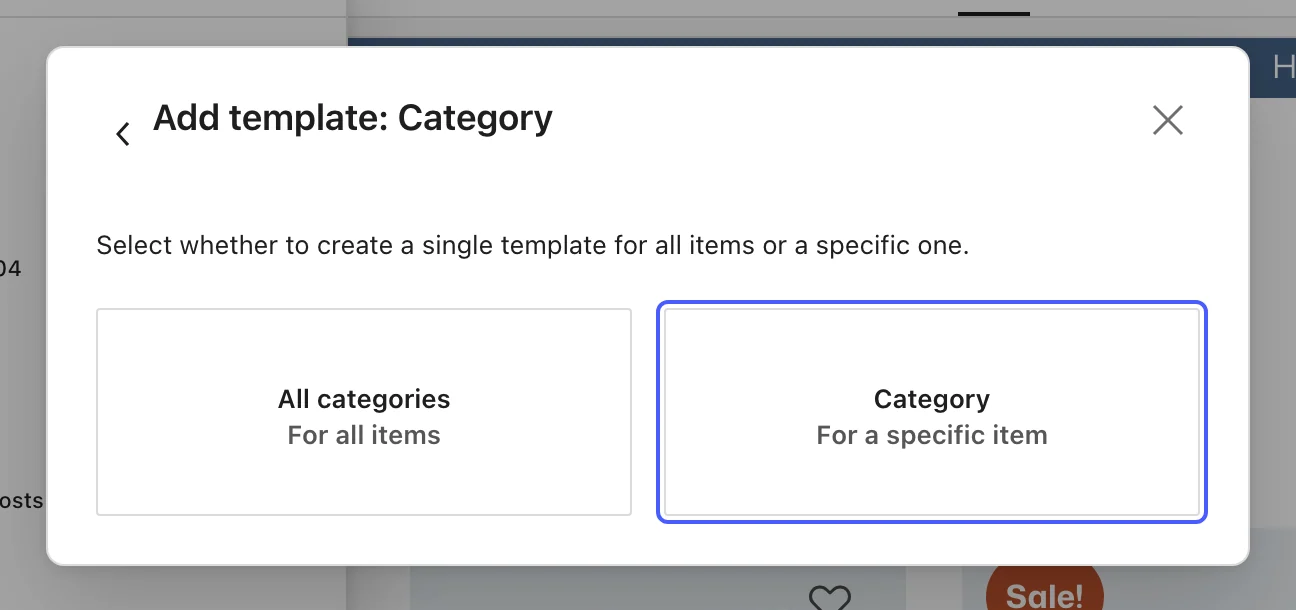
Choose All categories (For all items) instead to create a template for every category that differs from the shop page.