


Pages, posts, templates, and template parts are all edited in the Flatsome Builder. This page walks through building one page so the rest of the Builder feels familiar.
Open the Builder
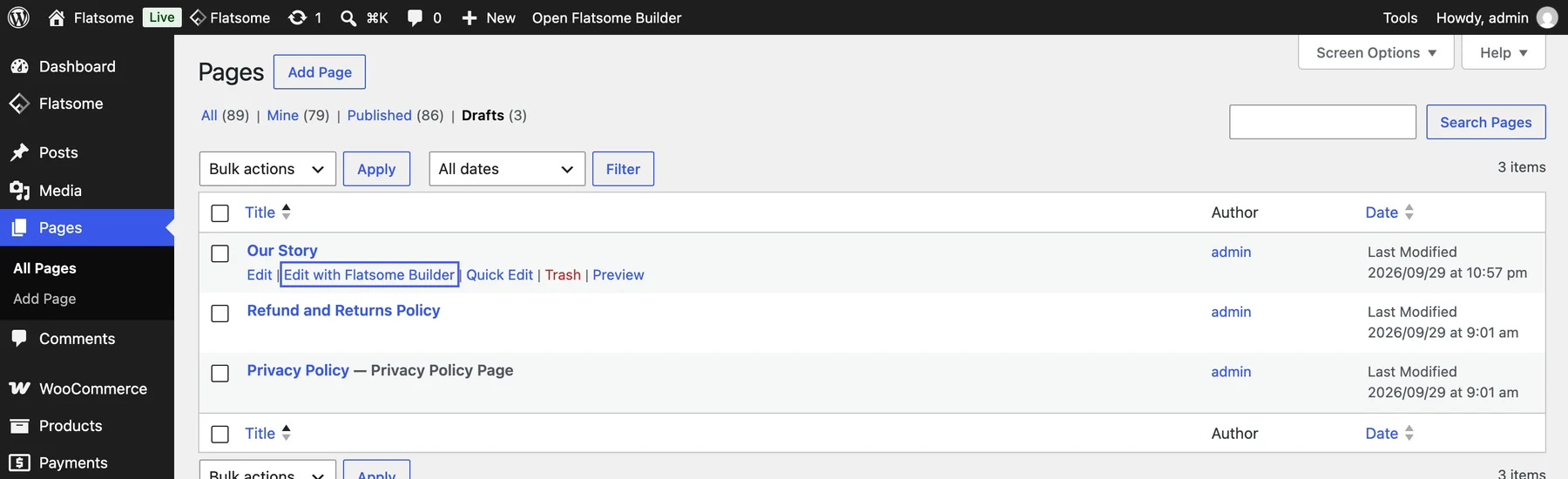
Create a page under Pages → Add Page, or open an existing one, and choose Edit with Flatsome Builder. The same link is in the admin bar when you view the site. The Builder opens with a live preview of the page in the middle and the sidebar on the left.
Add content
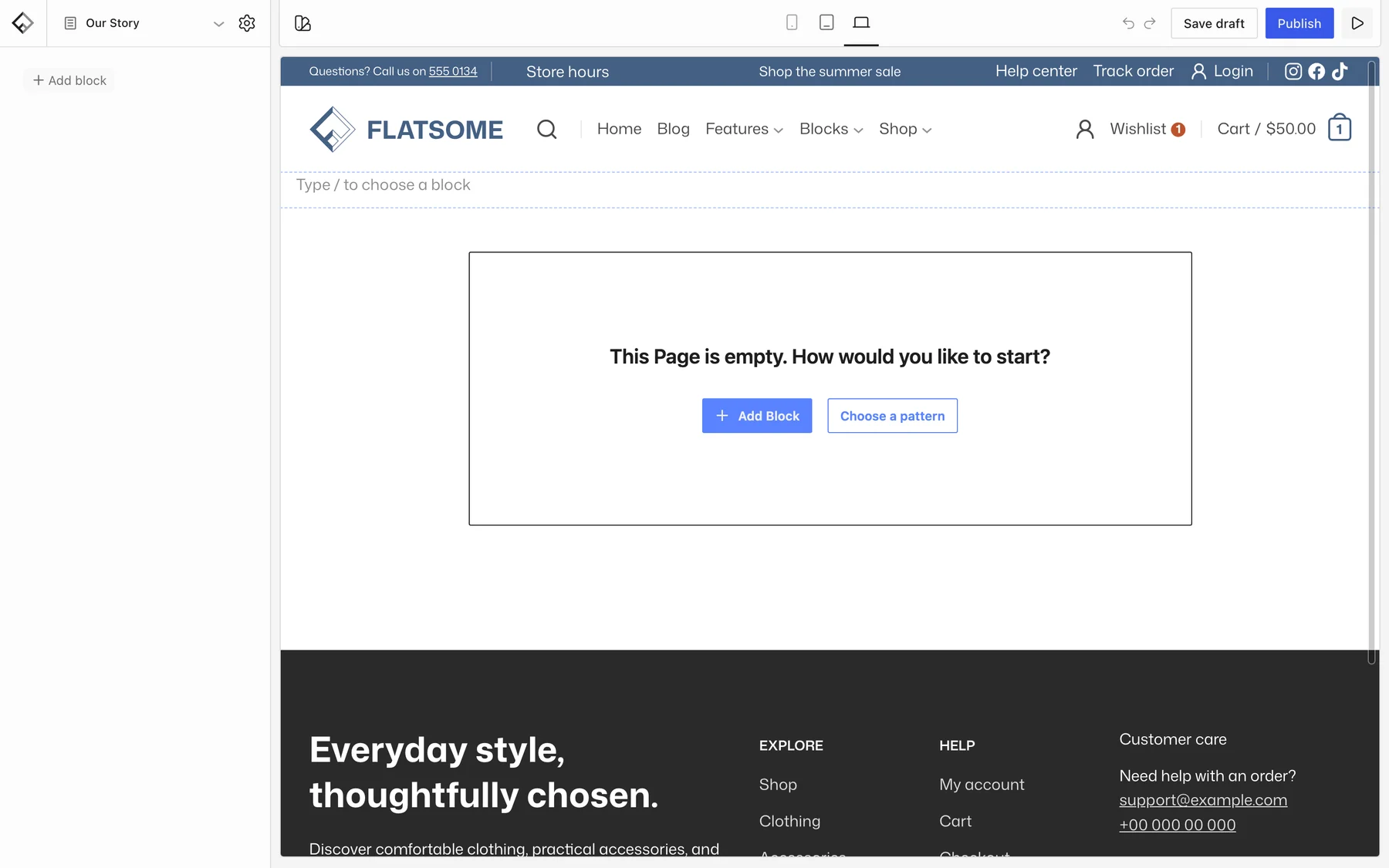
An empty page asks how you want to start: Add Block or Choose a pattern. Patterns are the fastest way to a finished section; blocks give full control.
- Most layouts start with a Section. It spans the page width, can have a background image, video, or color, and keeps its content within the site width.
- Inside a Section, a Row with Columns creates a grid. Each column has its own width per screen size.
- Put content blocks in the columns: Heading, Paragraph, Image, Button, Products, Banner, Slider, and so on. Search the inserter by name to find any block.
Change settings
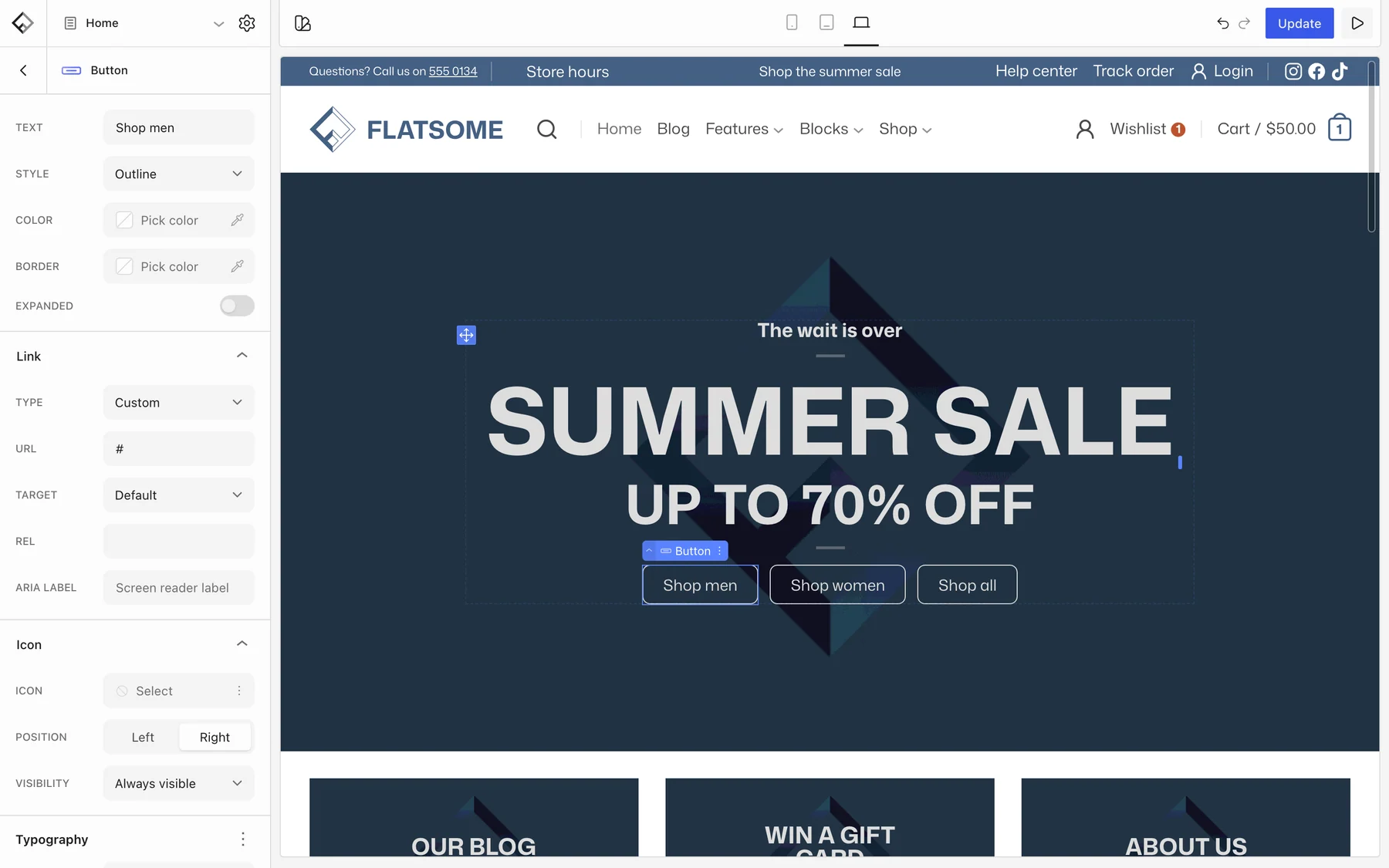
Click a block on the canvas to select it. Its settings appear in the sidebar, grouped into panels such as Layout, Typography, Colors, Spacing, and Visibility. The label above the selected block has an arrow to select its parent and a ⋮ menu for more actions.
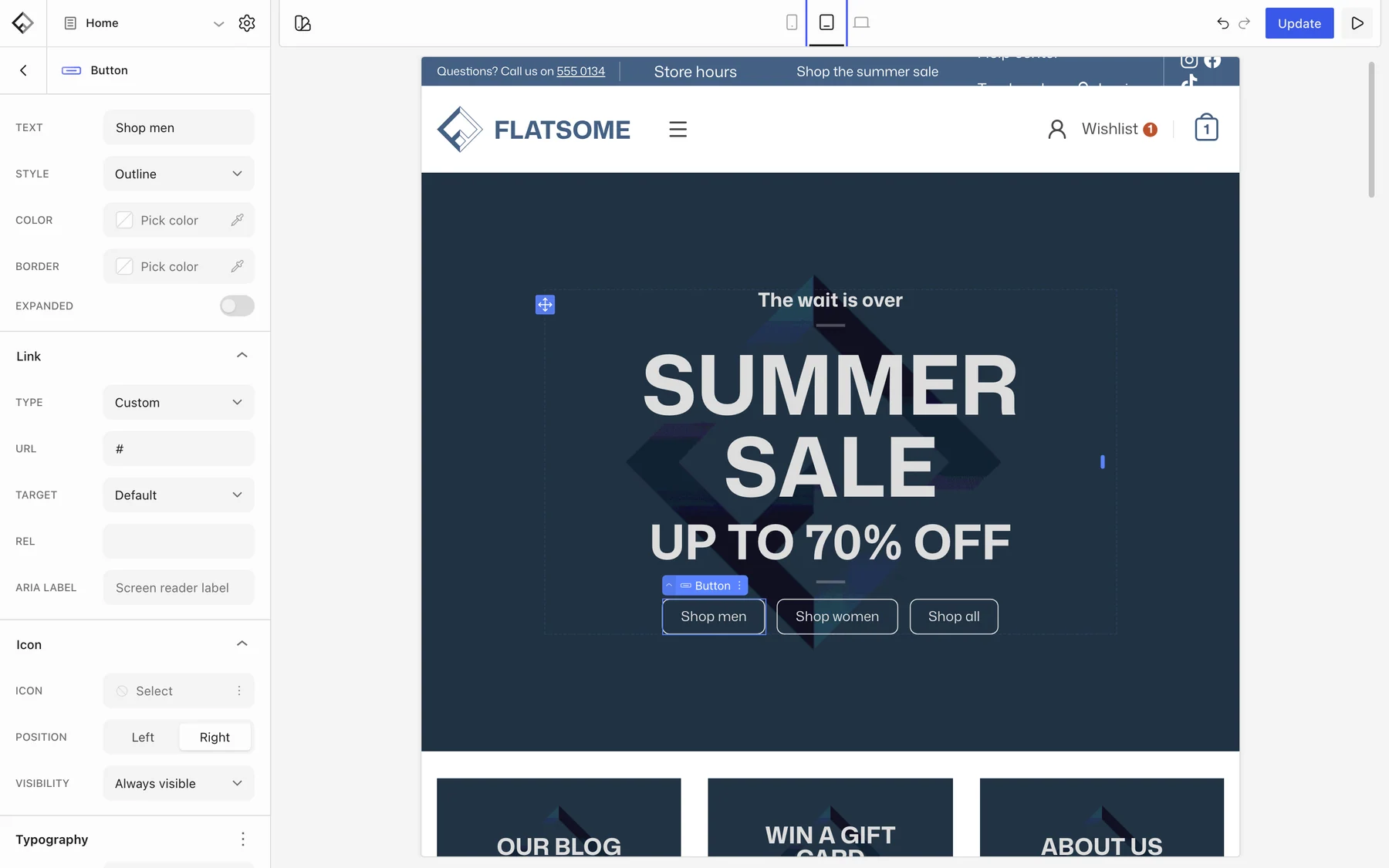
Settings like spacing, font size, and column width are responsive. Switch the preview between Desktop, Tablet, and Mobile in the top bar; a value you change while previewing a smaller size applies to that size and below, while the desktop value stays. Use Visibility to hide a block at some sizes entirely.
Save and publish
Choose Save draft to keep working later, or Publish to make the page public. On a page that is already published, the button reads Update. Publishing can also be scheduled for a date, made private, or protected with a password from the page settings in the sidebar. If your edits touched a template part or a synced pattern as well, the save dialog lists each item so you can choose what to save.
Beyond the page
The editor navigation in the top left reaches everything else: Templates and Template Parts such as the header and footer, Global Styles for colors, fonts, and spacing, and other pages, posts, and products. Exit to WordPress takes you back to the admin.