


A pattern is a saved group of blocks. Flatsome ships a library of them, and you can save your own. Patterns are the way to reuse a section on many pages, whether it is a call to action, a testimonial row, or a mega menu panel.
Insert a pattern from the library
- In the Flatsome Builder, open the inserter and switch to the Patterns tab.
- Browse the Flatsome collection by category, or search.
- Click a pattern to insert it, then replace the placeholder text and images.
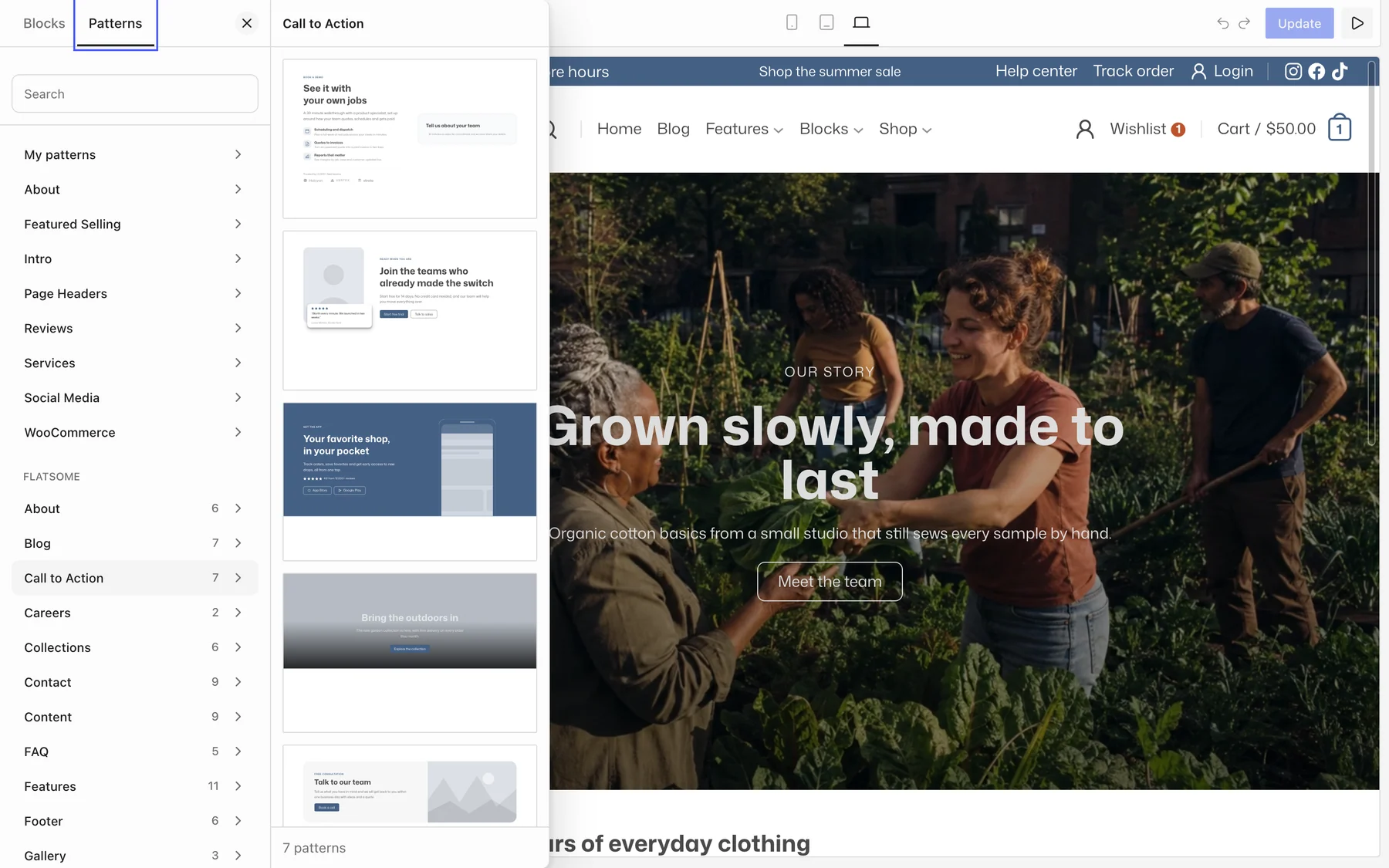
Library patterns are copied into your page. They are yours to edit and do not change when the library changes. Your own saved patterns are listed under My patterns in the same tab.
Save your own pattern
- Select the block or blocks to save. Selecting a Section saves everything inside it.
- Open the block options menu and choose Create pattern.
- Give it a name, add a category, and decide whether it should be Synced.
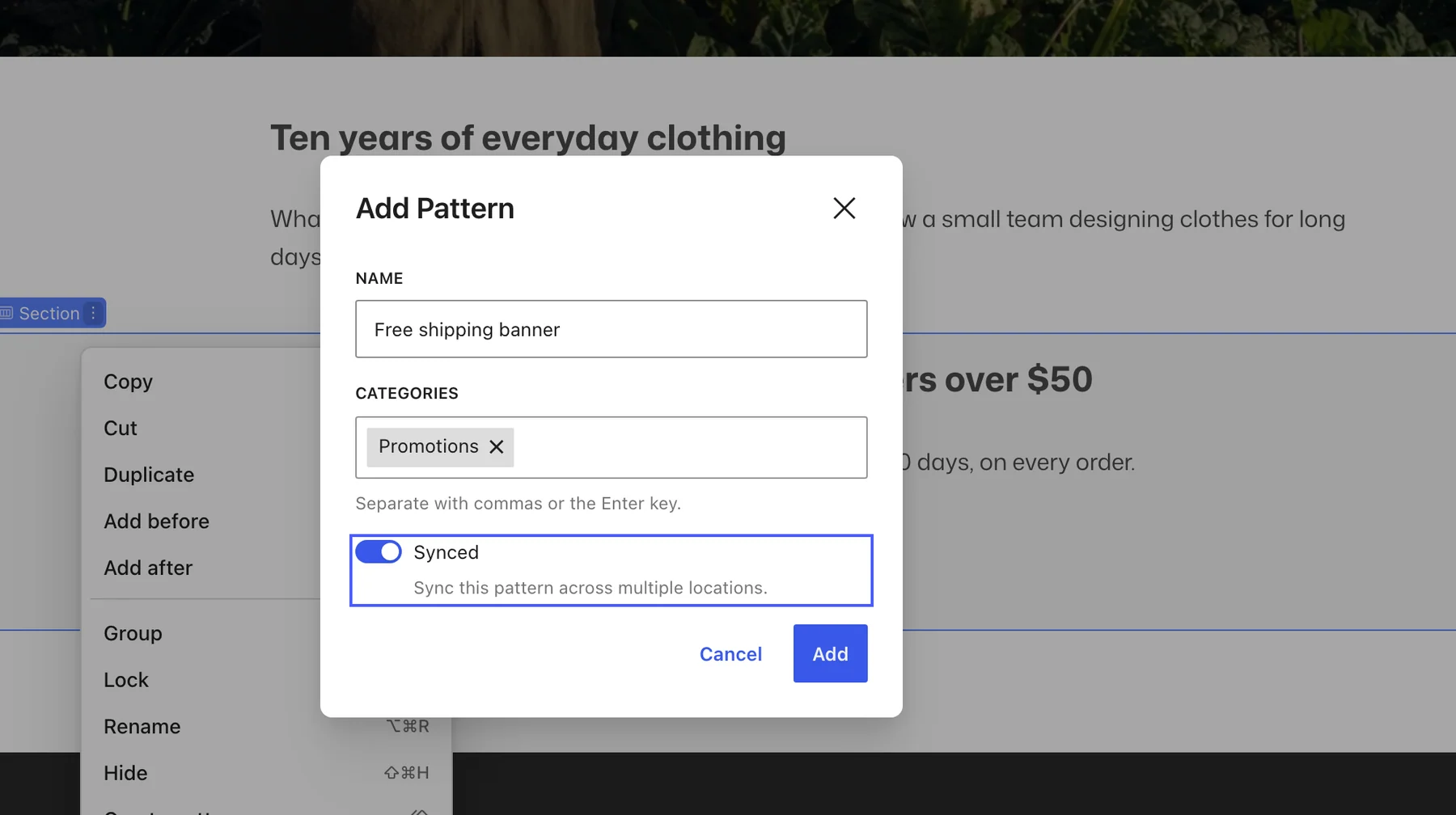
Synced or unsynced
- Synced: the pattern is inserted by reference. Edit the original once and every page that uses it updates. Use it for content that must stay identical everywhere, such as a footer call to action or a promo bar.
- Unsynced: the blocks are copied on insert and the copy is independent. Use it for starting layouts you adjust per page.
The sync status is fixed when the pattern is created. To switch, create a new pattern.
Edit a synced pattern
Select the pattern on any page and choose Edit original. Changes are saved to the pattern and appear wherever it is used. If you want one page to differ, choose Detach in the block options menu on that page to turn the instance into ordinary blocks.
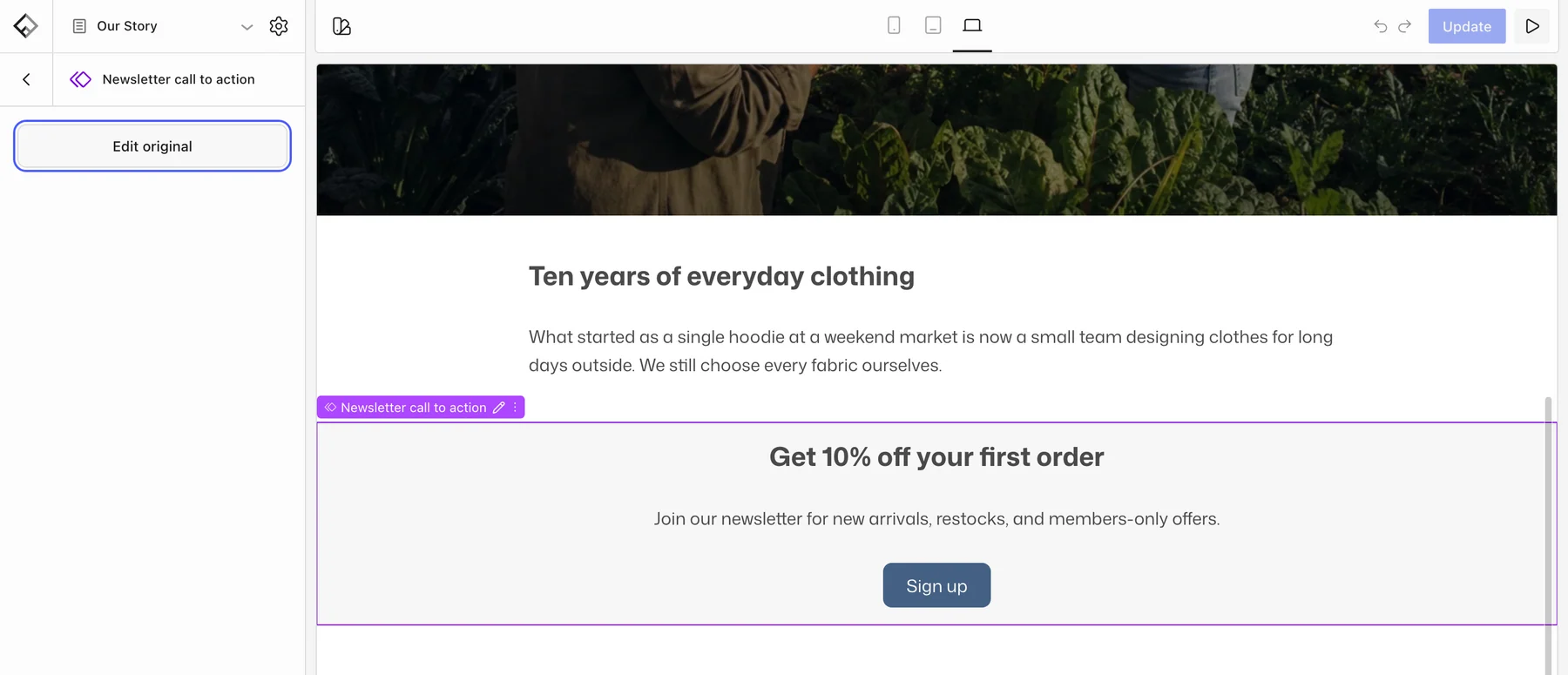
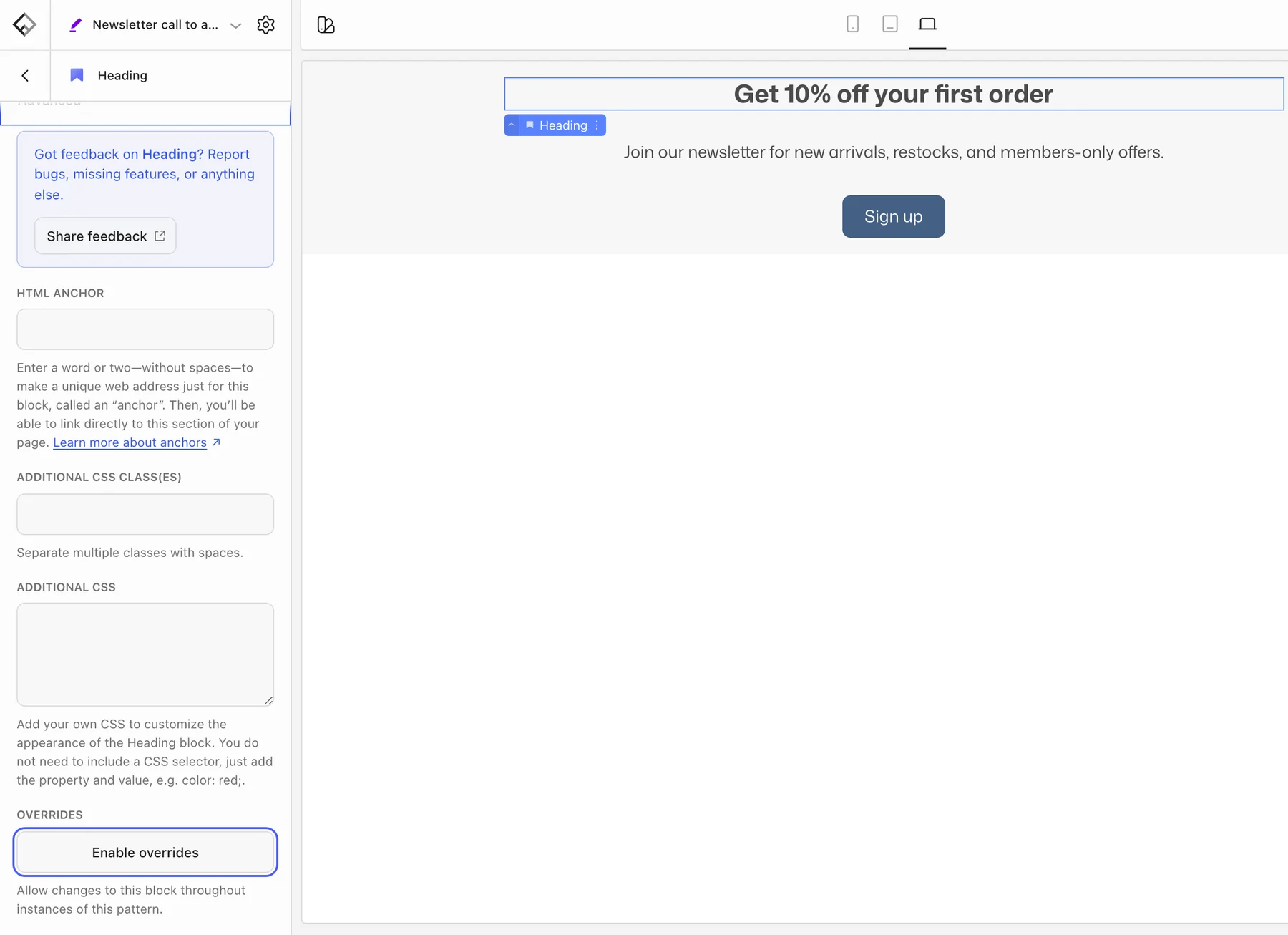
Synced patterns can also allow overrides: while editing the original, enable overrides on a heading, paragraph, button, or image, and each page can then change that block’s text or image while the layout stays shared.
Patterns, template parts, and templates
- Pattern: content you insert into pages, templates, or menus.
- Template part: a shared area of the layout such as the header, footer, or sidebar. Edit it under Template Parts in the Builder.
- Template: the layout for a kind of page, such as single product or blog archive. Edit it under Templates.