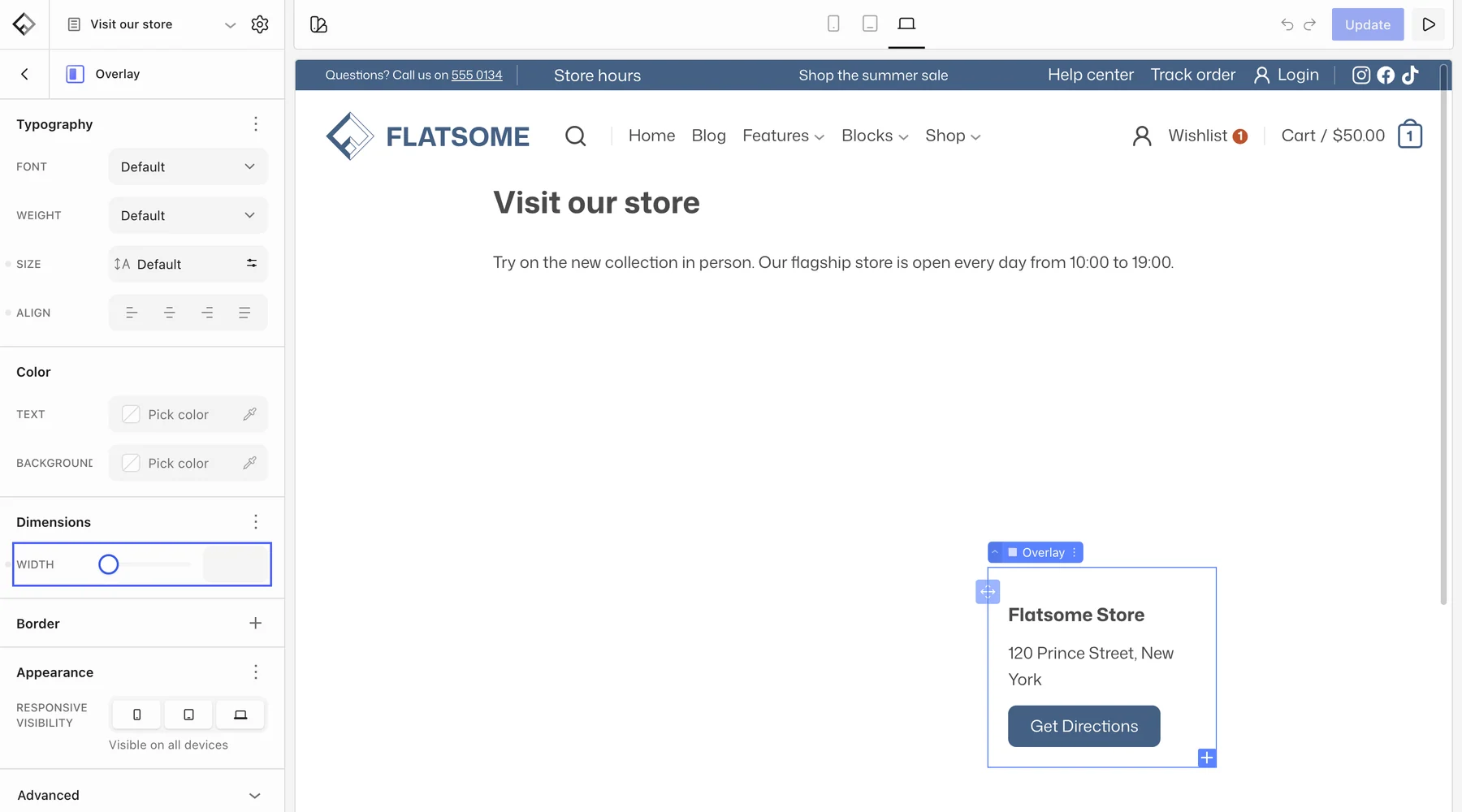
The Map block embeds an interactive Google map with a marker at your location, a color tint to match the site, and an optional overlay for the address and a directions button. Google requires an API key.
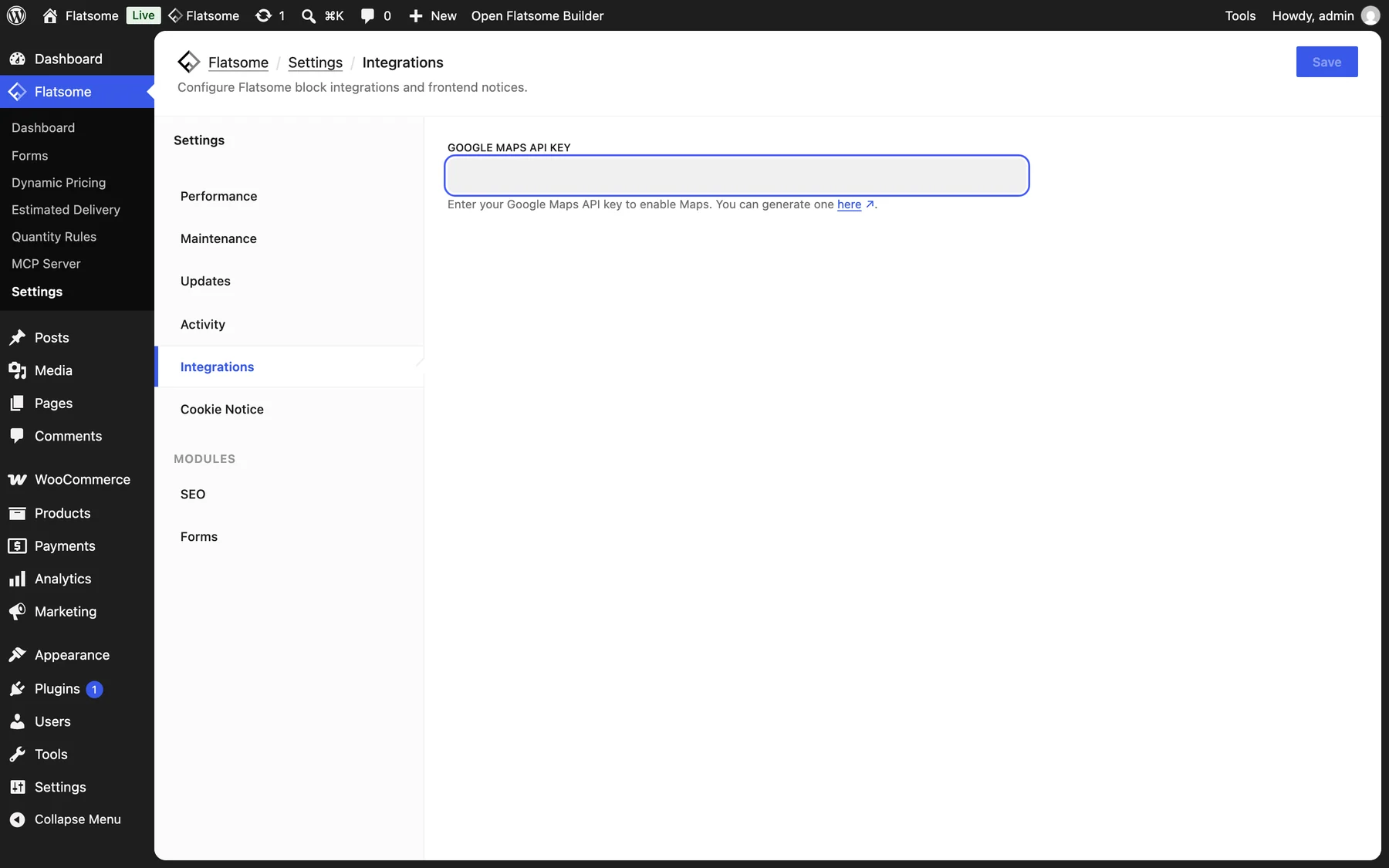
Add the API key
- Create a key in the Google Cloud console with the Maps JavaScript API enabled. Restrict it to your domain so nobody else can use it.
- Go to Flatsome → Settings → Integrations, paste it into Google Maps API Key, and save.
Place the map
- Insert the Map block.
- Enter Latitude and Longitude. Right-click your location in Google Maps to copy the coordinates.
- Set Zoom and Height, and turn off Pan if the map should stay put when visitors scroll over it.
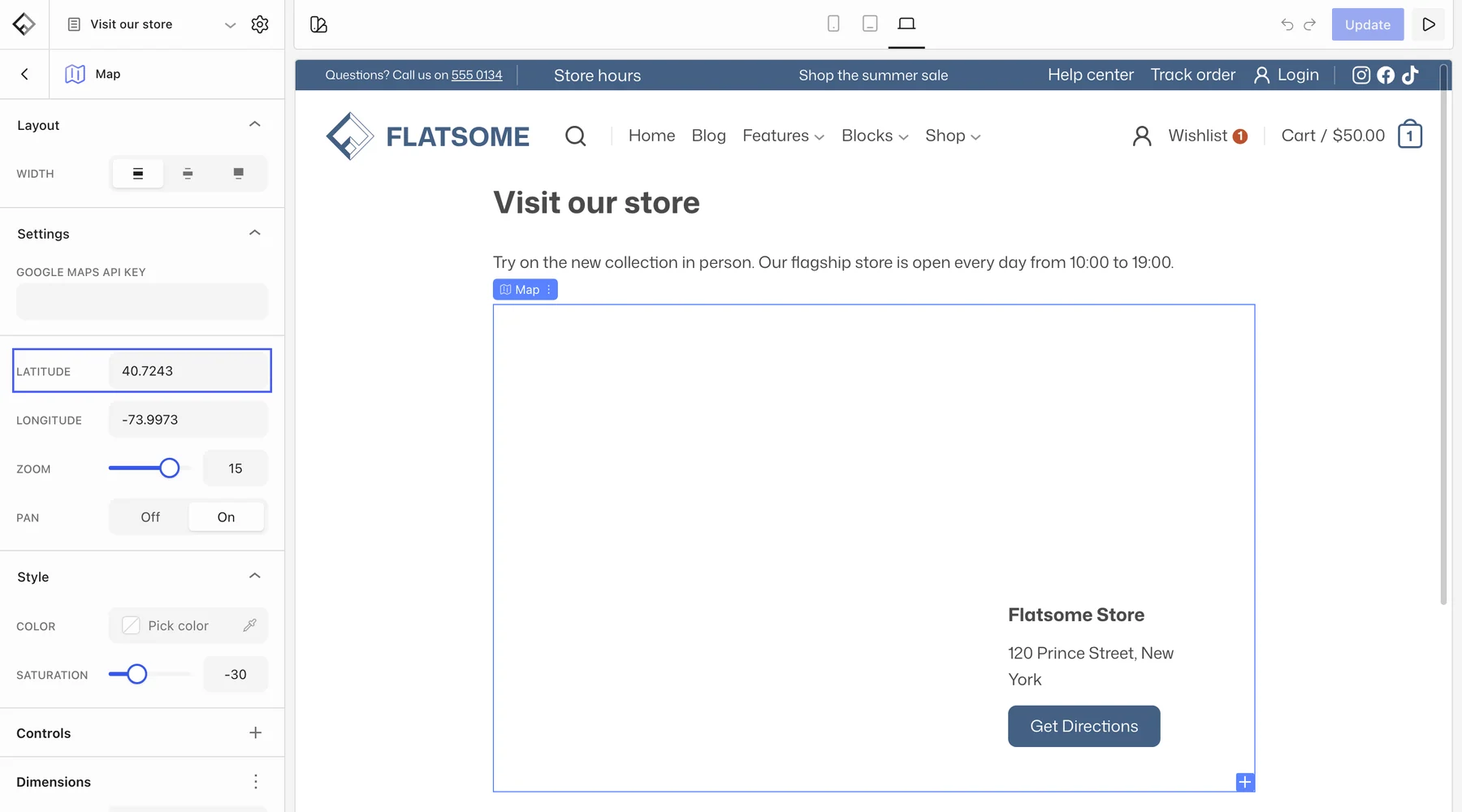
The marker sits at the coordinates you entered. Under Style, pick a Color tint and lower the Saturation for a muted map that fits the design. Controls lets you place or hide the zoom, map type, street view, and fullscreen buttons.
Add an overlay
Insert the Overlay block inside the map. It comes with a heading, a short text, and a Get Directions button; link the button to a Google Maps URL for your address. Set its Width and drag it into position.