


Every product page is rendered by the Single Product template. It is built from blocks, so the product page is edited like any other layout: move the gallery, add a section, remove what you do not need.
Open the template
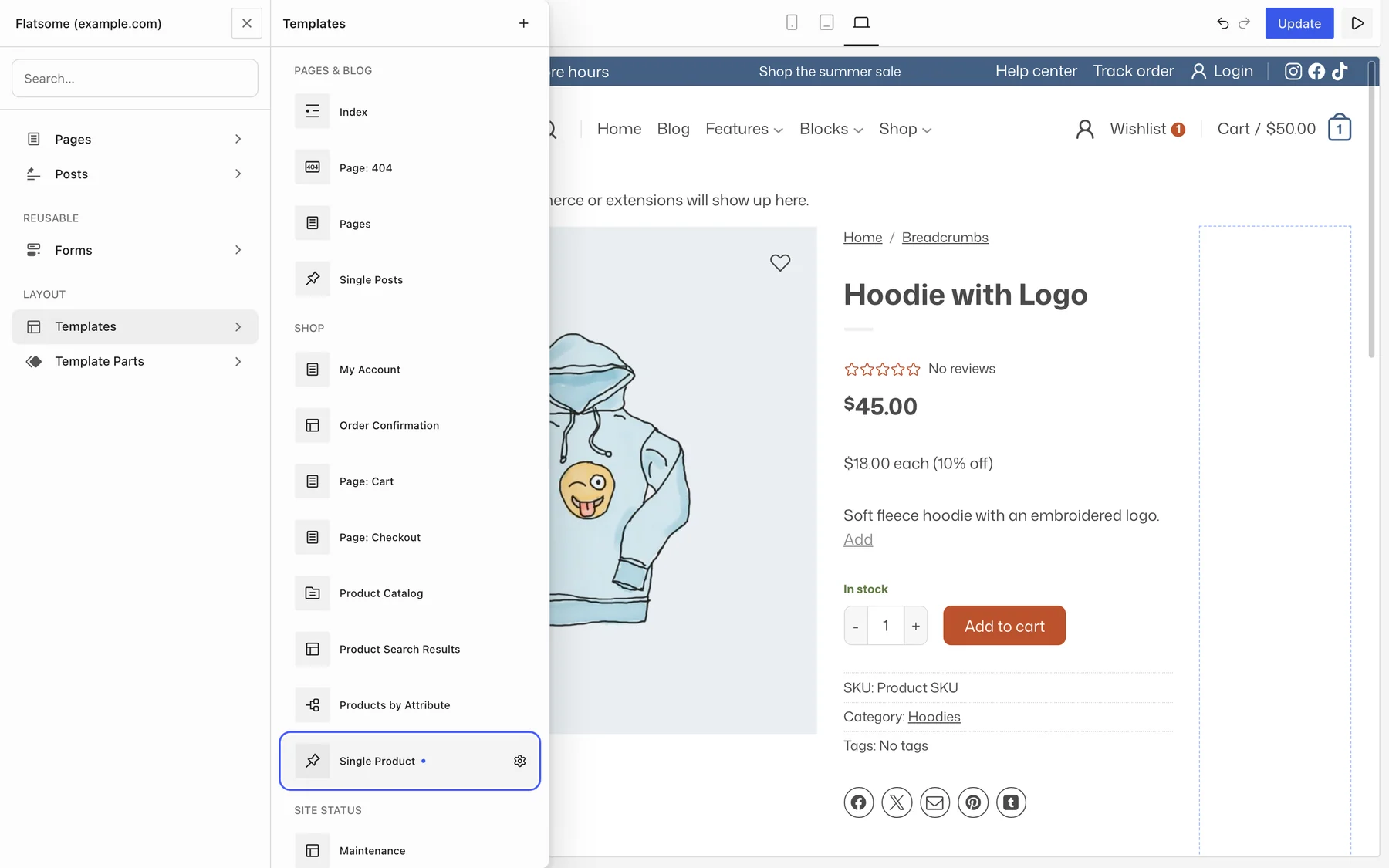
- Open the Flatsome Builder and choose Templates in the editor navigation.
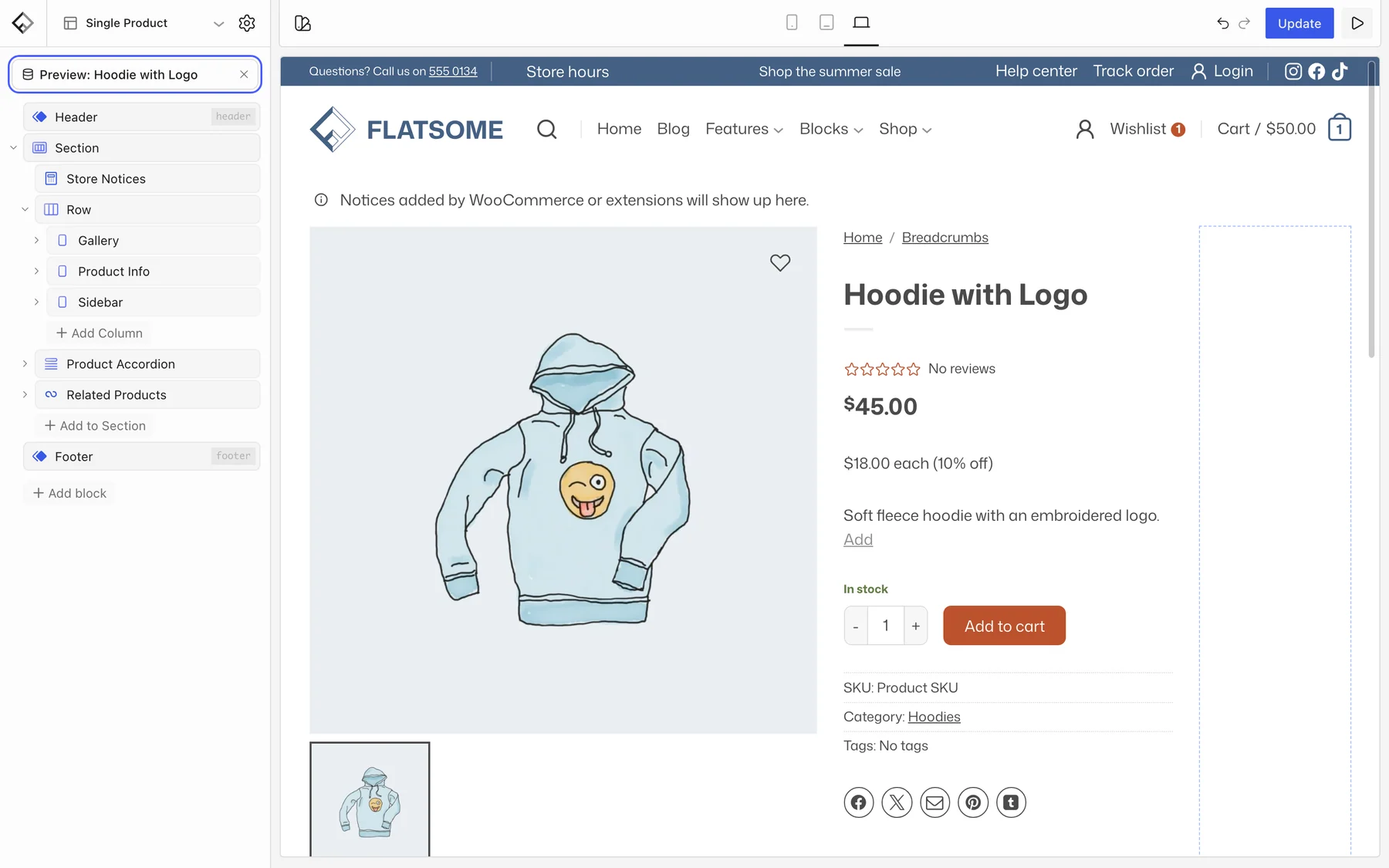
- Open Single Product. The canvas previews a real product, and you can switch which one with Choose preview.
What the template contains
The default layout is a Row with three columns, Gallery, Product Info, and an empty Sidebar, followed by a product accordion and related products below the Row. Each part is its own block, and all of them can be moved, styled, or removed:
- Product Gallery with thumbnails and a lightbox, and a Product Badge for sale and new labels.
- Post Title, Product Price, Product Rating, Excerpt for the short description, and Product Meta (SKU, categories, tags).
- Add to Cart with variation and quantity selection, plus optional Buy Now, Add to Wishlist, and Share Icons.
- Product Tabs or Product Accordion for the description, additional information, and reviews.
- Related Products, a WooCommerce Product Collection, and an optional Product Up-sells block, as a grid or slider.
Tabs and accordion
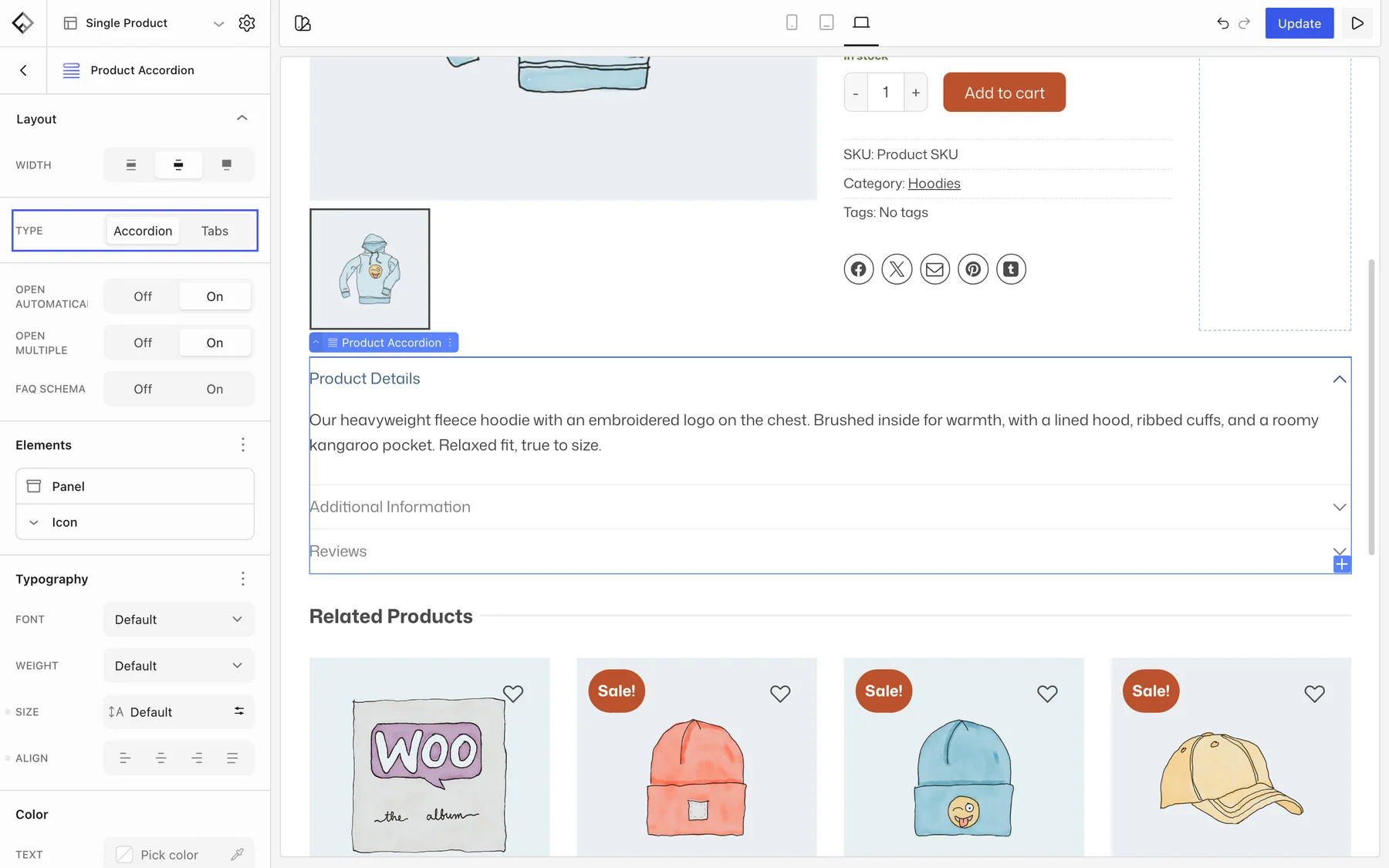
Product Tabs shows the WooCommerce product tabs horizontally or vertically, opened on click or hover. Product Accordion, used in the default template, shows the same content stacked, with settings to open the first panel automatically and to allow several panels open at once. Its Type setting switches between Accordion and Tabs, so swapping one for the other is a single setting. You can also place the description and reviews as separate blocks anywhere on the page. For extra content such as a size chart or shipping details, add a regular Tabs or Accordion block with your own text.
Related products and reviews
Related products are chosen by WooCommerce from shared categories and tags; up-sells are set per product in its Linked Products. To hide either, remove its block from the template. Reviews are turned off in WooCommerce → Settings → Products, or by removing the reviews block from the template.
A different layout for some products
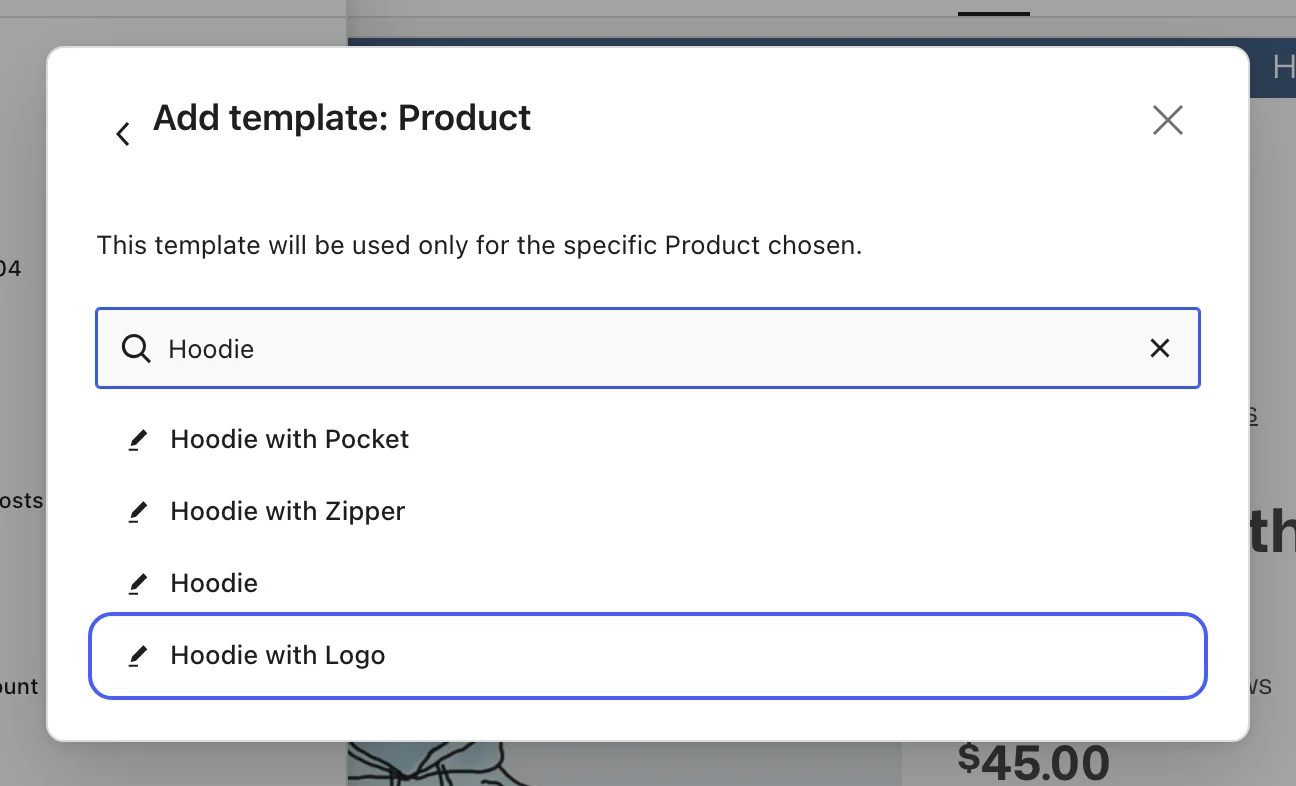
- In the Templates panel header, click the + (Add Template) button and pick Single item: Product.
- Search for the product and select it. The new template applies only to it; the Single Product template keeps handling the rest.
- Build the layout. Starting by copying the blocks from Single Product is usually quickest.
Quick view
The popup opened by the Product Quick View button in product grids has its own layout: Template Parts → Quick View. Keep it short, typically gallery, title, price, and add to cart.