


The cart, checkout, and account pages are ordinary WordPress pages whose content is WooCommerce’s own blocks. Flatsome wraps them in three templates you can edit, and adds the mini cart, checkout breadcrumbs, free shipping bar, and account menu.
Cart and checkout
Open Templates → Page: Cart or Templates → Page: Checkout in the Builder. Both hold the header, a Checkout Breadcrumbs block, the page content, and the footer. Show step numbers is on by default on the breadcrumbs; style the active step, numbers, and dividers under Elements. To remove the header or footer on checkout for a distraction-free flow, delete the template part from that template only.
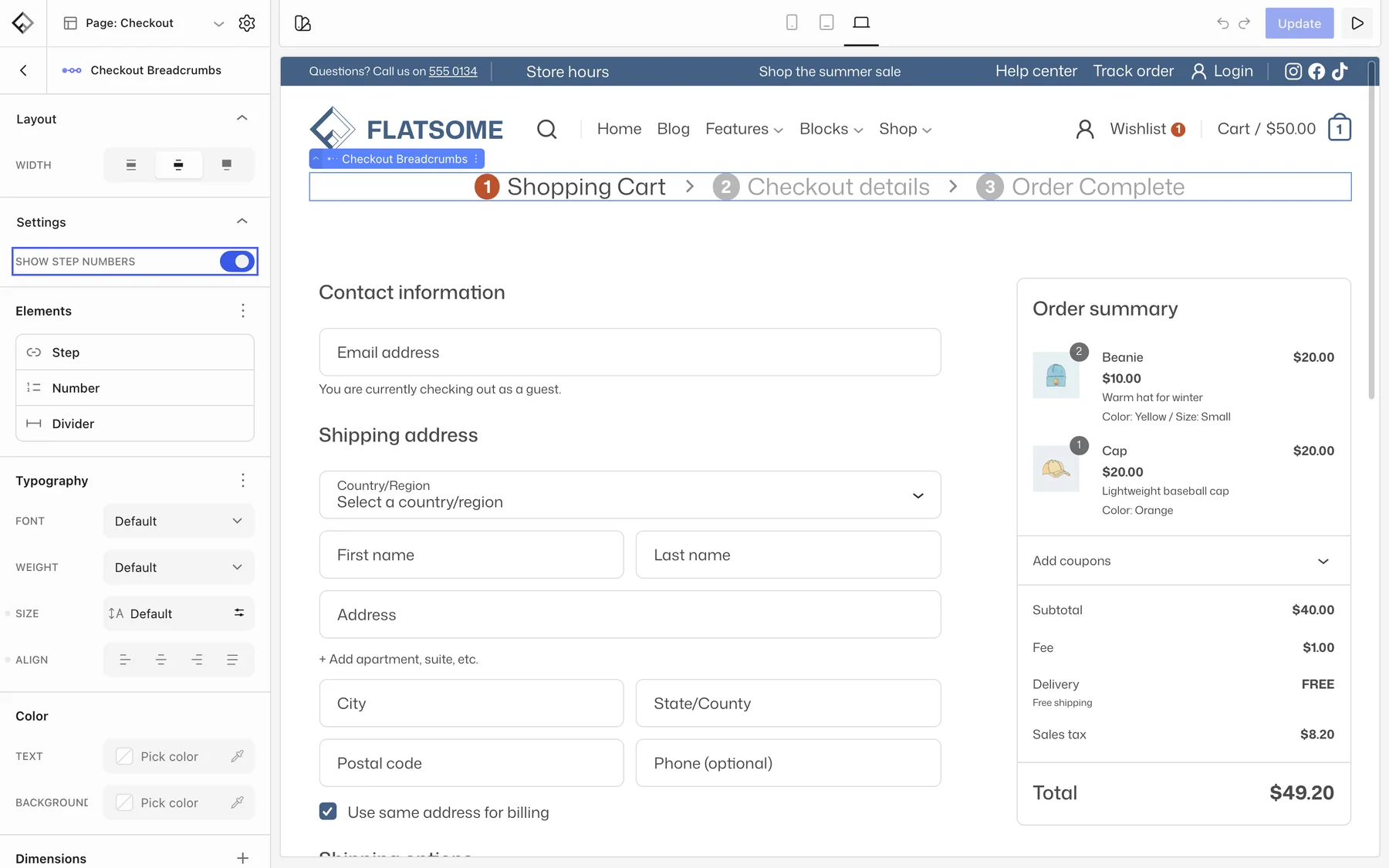
The fields and totals themselves are WooCommerce blocks; edit them on the Cart and Checkout pages under Pages.
Free shipping bar
Insert the Free Shipping block in the cart template, the checkout template, or the mini cart. It reads the free shipping threshold from your shipping zones and shows how much more to add, then a success message when the order qualifies. Style the bar through its inner Progress Bar block.
Mini cart
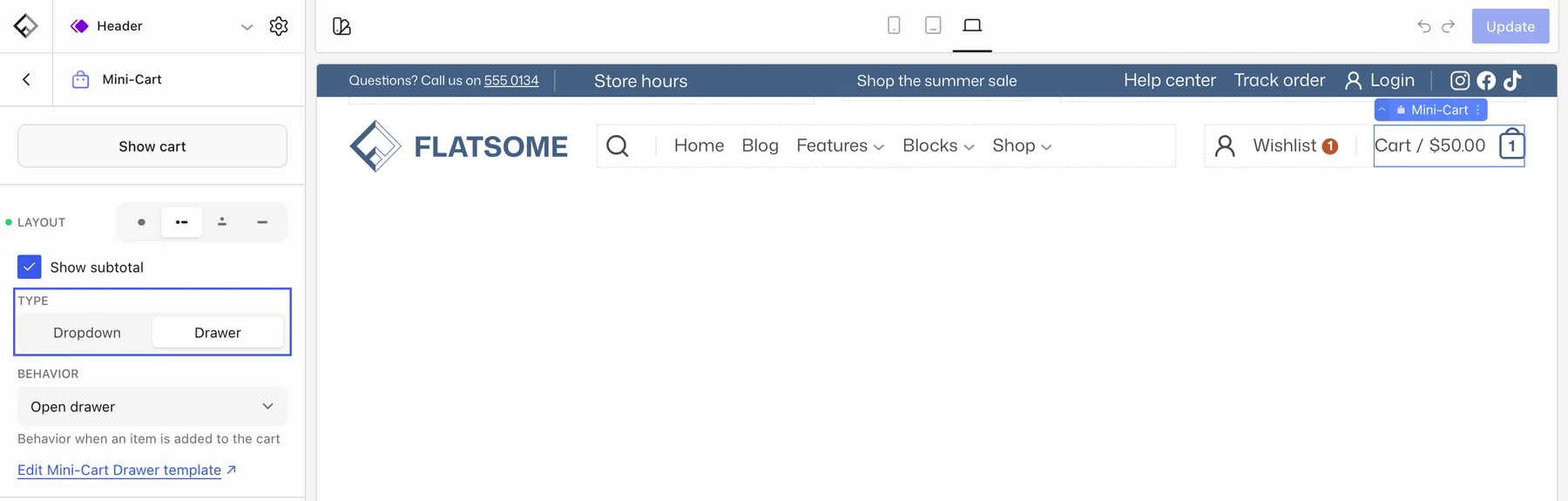
The Mini-Cart block in the header opens as a Dropdown or a Drawer. Set Behavior to open it automatically when an item is added, and style the item count under Indicator. What it contains is the Mini-Cart template part under Shop: a heading, the items list with quantity steppers, an empty state with a shop button, and a footer with the subtotal and cart and checkout buttons. Add a Free Shipping block or a small Products slider with recommendations there.
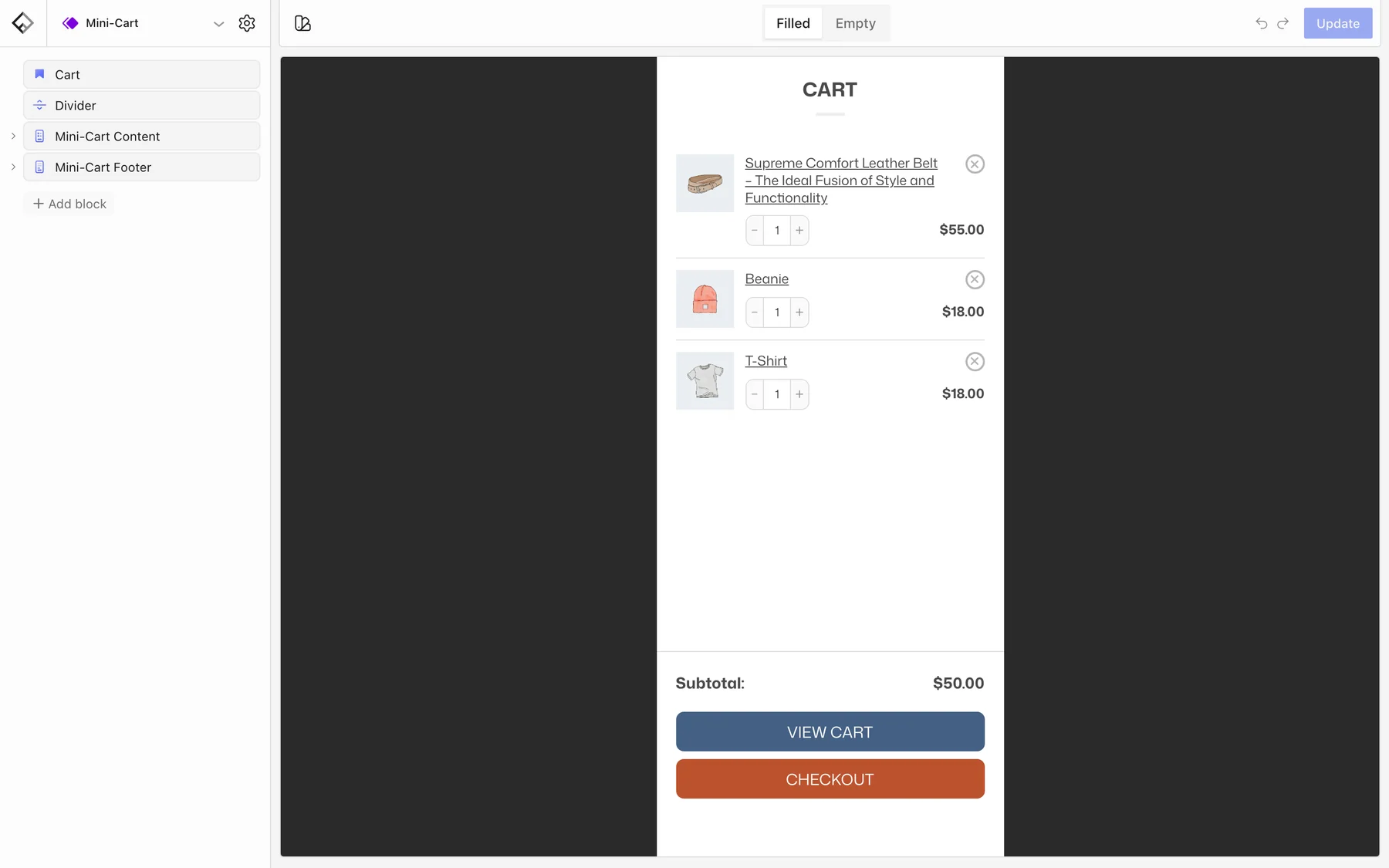
To open the template part from your site, hover Edit with Flatsome Builder in the admin bar while logged in and choose Edit Mini-Cart.
My account
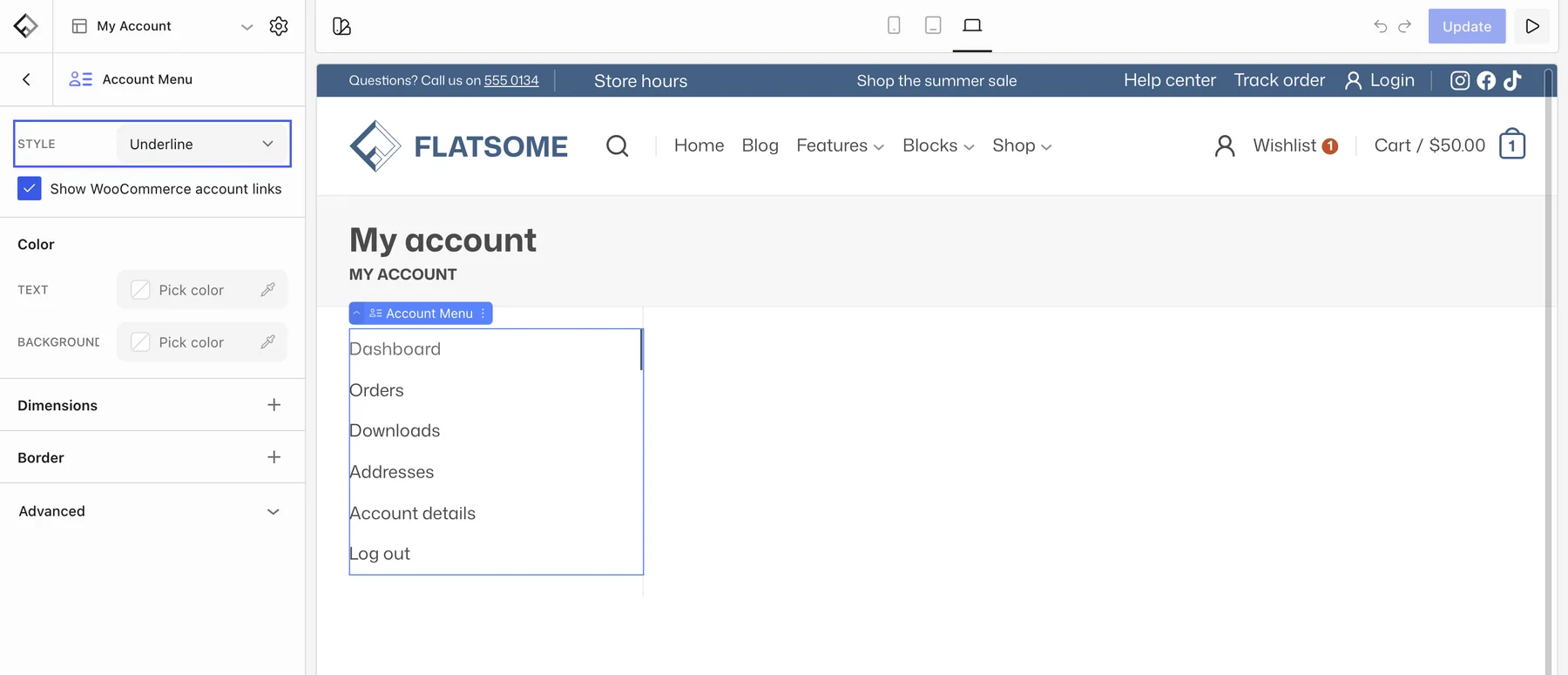
Open Templates → My Account. It shows a page header, then the Account Menu beside the account content. Pick a Style for the menu and add your own links, for example to a wishlist or a loyalty page. Which tabs exist, such as Orders and Downloads, is decided by WooCommerce under WooCommerce → Settings → Advanced → Account endpoints; clear an endpoint to remove its tab.
The Account Nav Item in the header opens a login popup by default; in its Login panel, set Type to Link to go to the account page instead.