


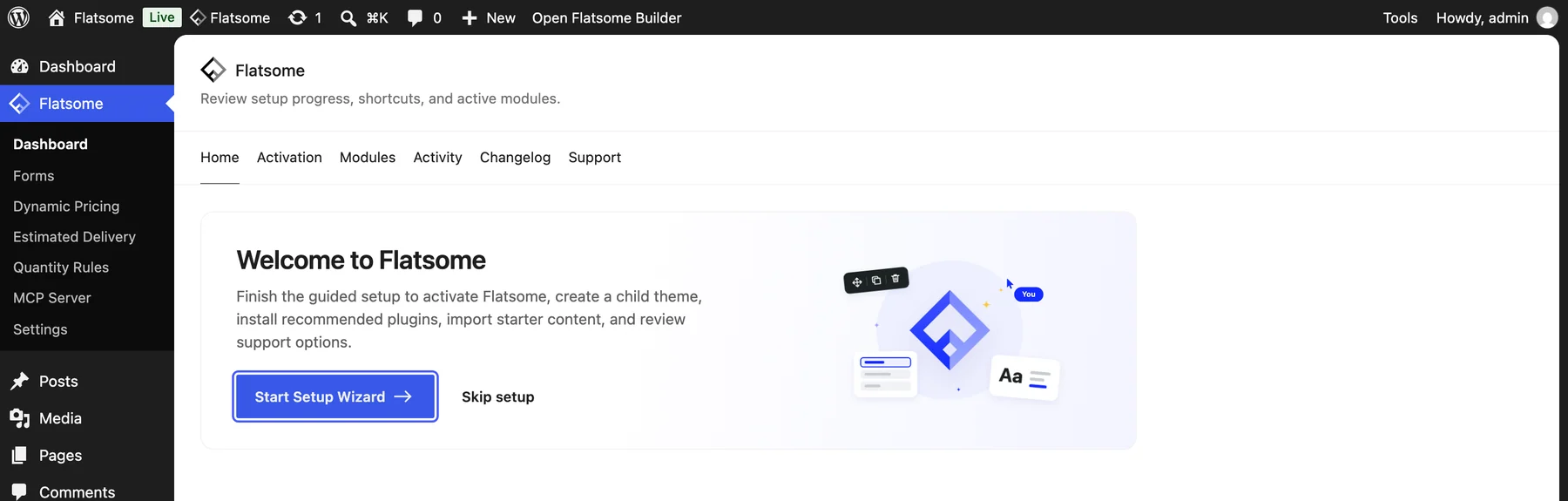
The setup wizard prepares a new site in a few minutes. It opens by itself after the theme is activated, and you can return to it from the Start Setup Wizard button on Flatsome → Dashboard while setup is unfinished. Every step can be skipped and done later from the Flatsome admin.
The steps
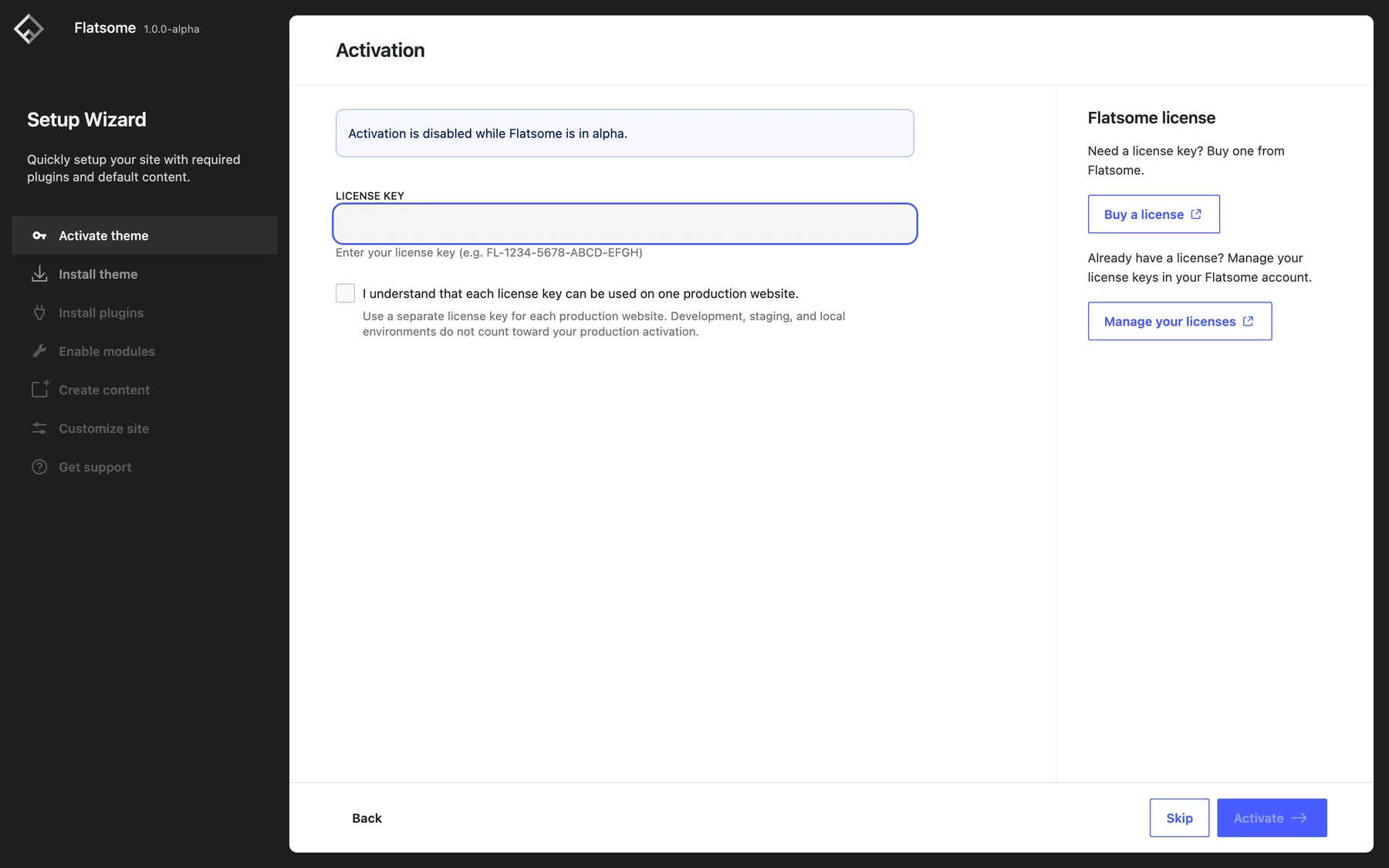
- Activate theme: enter your license key. This registers the site and unlocks updates. See Activate your license.
- Install theme: the wizard installs and activates Flatsome Block Theme for you if it is missing, and can create a child theme.
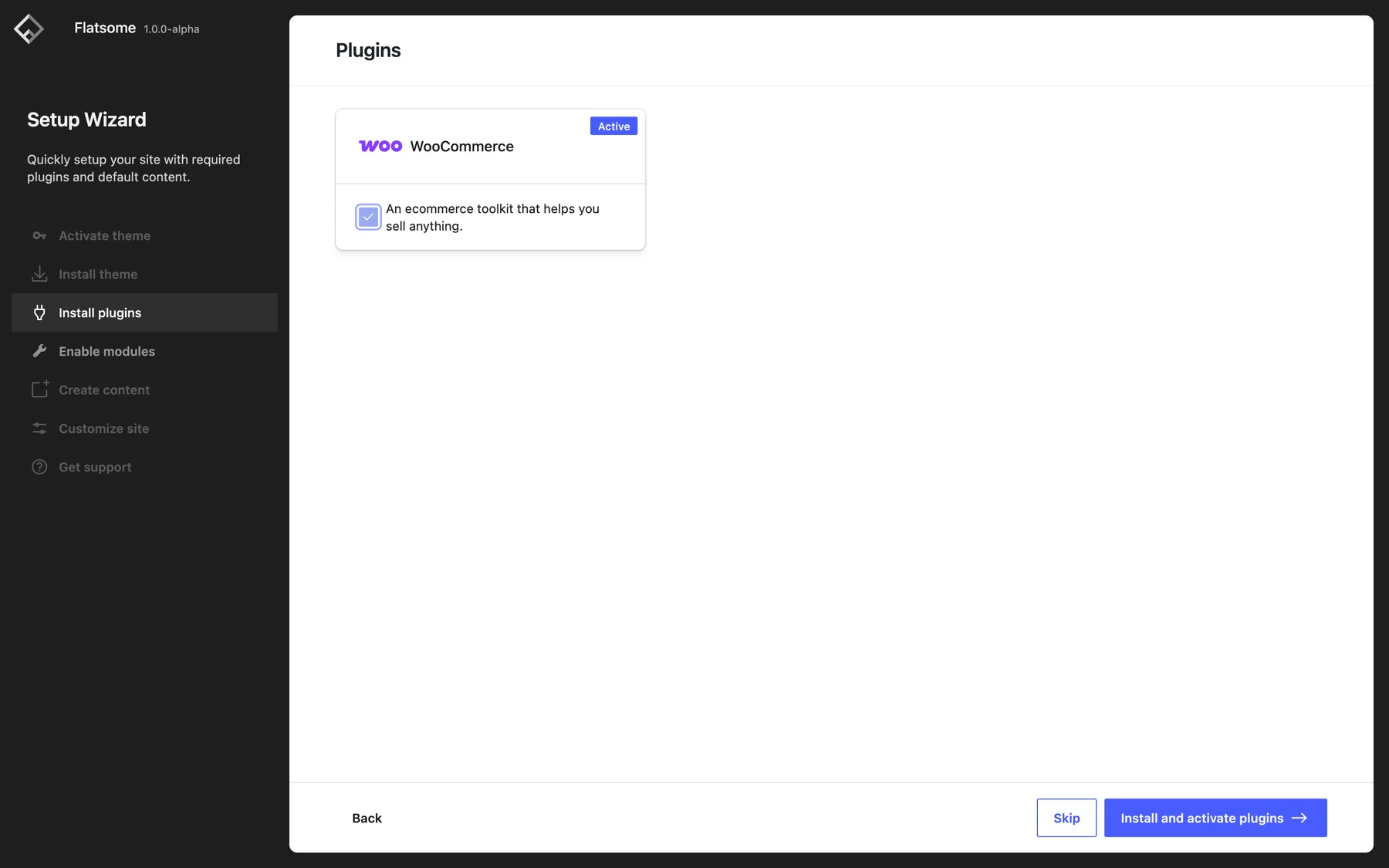
- Install plugins: WooCommerce is offered here. Leave it unchecked for a site without a store.
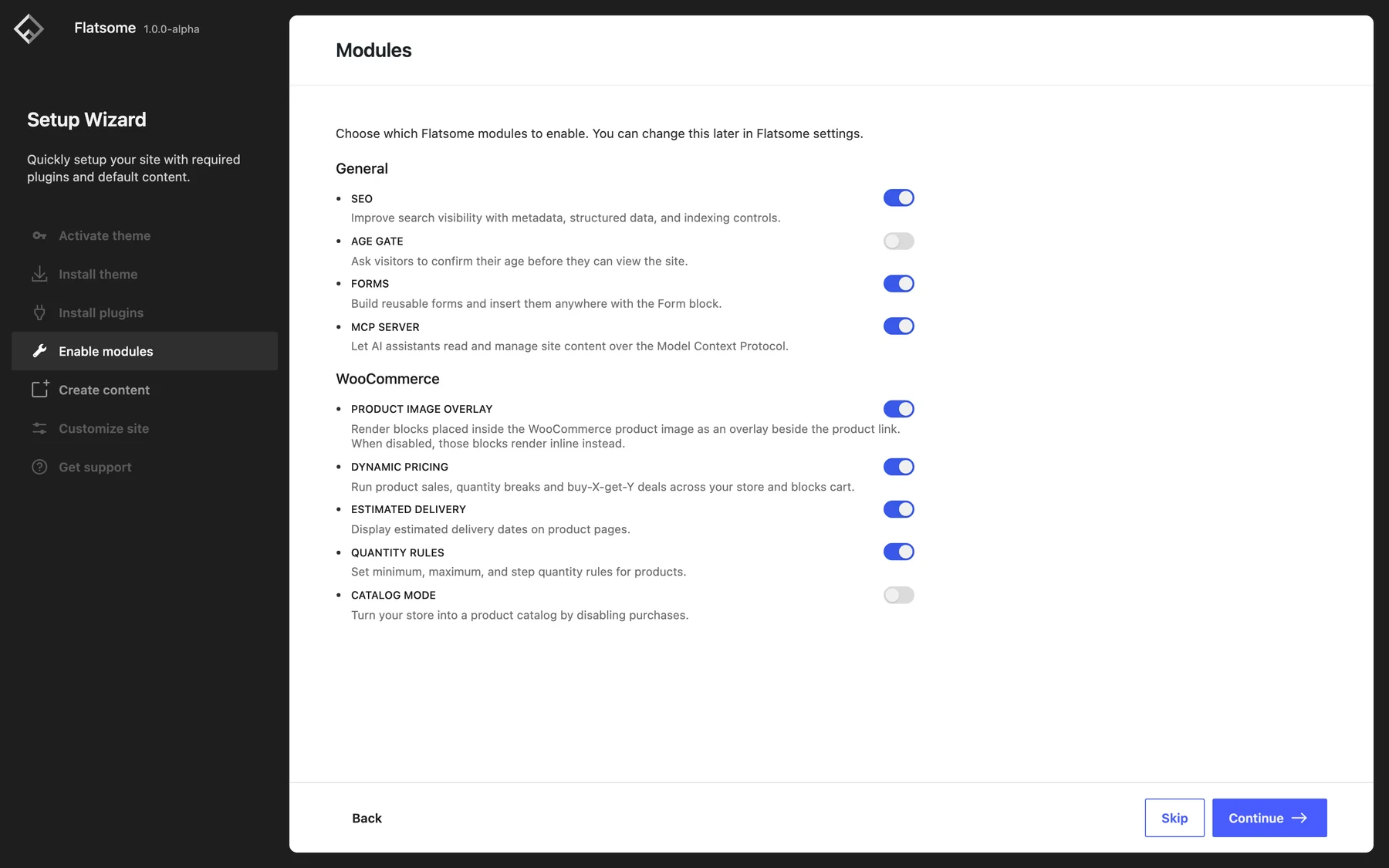
- Enable modules: switch on the optional features you plan to use, such as Forms, SEO, or the MCP Server. Anything can be changed later on the Modules tab of Flatsome → Dashboard.
- Create content: pick a demo site to import. The wizard previews each demo live, and importing brings in its pages, templates, header, footer, menus, patterns, and global styles. You can also skip this and start from an empty site.
- Customize site: upload your logo and set the primary, secondary, success, and error colors.
- Finish: visit the site or go to the Flatsome dashboard.
Coming from Flatsome Classic
When the plugin is activated on a site running the Flatsome Classic theme, the wizard shows a Migrate from Classic step instead. It installs the migration tool that converts the existing content to blocks. See From Flatsome Classic.
Do I need a child theme?
Usually not. Templates, template parts, global styles, and custom CSS are all edited in the Builder and stored in the database, so theme updates never overwrite them. Create a child theme only if you plan to add PHP code or override template files.