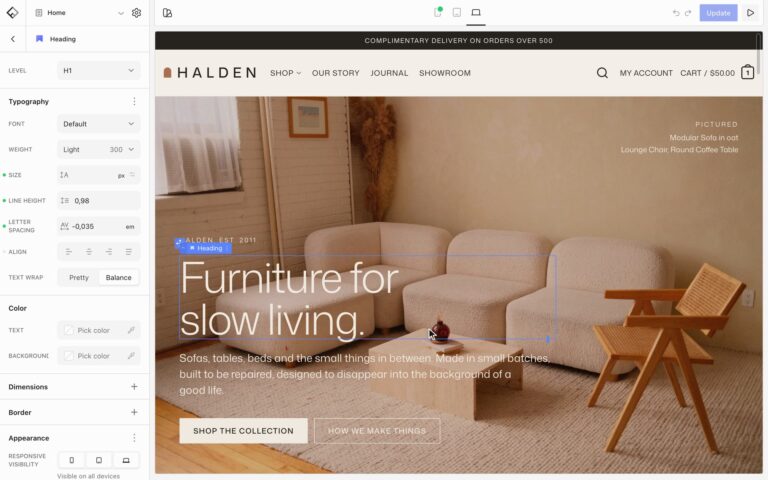
Each page has one design that adapts to the screen it is viewed on. What you set on desktop applies to every screen size. When something should look different on a tablet or a phone, change it for that size only, and the desktop design stays as it is.
Preview a screen size
The device buttons in the middle of the top bar switch the canvas between Mobile, Tablet, and Desktop. The canvas shows the page the way visitors on that screen size see it, and the settings in the sidebar now edit that size.

Change a setting for one size
Preview Tablet or Mobile, select a block, and change a setting. The new value applies to that size and smaller, while desktop keeps its own. A value you set on Tablet also applies to phones, unless you set another one on Mobile.
Settings that can differ per size have a small dot next to their name. An orange dot means nothing is set for this size yet, so the setting shows the value from a larger size. Here the heading uses its desktop size on phones:
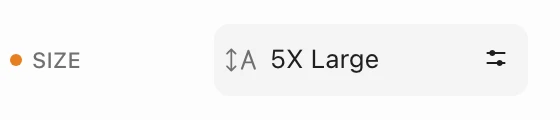
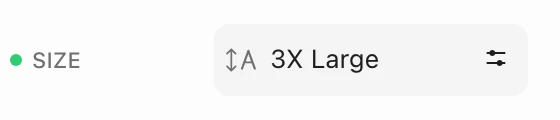
Change the setting and the dot turns green: the setting now has its own value for this size and smaller. Select the green dot to remove it, and the setting goes back to the value from the larger size.
The device button in the top bar also shows a green dot when the selected block has its own values for that size.

Settings that often change on phones are font size, spacing, alignment, column width, the number of columns and the gap in grids, and the direction of Flex blocks.
Show a different image on phones
An Image block can show a different image on each screen size, such as a wide photo on desktop and a portrait crop on phones.
- Select the Image block and choose the image for desktop. The first image you choose applies to every screen size.
- Switch the preview to Mobile or Tablet and choose another image in the Image setting. It replaces the desktop image on that size and smaller.
- To show the desktop image again on that size, select the green dot next to Image.
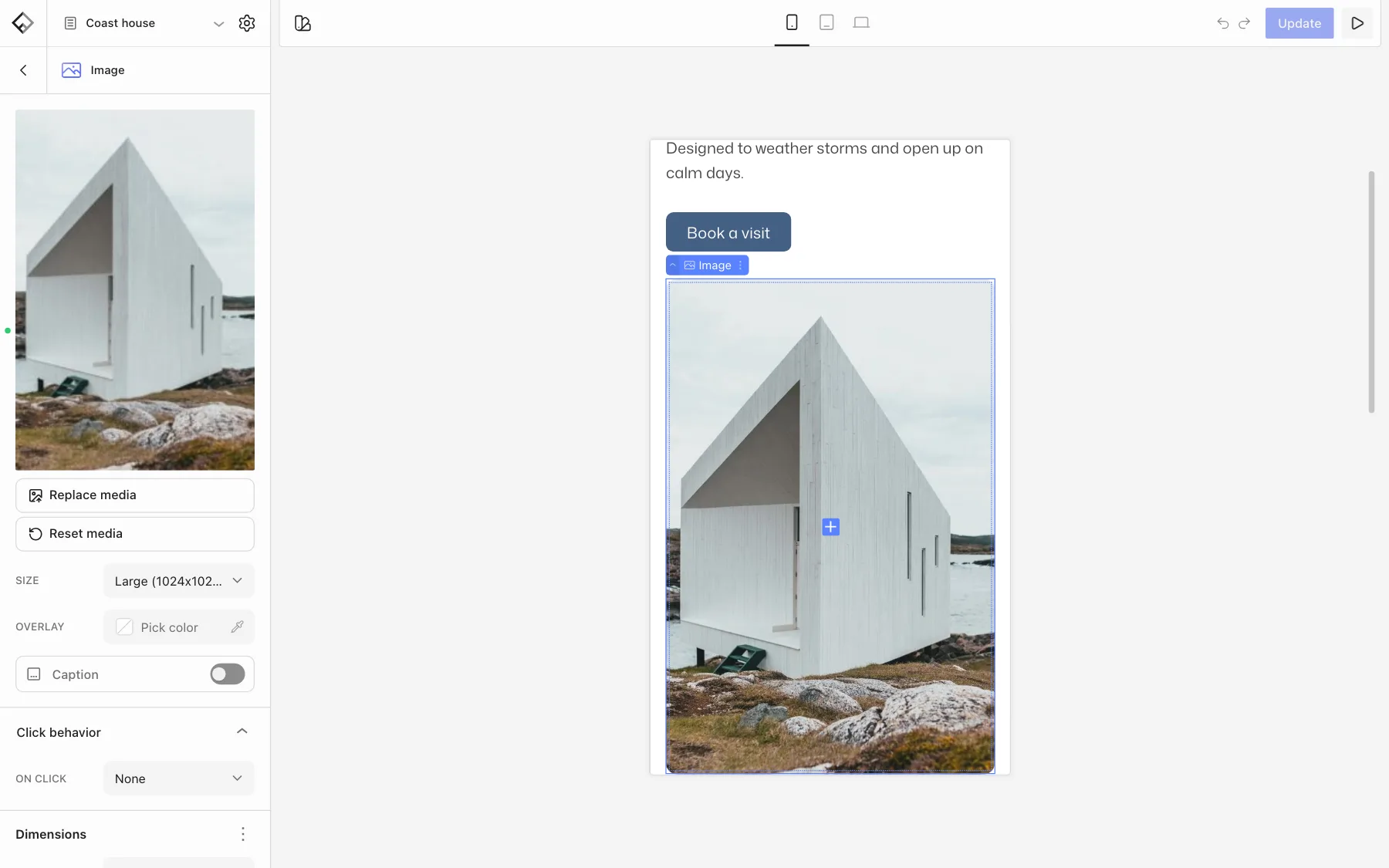
Visitors only download the image for their screen size. The alt text, caption, lightbox, and link come from the desktop image, so write alt text that describes every version. Removing the desktop image removes the other versions too. Background images in Section and Banner blocks can’t change per screen size yet.
Hide a block on some screen sizes
Select the block and find Responsive visibility in the Appearance panel. Turn off the screen sizes where the block should be hidden. The text below the buttons confirms the result, for example Visible on tablet and desktop.
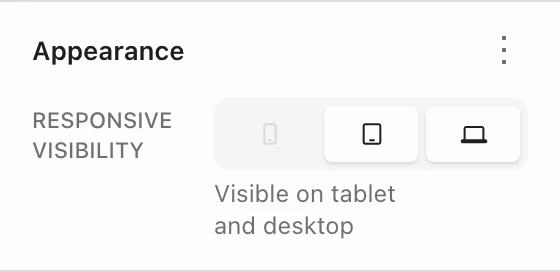
A hidden block is still part of the page, and images inside it can still download. To swap a photo on phones, give one Image block a different image for Mobile instead of using two Image blocks hidden on different sizes.
See what is hidden
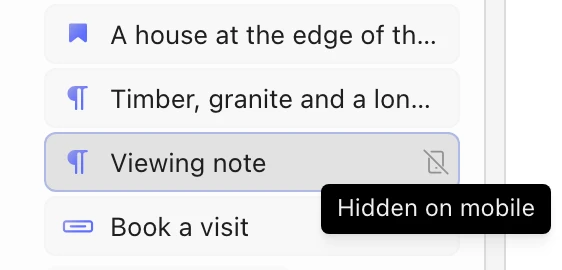
A hidden block disappears from the canvas while you preview a size it is hidden on. It is still listed in the sidebar’s list of blocks, with a mark after its name, so you can select it there. Hover the mark to see where the block is hidden, for example Hidden on mobile, Mobile only, or Hidden on all devices.
More examples
- Edit the header: place the logo on the left on desktop and in the center on phones.
- Set up the mobile menu: choose what the header shows on phones.