


The Products Query block lists products on any page or template as a grid or a slider. Each product is a card built from blocks, so the layout of the card is as editable as the query behind it.
Add the block
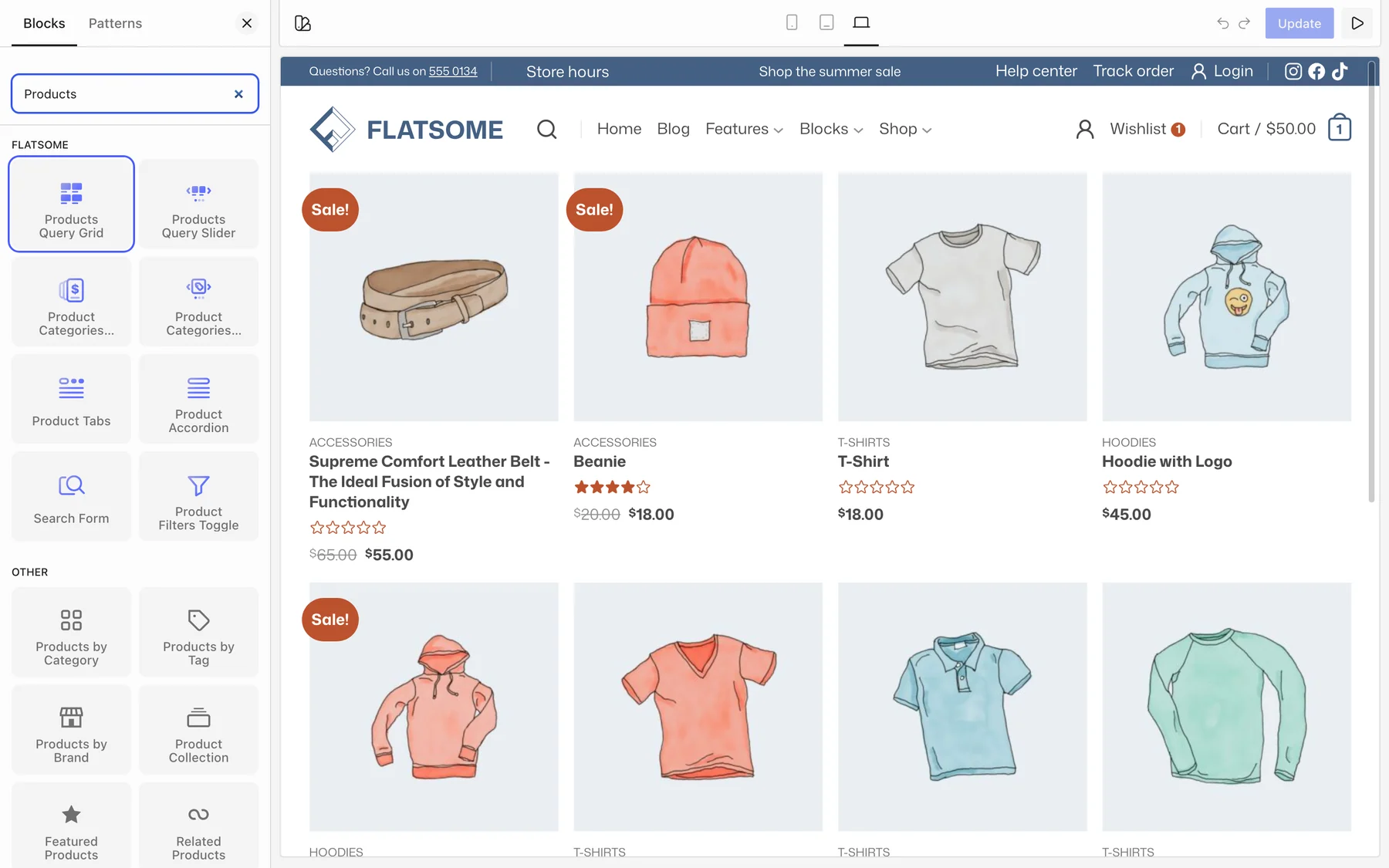
- Insert Products Query Grid or Products Query Slider.
- Under Query, narrow it by Category or Tag and set Products per page.
- Set Show to Featured or On sale to limit the list, and Out of stock to Exclude if sold-out items should not appear.
- Pick Order by: Date for newest, Popularity for best sellers, Rating, Price, Title, Menu order, or Random.
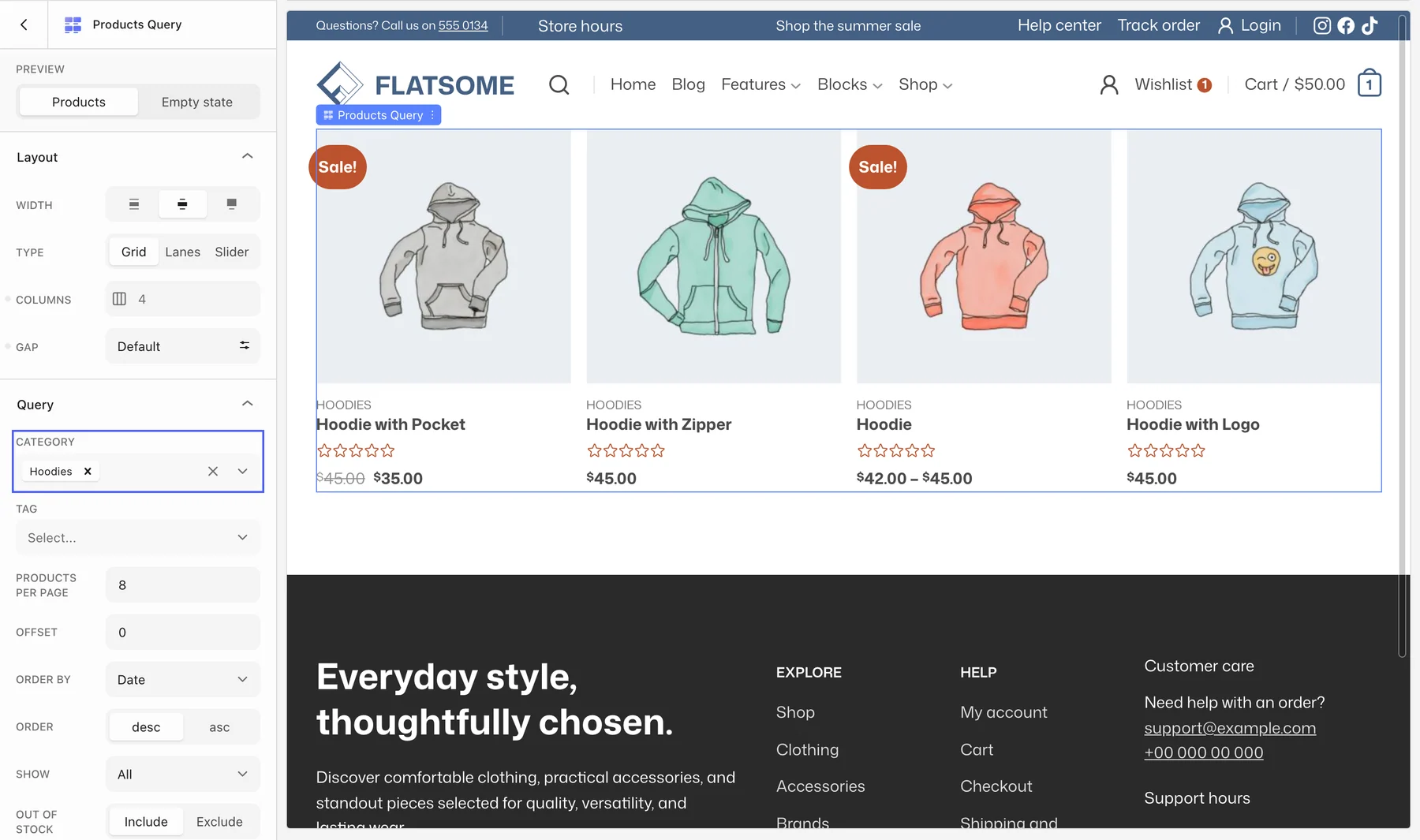
Featured products are the ones starred in the product list under Products, which is the easiest way to hand-pick what a block shows.
Layout
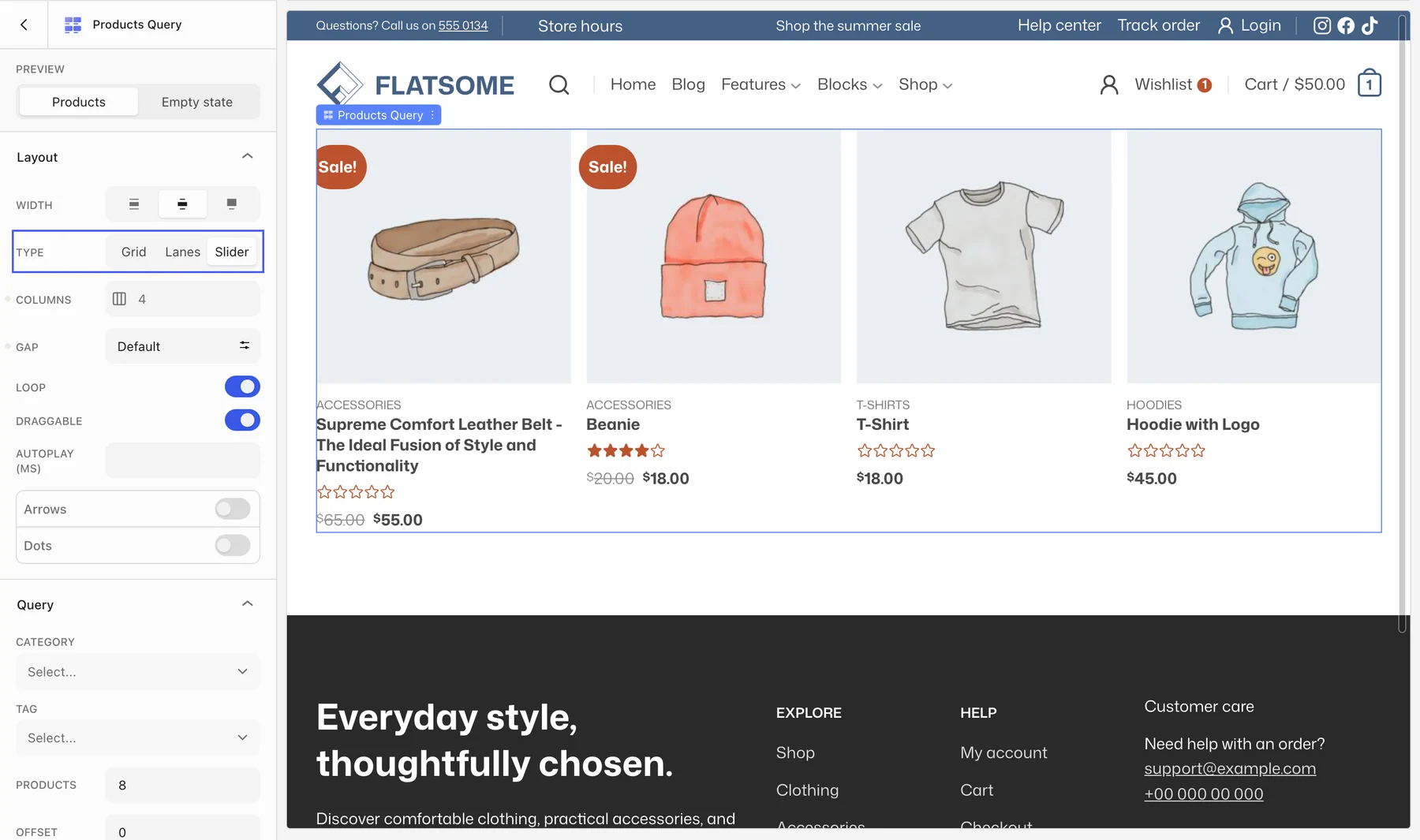
- Type switches between Grid, Lanes (masonry), and Slider at any time.
- Columns and Gap are set per breakpoint, for example 4 on desktop and 2 on phones.
- Sliders add Loop, Draggable, Autoplay (ms), Arrows, and Dots.
The product card
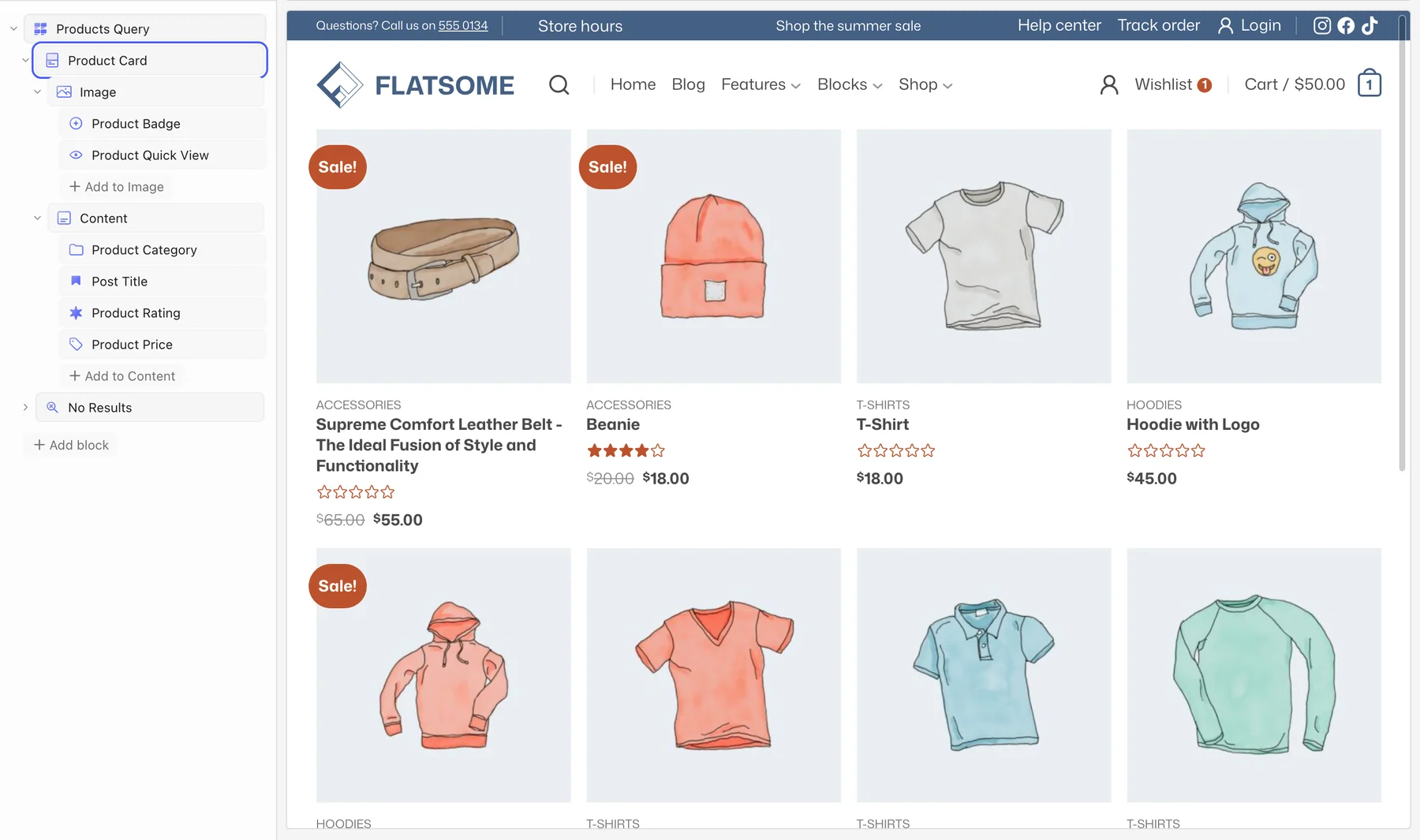
The first card is the template for all of them. It is a Product Card that holds an Image with a Product Badge and Product Quick View button, and a Content area with Product Category, Post Title, Product Rating, and Product Price. Remove what you do not need, add Add To Cart, Add to Wishlist, or Product Short Description, and change the image aspect ratio and hover effect on the Image.
The same card design can be reused on the shop page. See Customize the shop and category pages.