States let one section show different content without leaving the page: a monthly and a yearly price, a before and after photo, or FAQ topics. A Section or Row holds the states, a State Switcher block lets visitors pick one, and Display conditions decide which blocks show in each state.
Add states
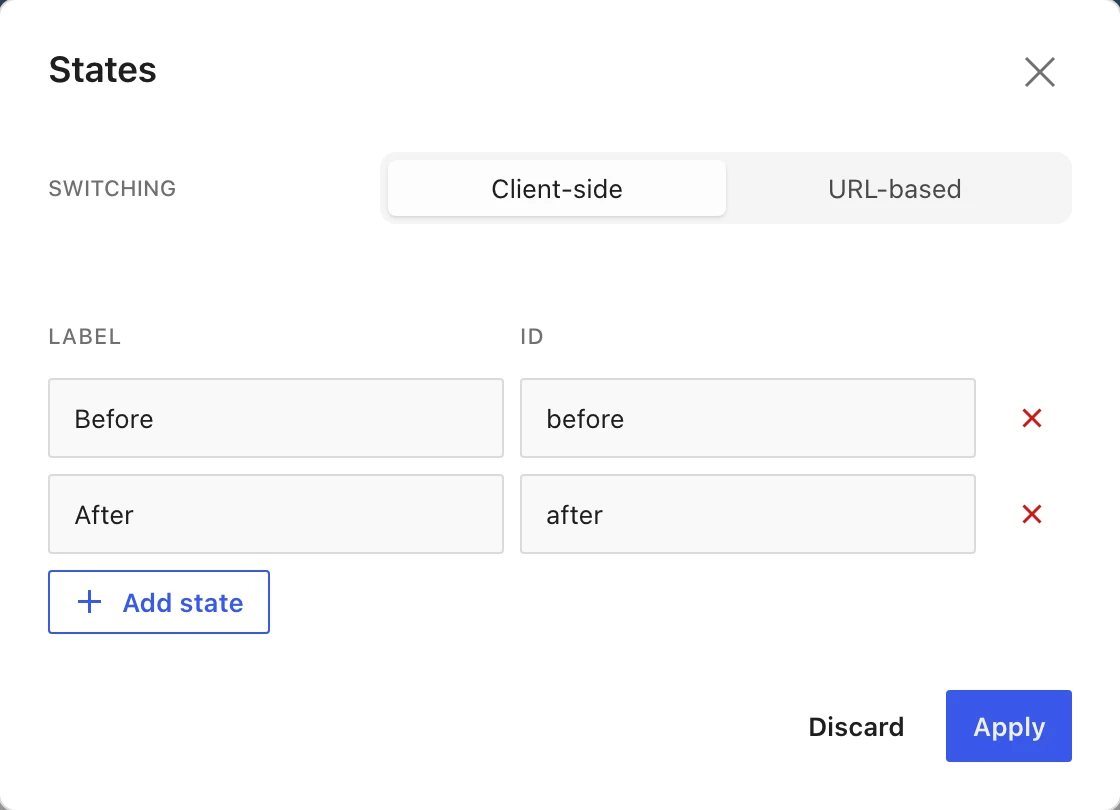
- Select the Section or Row, open Advanced, and choose Add states.
- Give each state a Label and an ID. Each ID must be unique.
- Choose Switching: Client-side switches instantly without reloading the page. URL-based reads the state from a URL parameter, so a link can open a specific state.
- Choose Apply.
Let visitors switch
Insert a State Switcher block inside the Section or Row. It shows a button for each state. It only works inside a block that has states.
Show blocks for a state
- Select a block inside the Section or Row and open Advanced.
- Under Display conditions, add a condition and pick the state, with is or is not.
- Use Add condition for more, and switch between AND and OR. Conditions combine from left to right.
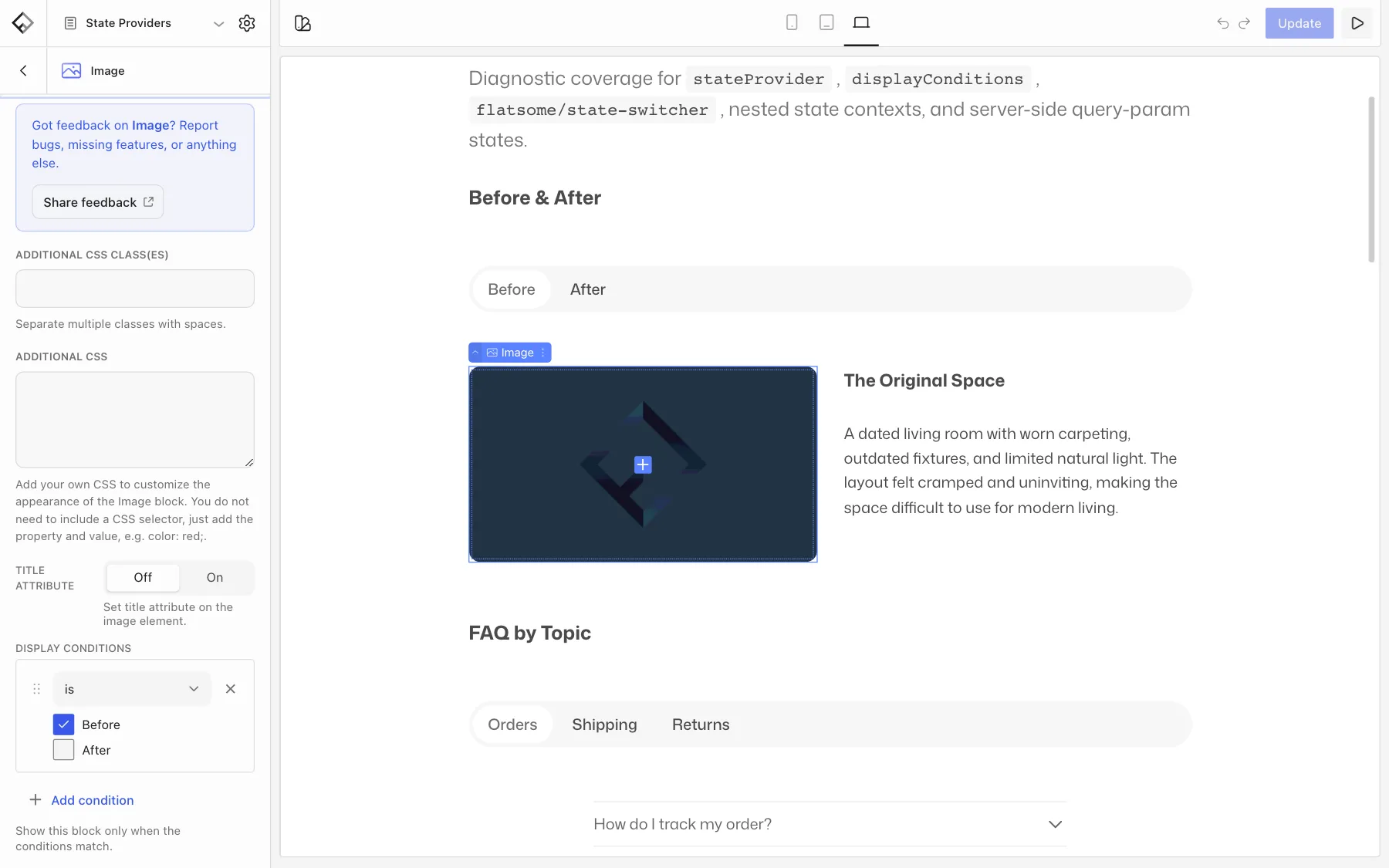
In the Builder, the canvas shows the blocks for the active state. With URL-based switching, blocks for other states are left out of the page. With client-side switching, they are on the page but hidden until their state is picked.