


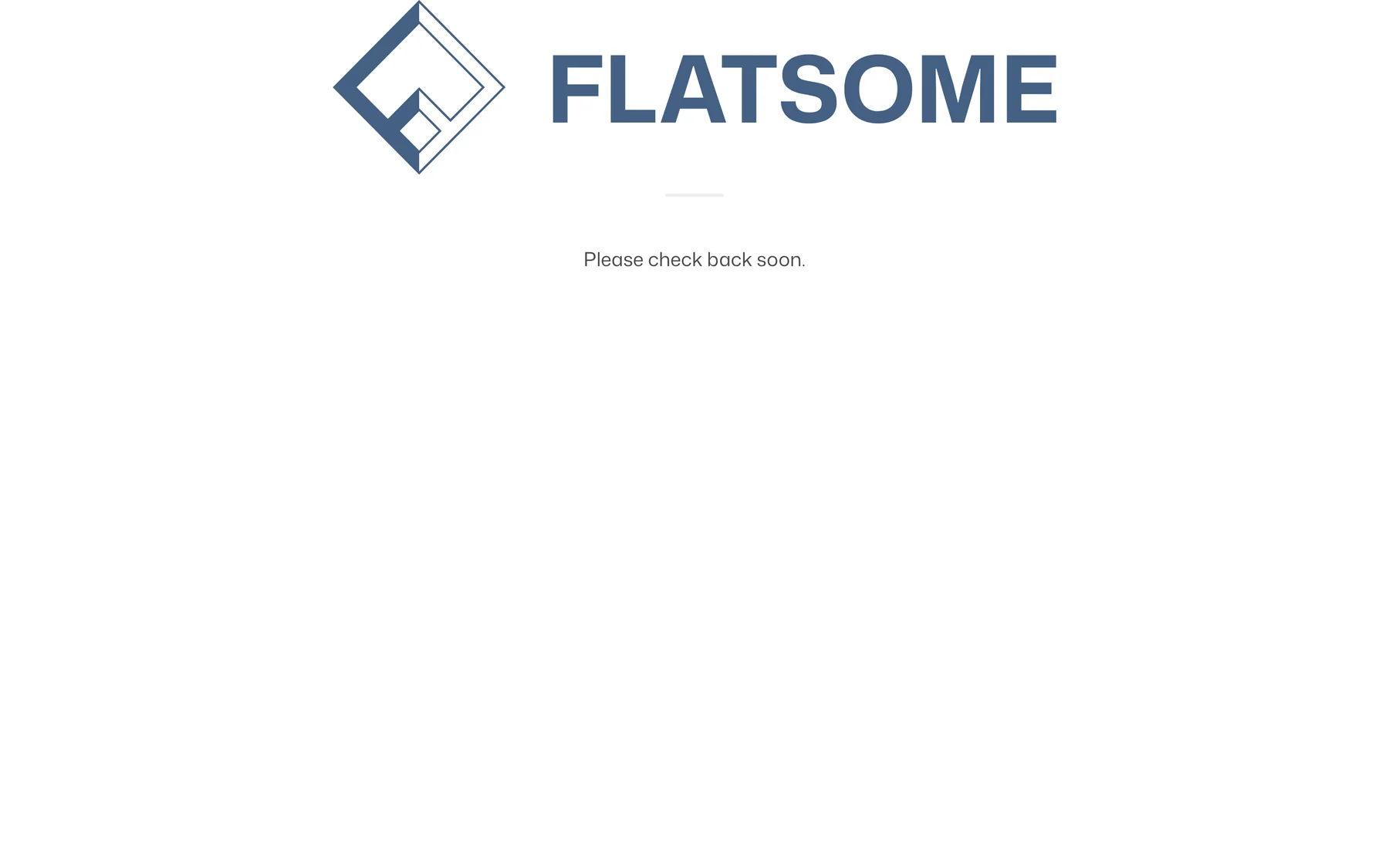
Maintenance mode hides the site behind a single page while you build or rework it. Visitors see the maintenance template, search engines get a temporary unavailable status, and you keep full access while logged in.
Turn it on
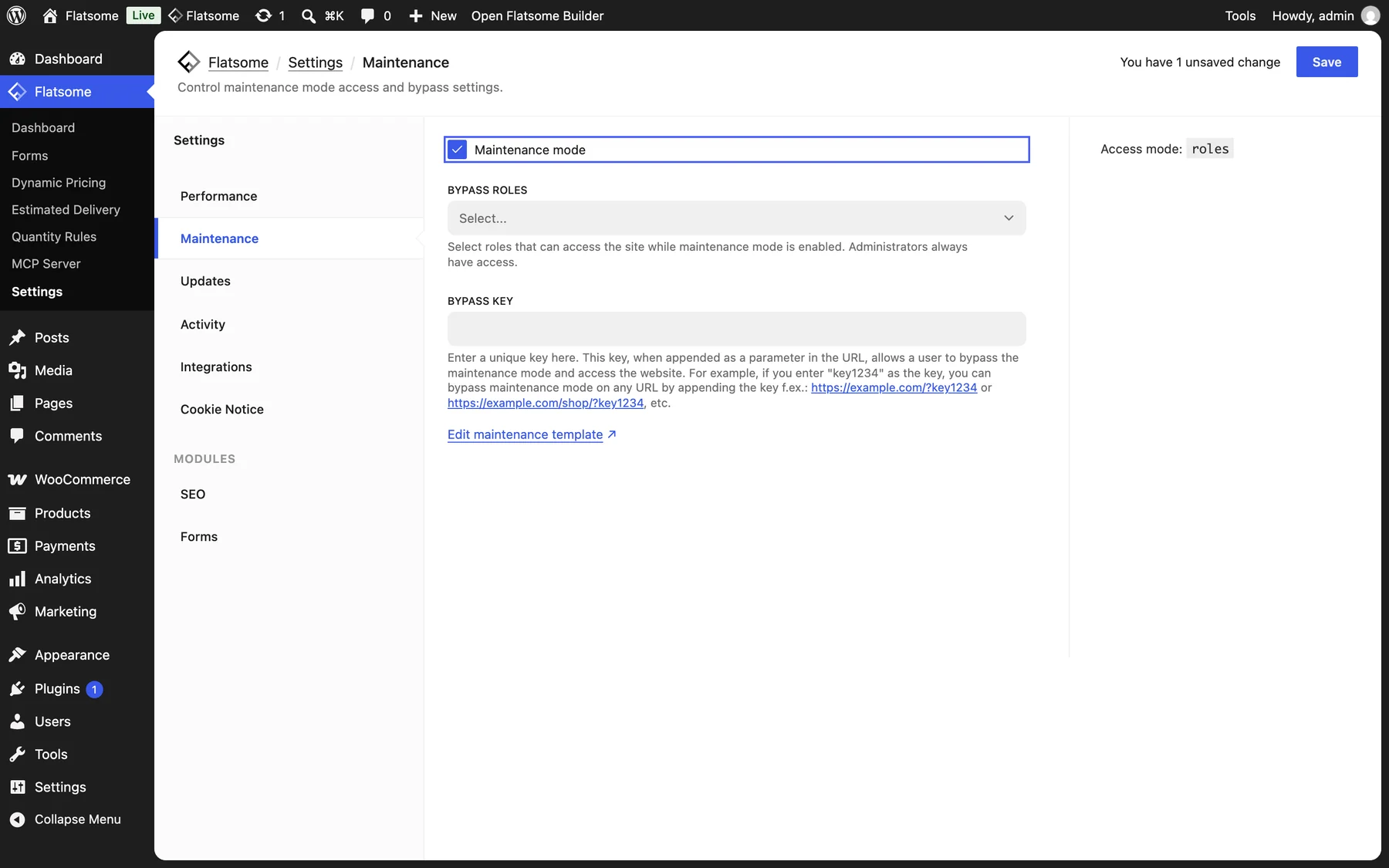
- Go to Flatsome → Settings → Maintenance.
- Check Maintenance mode and save.
- Open the site in a private window to confirm visitors see the maintenance page.
Who can still see the site
- Bypass roles: user roles that see the real site when logged in. Administrators always have access.
- Bypass key: a word that unlocks the site for anyone who appends it to a URL, for example
https://example.com/?key1234. Share it with a client or reviewer who has no account. Once used, links on the site carry the key along so they can browse normally.
Logging in, the admin, the REST API, and cron keep working, so editors and connected tools are not affected.
Design the page
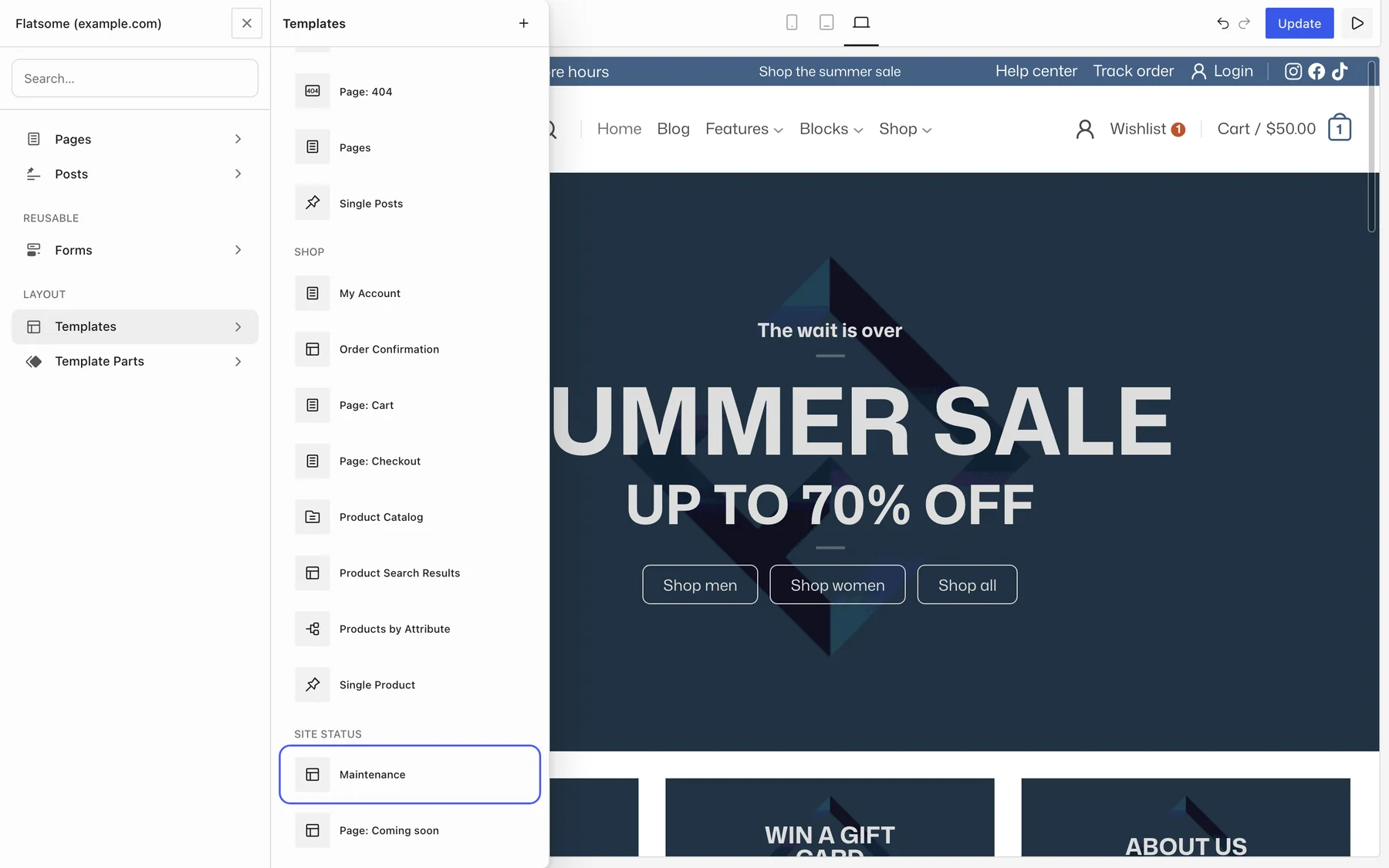
Choose Edit maintenance template on the settings screen, or open Templates in the Builder and choose Maintenance under Site Status. The default template shows the site logo and a short “check back soon” message without header or footer. Replace the text, add a countdown or a newsletter form, and save. It is an ordinary template, so any block works.
Caching
Flatsome clears WP Super Cache, W3 Total Cache, and Cachify when the mode changes. With another cache plugin or a host cache, clear it manually after turning maintenance mode on or off.