


Site-wide CSS lives in the CSS screen in the Builder’s Styles panel. It is saved with your other global styles, loaded on every page, and kept when you update Flatsome.
Add CSS
- Open any page in the Flatsome Builder and choose Styles (the palette icon) in the top toolbar.
- Choose CSS.
- Write your CSS in the code editor and save.

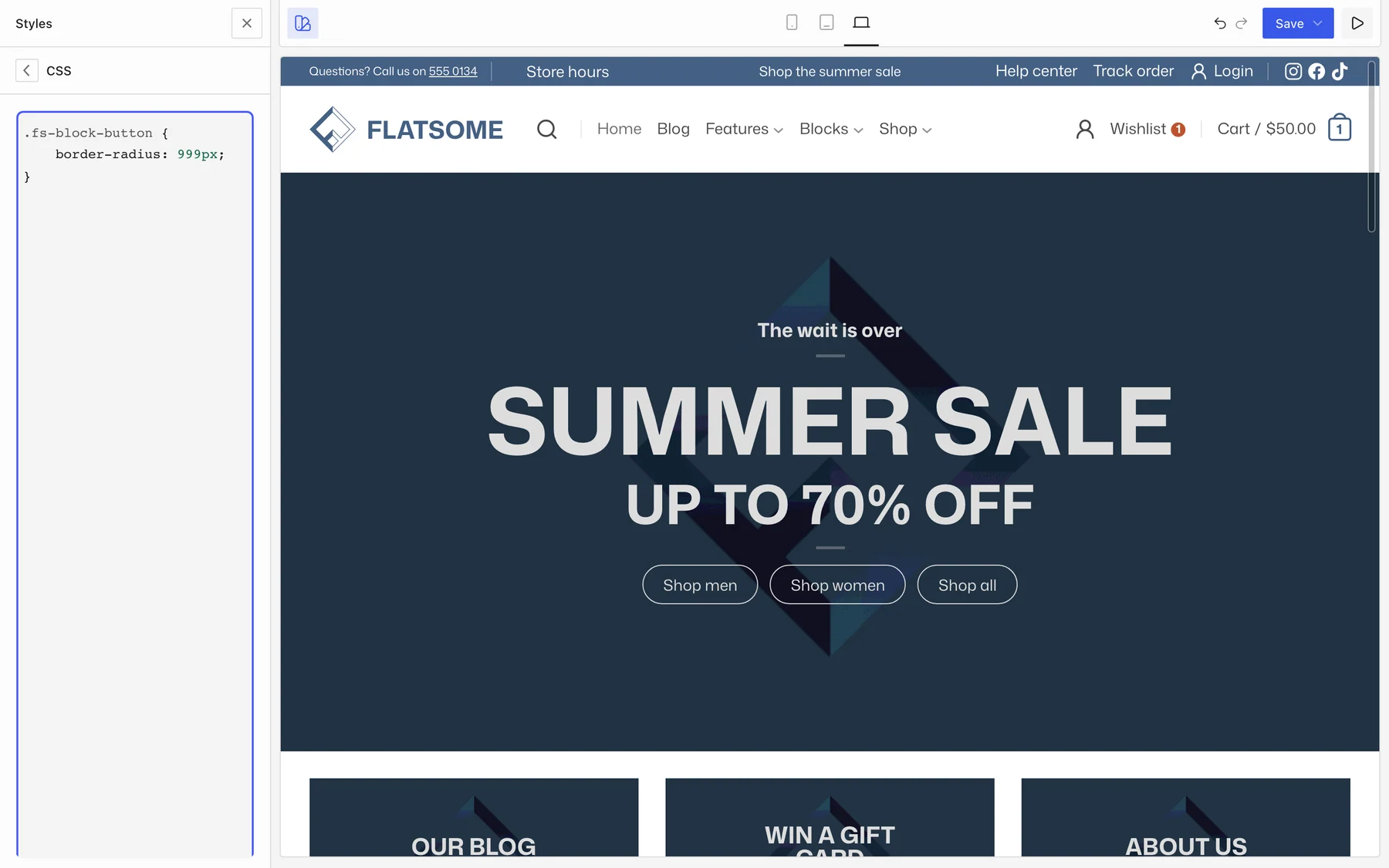
The editor checks the structure as you type and shows an error if a rule is not closed properly. The CSS is applied in the Builder canvas as well, so you see the result right away.
Target Flatsome blocks
Every Flatsome block has a stable class named after the block: fs-block-button, fs-block-section, fs-block-product-price, and so on. Inner elements follow the same naming with a double underscore, for example fs-block-accordion-item__title.
To style a single block, give it a class of its own: select the block, open Advanced in the block settings, and add a name under Additional CSS class(es). Then target that class in your CSS.

When not to use CSS
Most visual changes do not need CSS. Colors, fonts, spacing, borders, and shadows are all settings, and they are safer than CSS because the theme keeps working when markup changes:
- Change one block: use its settings in the sidebar.
- Change every block of a type, such as all buttons: use Styles → Flatsome Blocks and set the defaults for that block type.
- Change the palette, fonts, or spacing scale: use the Colors, Typography, and Spacing screens in the Styles panel.