


Two blocks cover social media. Follow Icons links to your profiles and belongs in the header, footer, or a contact page. Share Icons lets visitors share the page they are on and belongs on posts and products.
Follow icons
- Add the Follow Icons block. It starts with Facebook and Instagram buttons.
- Select a button and paste the profile URL. Each button is fixed to one network, so add more Follow Button blocks for other networks and remove the ones you do not use. A button without a URL does not render.
- Under Buttons, choose a Style (Fill uses each network’s brand color), a Radius, and colors. The block’s font size sets the icon size.
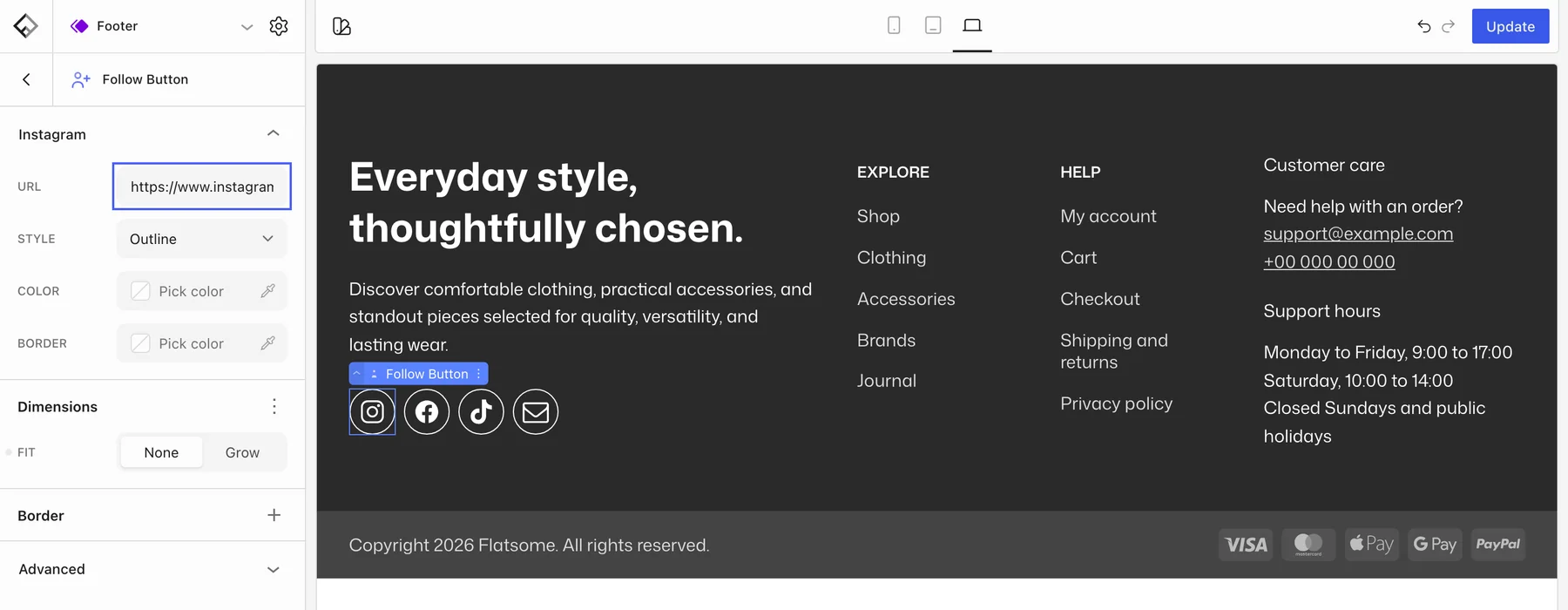
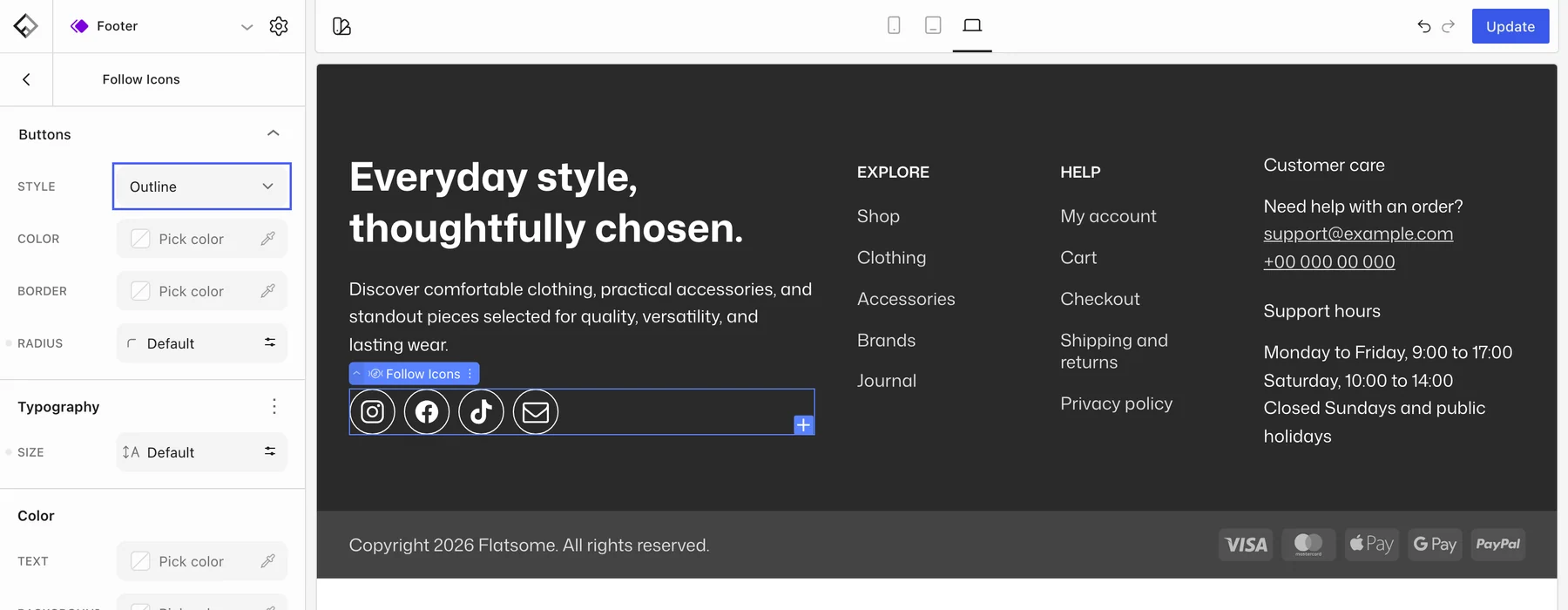
Supported networks: Facebook, Instagram, TikTok, Snapchat, X, Threads, Pinterest, LinkedIn, YouTube, Flickr, 500px, VKontakte, Telegram, Twitch, Discord, plus RSS, Email, and Phone. Email and Phone take an address or number and open the mail or dialer app. Snapchat takes a QR code image and shows it in a popover.
Share icons
- Add the Share Icons block where you want it, typically in the Single template below the post content or in the Single Product template near the add-to-cart area.
- Add or remove Share Button blocks. Available: Facebook, LinkedIn, X, Threads, Pinterest, VKontakte, Tumblr, Telegram, WhatsApp, and Email.
- Style them the same way as follow icons.
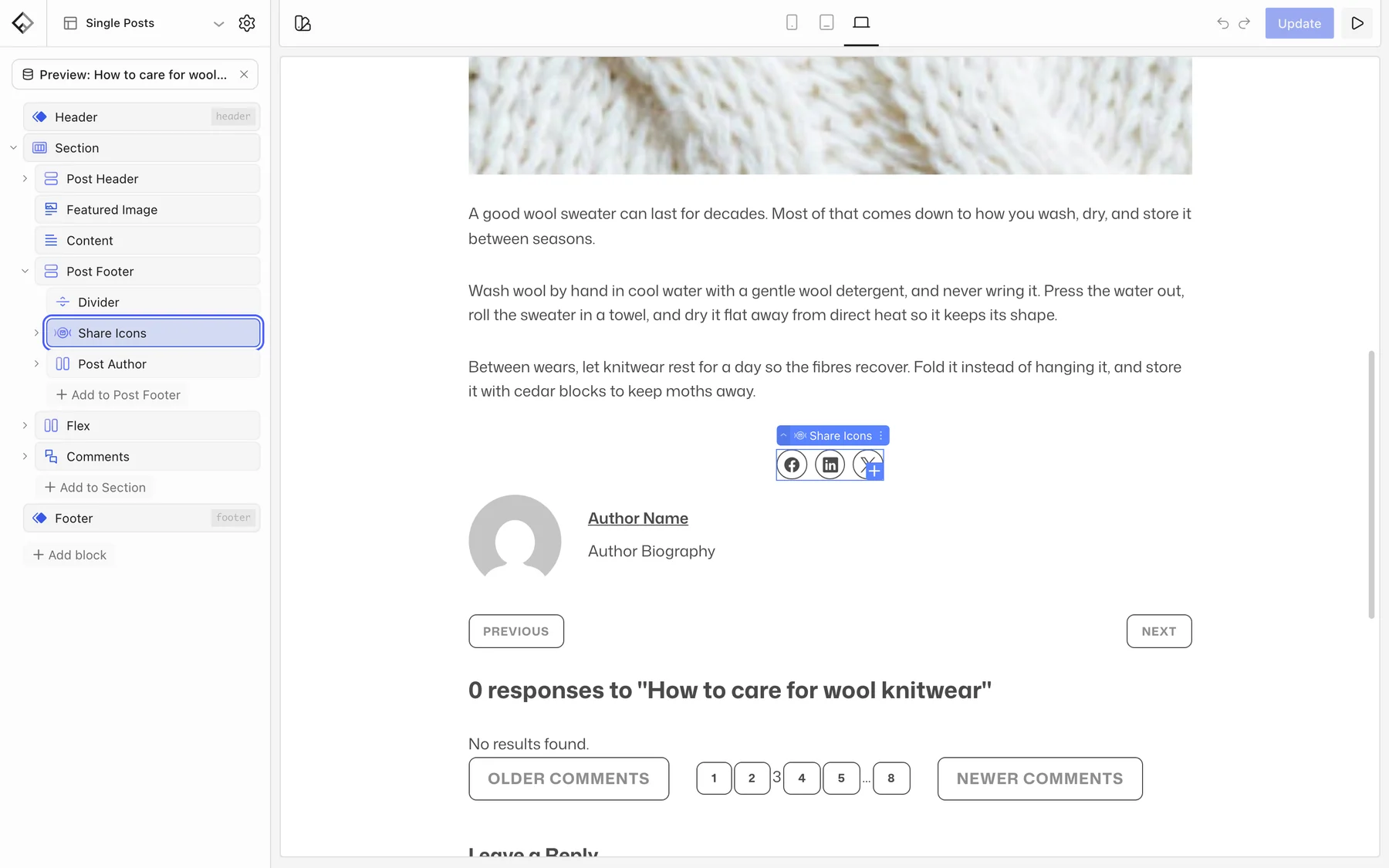
Each button shares the current page’s address and title. Pinterest also sends the featured image. WhatsApp only shows on phones and tablets, where the app is available.
Sharing previews
The image and text a network shows when a page is shared come from the SEO module. See Set up SEO for social titles, descriptions, and a default social image.