


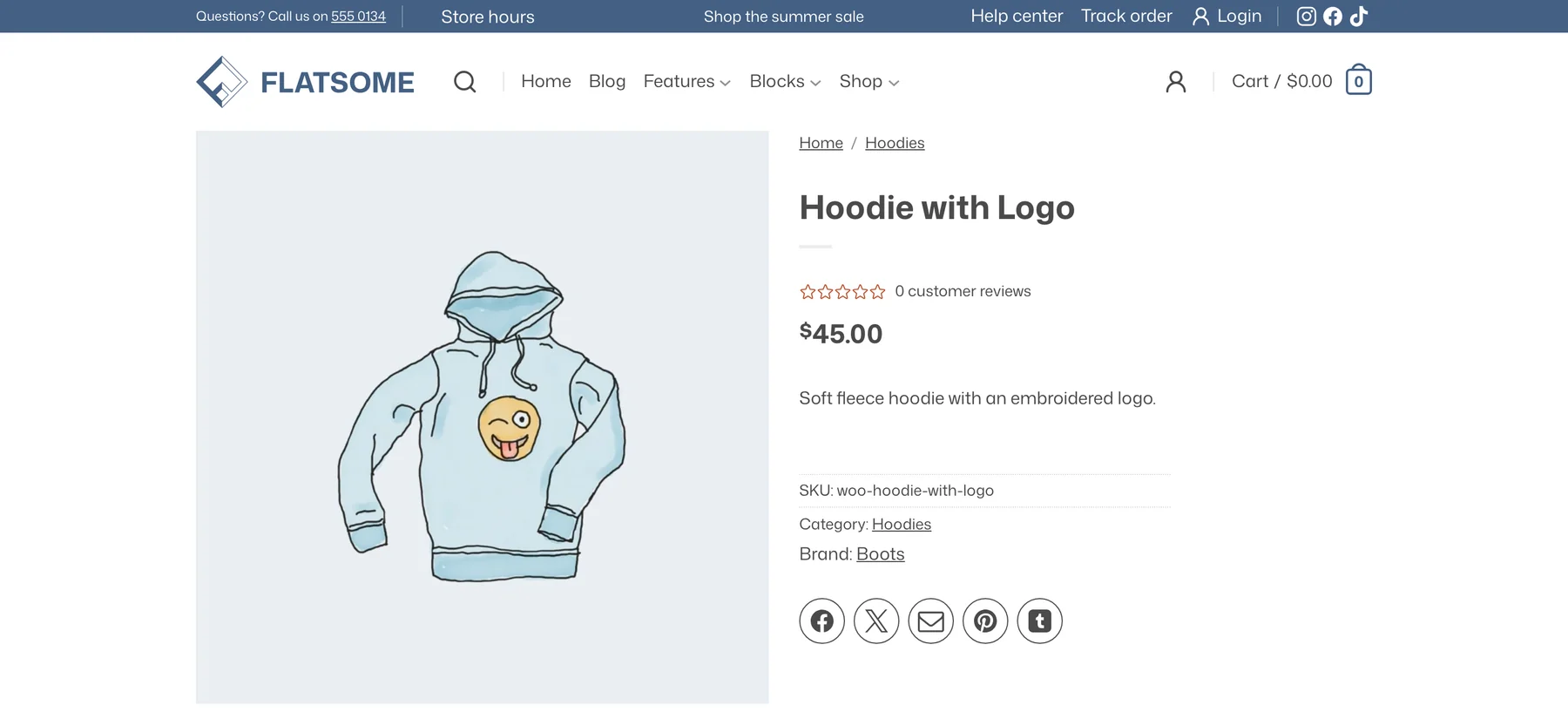
Catalog mode turns the store into a product catalog. Products cannot be purchased, add-to-cart buttons disappear, and prices can be hidden too. It is useful for showrooms, wholesale sites where only approved customers may buy, and stores that are not open yet.
Turn it on
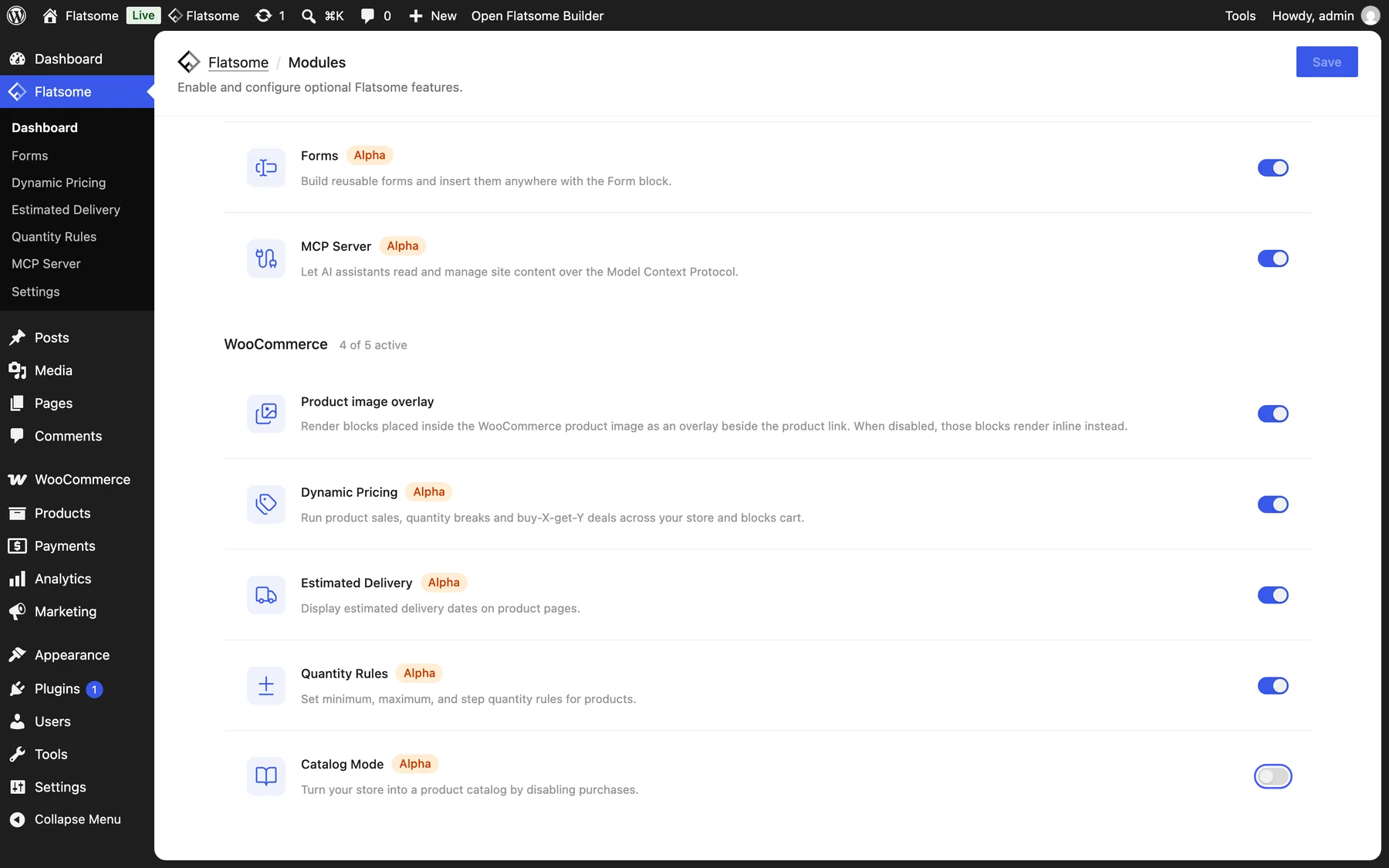
- Go to Flatsome → Dashboard → Modules, enable Catalog Mode, and click Save.
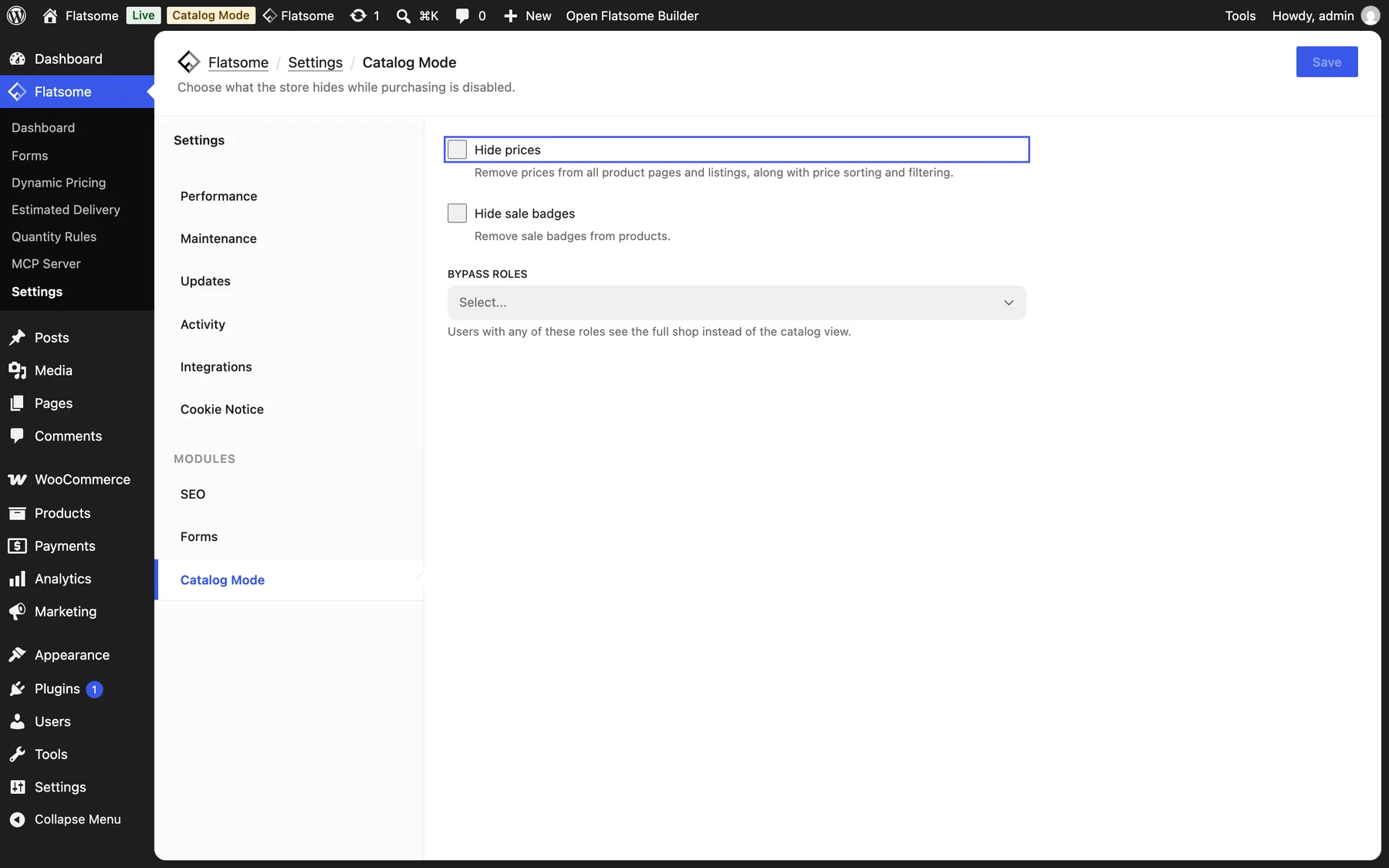
- Open its settings under Flatsome → Settings → Catalog Mode.
Settings
- Hide prices: remove prices from product pages, listings, and quick view.
- Hide sale badges: remove sale badges, which make little sense without prices.
- Bypass roles: user roles that see the full shop instead of the catalog view. Pick Customer, for example, to let logged-in customers see prices and order while visitors only browse.
Tidy up the layout
Catalog mode removes the purchase controls but leaves the rest of the store layout in place. On a site that never sells, you may also want to remove the Mini-Cart block from the header and replace the add-to-cart area of the Single Product template with a contact form or an enquiry button. Because these are blocks, they can be put back at any time.