


Forms are built in: no separate form plugin is needed. A form is created once, inserted anywhere with the Form block, and every submission is stored on your site and can be sent to you by email.
Enable the Forms module
Go to Flatsome → Dashboard → Modules and make sure Forms is enabled. It is on by default on new sites.
Create the form
- Open the page in the Flatsome Builder and insert a Form block where the form should appear.
- Choose Add New Form, enter a Form name, pick the Contact form template, and choose Create. It comes with Name, Email, and Message fields and a Send message button. Blank starts from scratch.
- Adjust the fields on the canvas. Each field has a label, placeholder, and a Required toggle. Add more fields from the inserter: text, email, phone, number, URL, date, time, multi-line text, choice (radio, checkbox, or dropdown), a single checkbox, hidden values, and groups.
- Save the page.
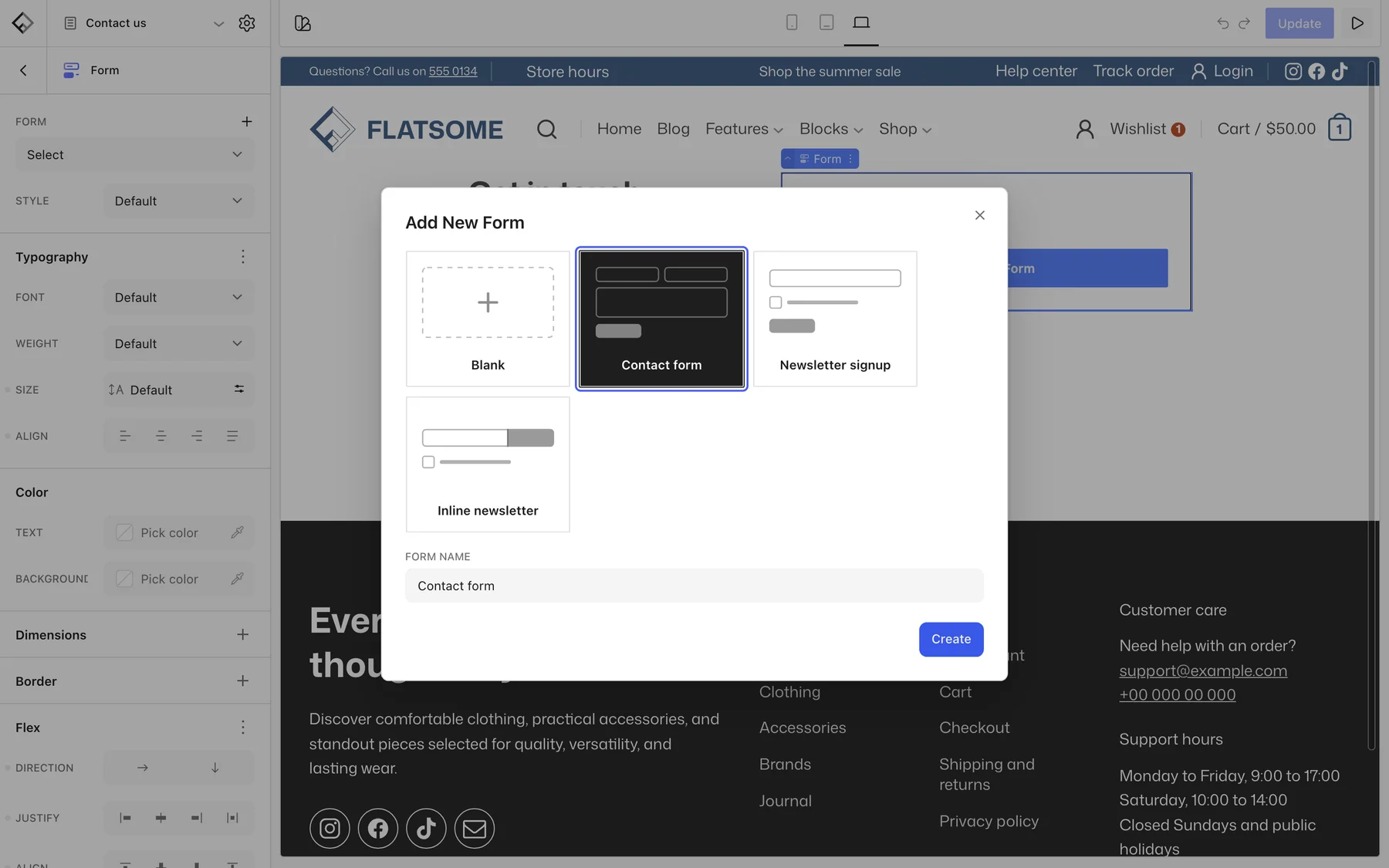
The Form block only references the form. Insert the same form on another page and both stay identical; edit the fields in one place and every copy updates.
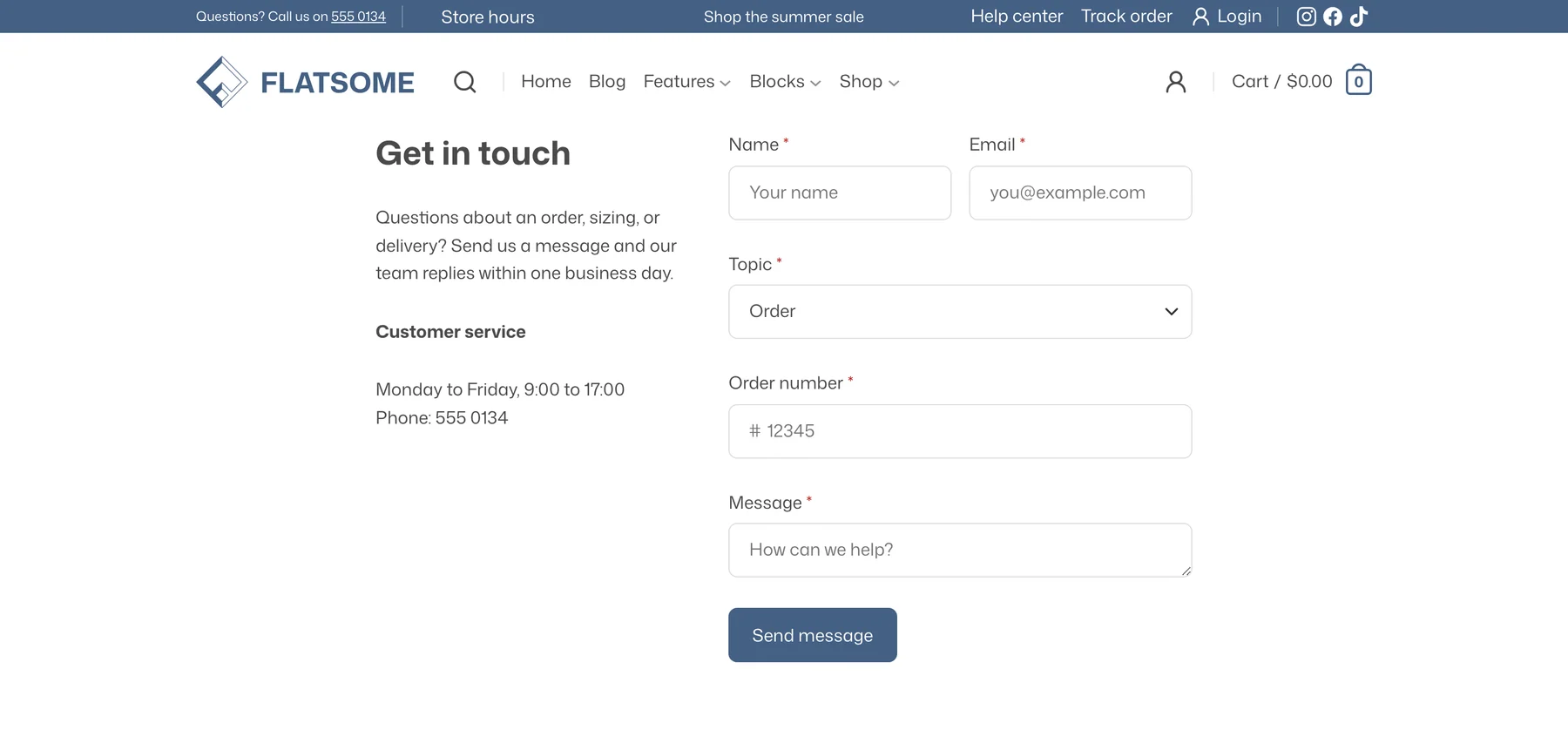
Show fields conditionally
Any field can be shown only when another field has a certain value. Select the field, open Conditions, and add a rule such as Show field when Topic is “Order”. Rules can be combined, and choice options can have conditions of their own.
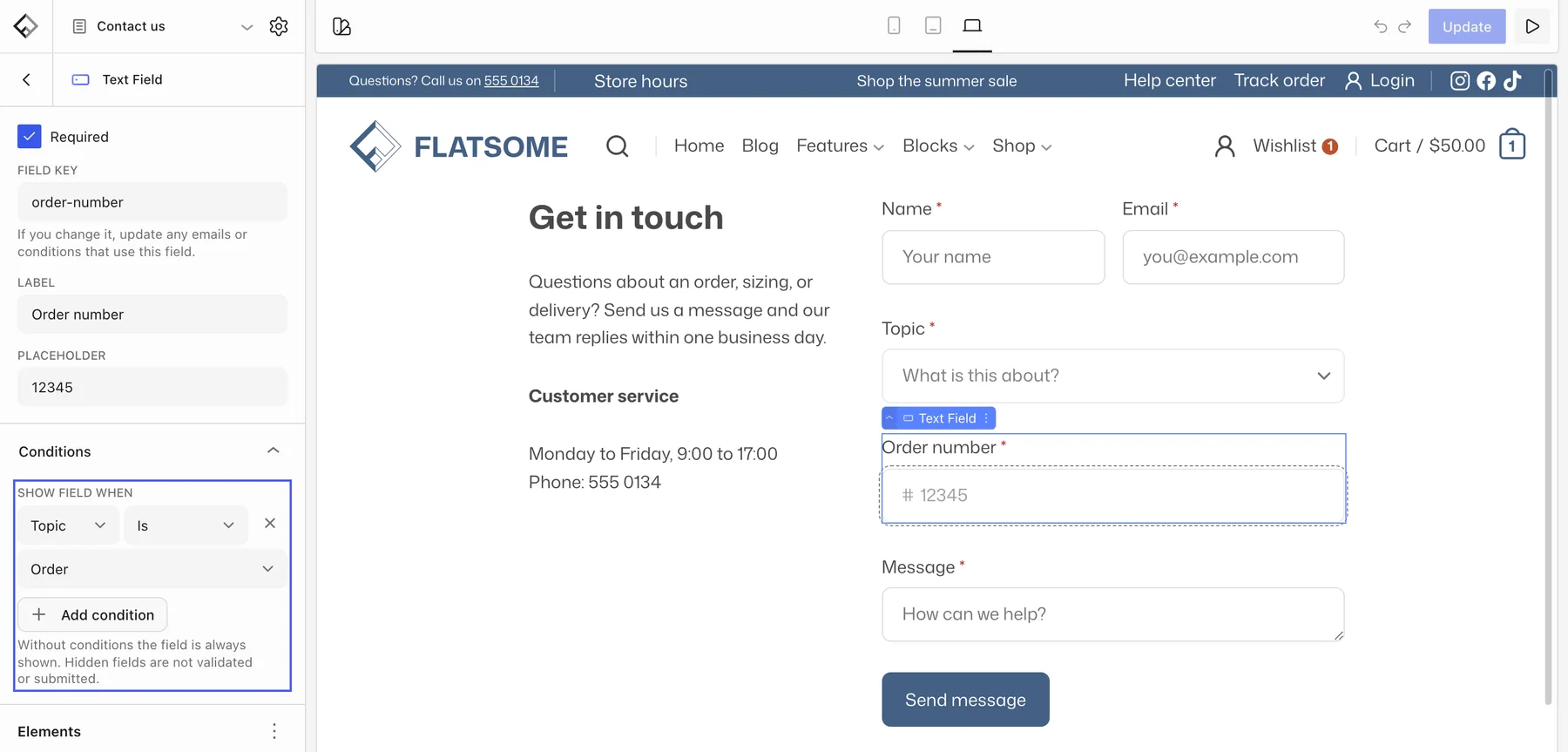
Notifications and submissions
Open Form settings from the Form block, or go to Flatsome → Forms, select the form, and open its Settings tab:
- Notifications: the email sent when someone submits. Set the recipients, subject, and message; field values can be inserted into the email.
- Submission: what the visitor sees after sending, and whether submissions are stored as entries.
Stored entries appear in the form’s Submissions tab under Flatsome → Forms, filtered to Inbox by default. Mark them read, unread, or spam, trash them, or Export CSV. How long entries are kept is set under Flatsome → Settings → Forms.
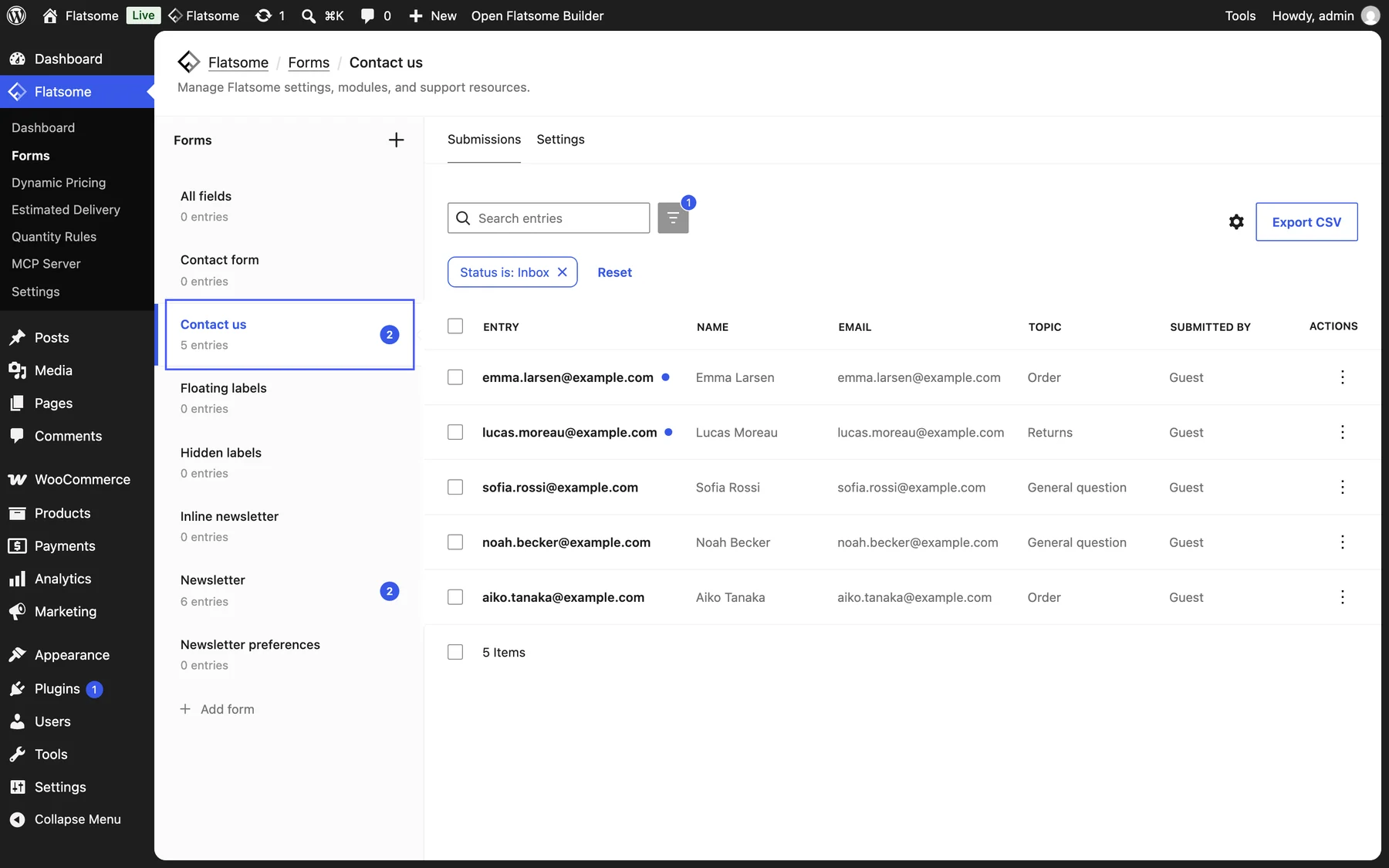
Newsletter signups
The same block covers signups: create a form from the Newsletter signup template (email plus a consent checkbox) or Inline newsletter for a single-line field with a Subscribe button, and place it in the footer or a banner.