


A demo site gives you a complete, designed site to start from: pages, templates, header and footer, patterns, menus, images, and global styles. The setup wizard imports it and sets your logo and brand colors in the same step.
Import a demo
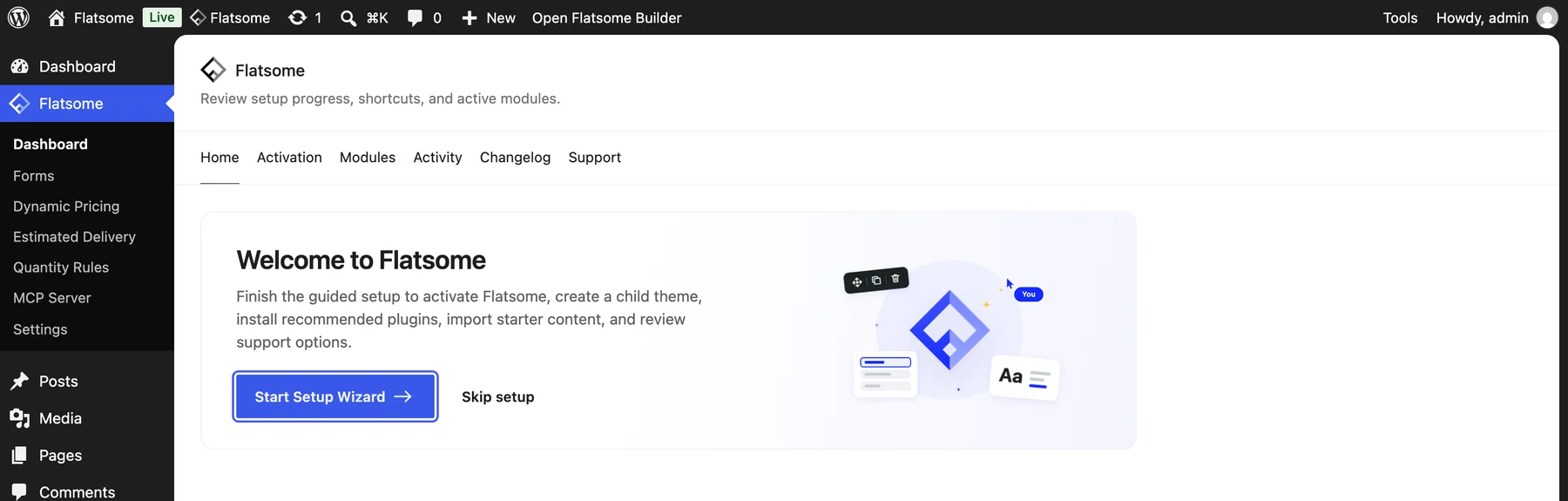
- Run the setup wizard. It opens after installing Flatsome; later, choose Start Setup Wizard on Flatsome → Dashboard.
- In the Create content step, pick a template. Each one previews live on the right. Choose None to keep an empty site.
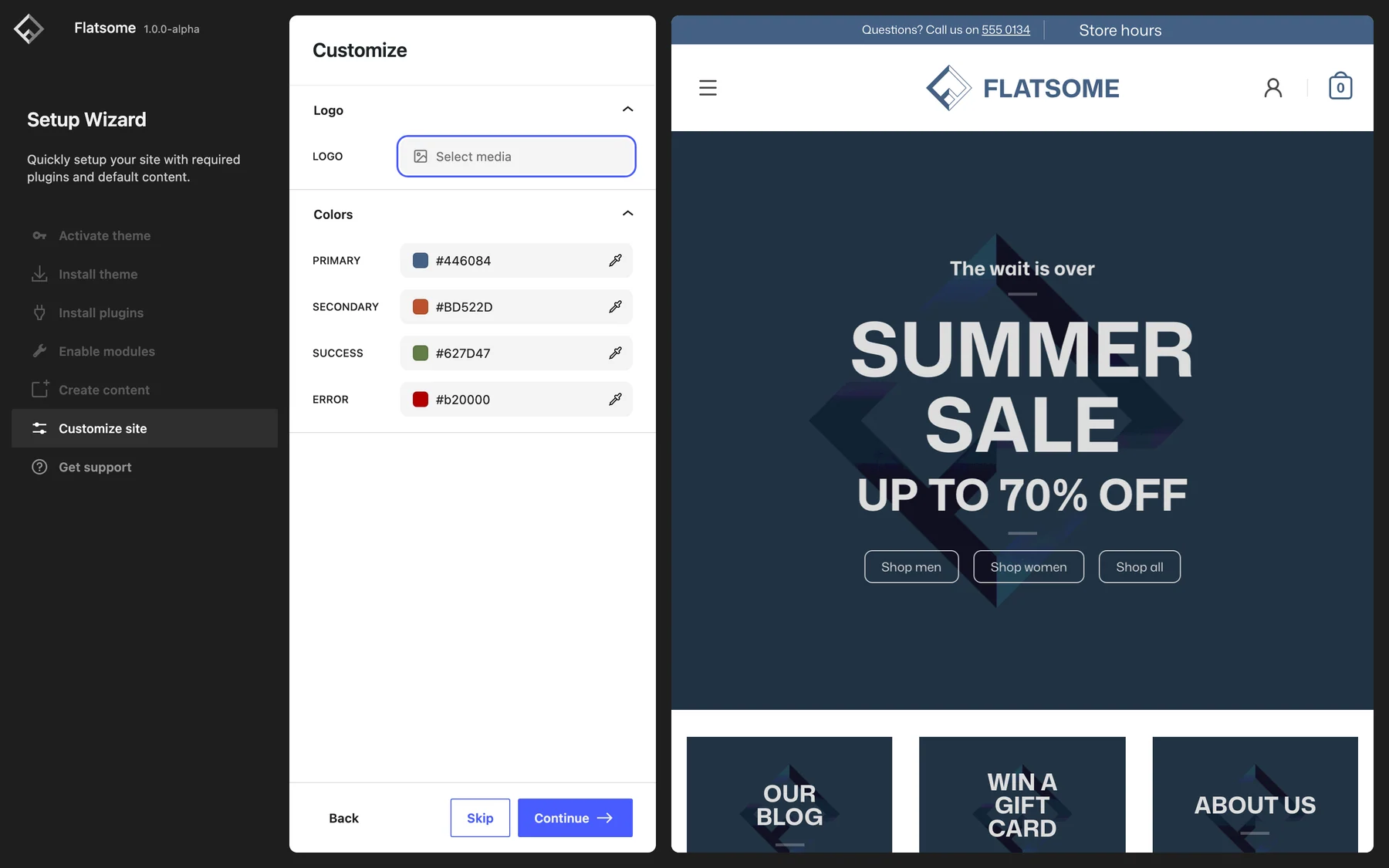
- In the Customize site step, upload your Logo and set the Primary, Secondary, Success, and Error colors. The preview updates as you go.
- Choose Import and wait for the confirmation.
Templates marked Coming soon are not available for import yet. For shop demos, install WooCommerce in the Install plugins step first, otherwise products are skipped.
What you get
The import creates the demo’s pages and posts, templates and template parts, synced patterns, navigation menus, and media, downloaded into your media library. Global styles are merged with your color choices on top, and the homepage and posts page are set for you. Everything is ordinary content afterwards: edit pages with the Builder, change the header under Template Parts, and adjust colors and fonts under Styles.
Existing content
Your own pages are never overwritten. If a demo page has the same slug as one of yours, the imported page gets a numbered slug. Running the same import again updates the previously imported items in place instead of duplicating them, and the demo’s header and footer replace the ones that came with the demo before. Take a backup first on a site that already has content.
If the import fails
The import runs as one request and rolls back completely on error, so a failed attempt leaves nothing half done. Common causes are a low PHP memory limit or a short request timeout on the host; see Server recommendations, then try again.