


Banners and sections build their background from layers: image, video, color, blur, border, and shape divider, stacked in the order you add them. A video background is simply a video layer, usually with a color layer on top so text stays readable.
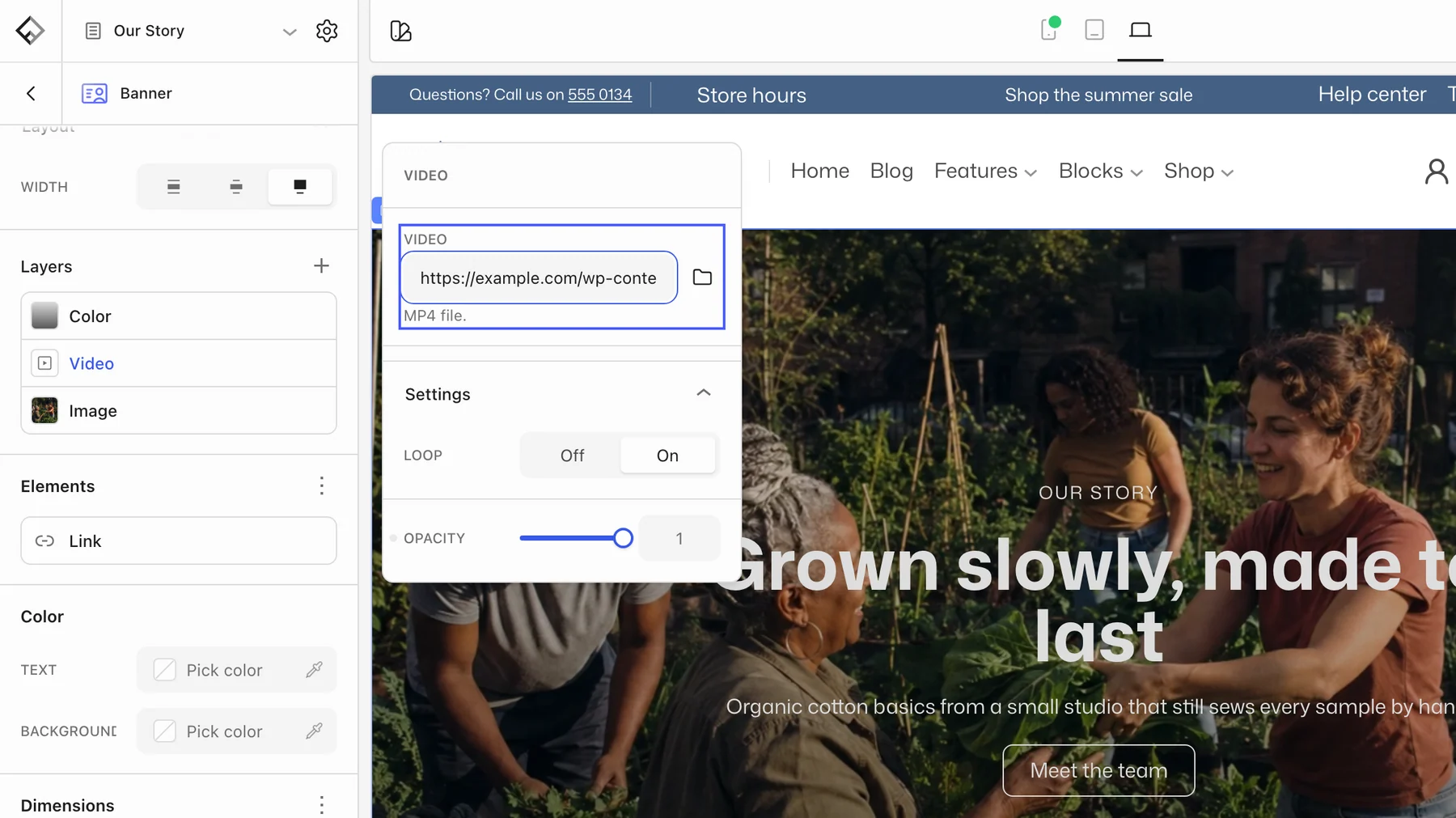
Add the video
- Select the Banner or Section and find the Layers panel.
- Choose Add layer → Video.
- In the Video field, paste a YouTube or Vimeo link, or pick an MP4 or WebM file.
- Turn on Loop for a continuous background.

Background videos always play muted, start automatically, and show no controls. They only load while the block is on screen, so a video further down the page costs nothing until the visitor gets there.
Keep the text readable
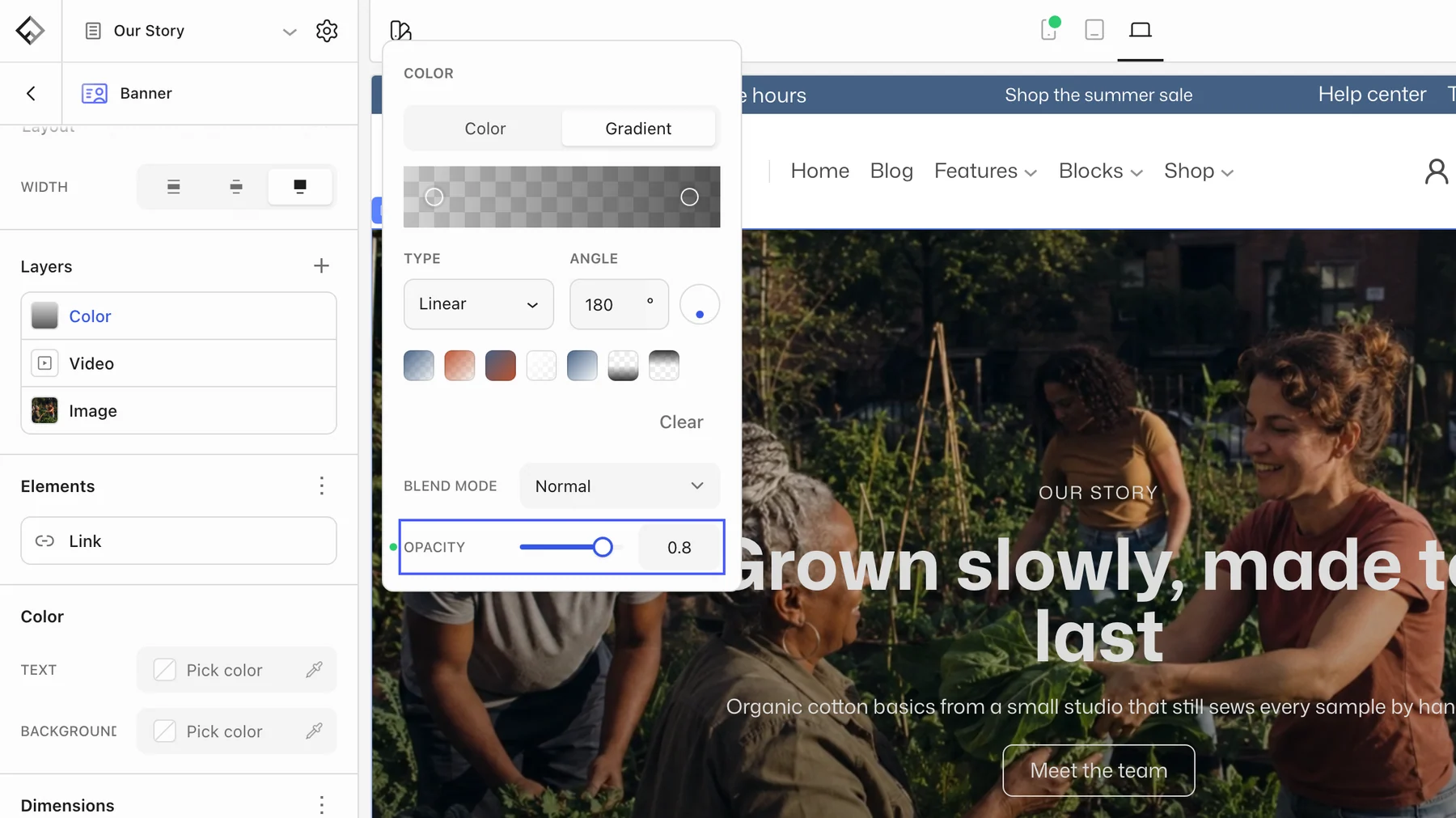
Add a Color layer above the video with a dark color or gradient and lower its Opacity. The layer at the top of the Layers list is drawn in front. On a dark video, set the Color scheme to Dark on the Banner’s Text Box (or on the Section) so headings and buttons switch to light colors.
Phones and slow connections
Add an Image layer below the video with a still from it. It shows while the video loads and wherever autoplay is not allowed. Keep the file small: a short clip encoded at 720p in MP4 is usually plenty, and your host’s CDN can serve it. To skip the video entirely on phones, duplicate the block, give one a video layer and the other only the image, and use the visibility settings to show each on its breakpoint.