


Flatsome Classic sites move to the new Flatsome with the Flatsome Migrator plugin. It converts UX Builder content, UX Blocks, the header, footer, menus, templates, and theme settings into Flatsome blocks, lets you review the result before anything goes live, and keeps the original content so you can roll back.
Before you start
- Take a full backup of files and database. The migrator can roll back, but a backup is the only complete safety net.
- Run the migration on a staging copy first if you can. Apply is a one-click theme switch, and staging lets you check every page without visitors seeing it.
- Update Flatsome Classic to the latest version and make sure PHP 8.2 or newer is available.
- Sign in as an administrator. Applying needs permission to switch themes and edit theme options.
Install the migration tool
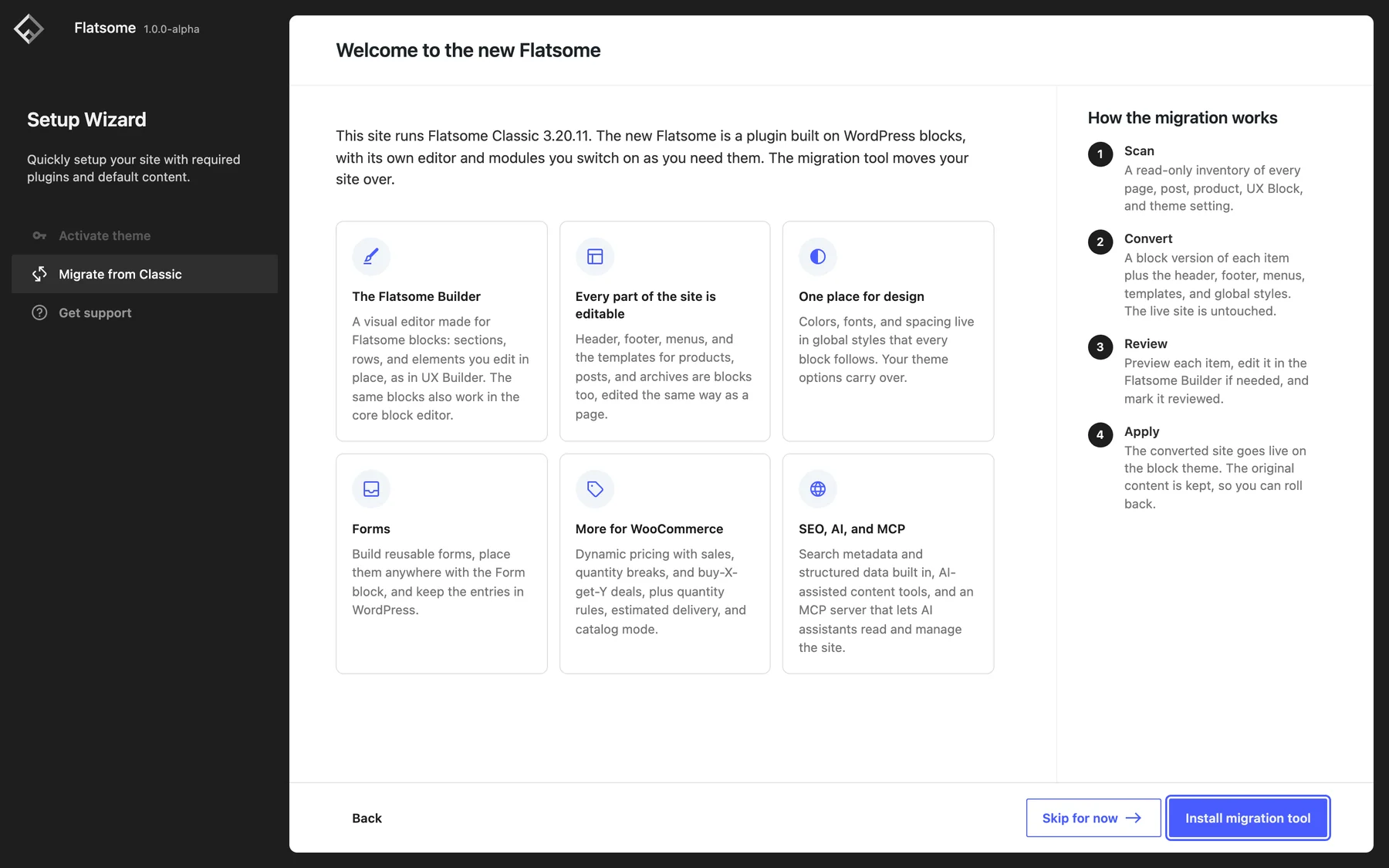
Install and activate the Flatsome plugin on your Classic site while the Classic theme is still active. The setup wizard detects Classic and opens the Welcome to the new Flatsome screen. Choose Install migration tool to install the Flatsome Migrator plugin and the Flatsome block theme, then Open migration tool.
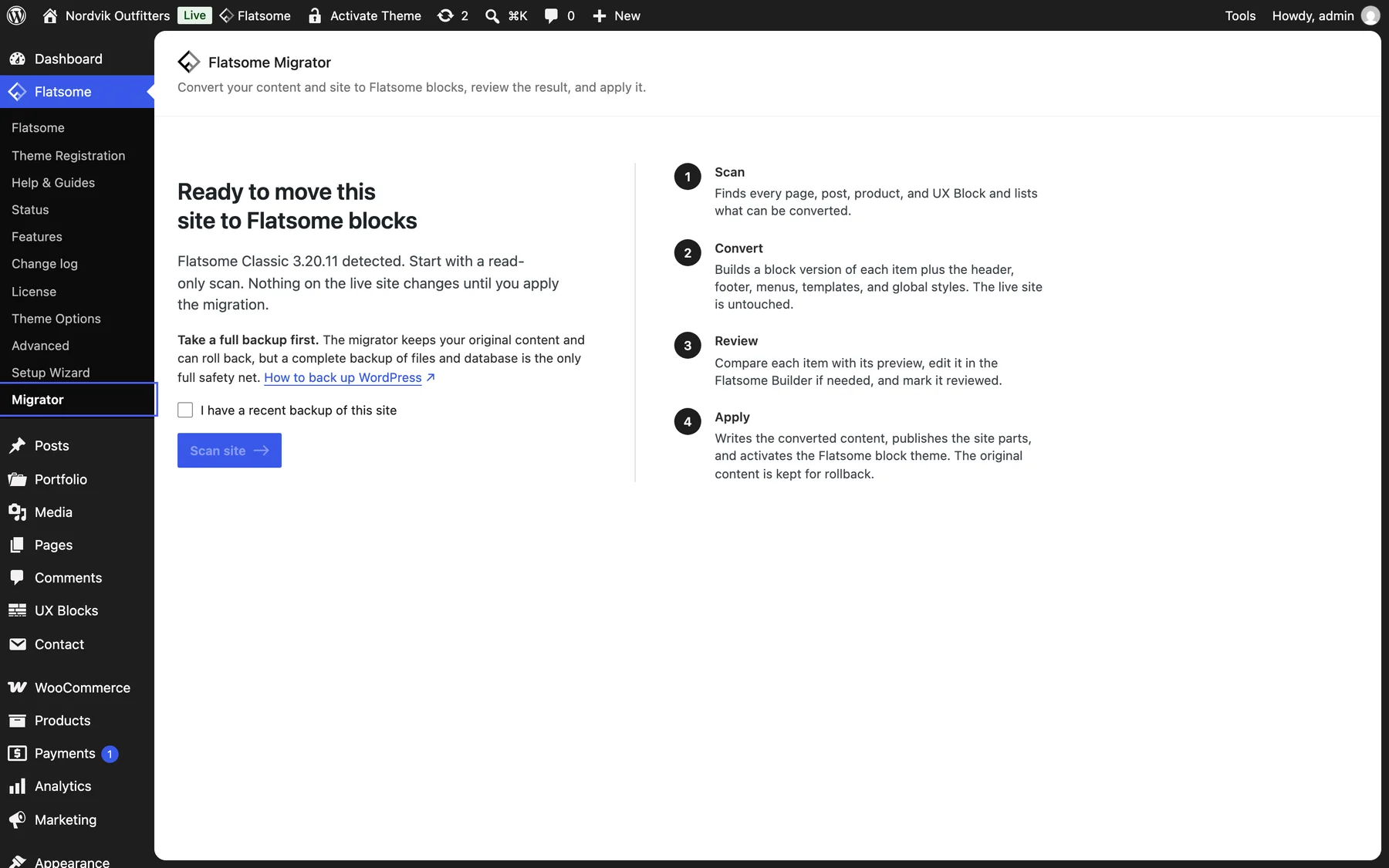
You can come back to it at any time from Flatsome → Migrator in the WordPress admin menu, or from Migrate to blocks in the Flatsome menu of the admin bar. After applying, the migrator moves to the new Flatsome admin menu. It only activates while Flatsome Classic is the active theme or a migration is in progress, and it is meant to be removed once the migration is done.
How it works
The migration runs in four steps. Nothing on the live site changes until you apply, and the original content is kept afterwards.
1. Scan
A read-only inventory of the site. Tick I have a recent backup of this site, then choose Scan site. The scan counts pages, posts, products, UX Blocks, header slots, and menus, tells how many are built with UX Builder, already block content, or plain text, and lists the shortcodes in use. It also reads the header, footer, widgets, menus, page templates, product layouts, custom CSS, and scripts, and notes anything that has no block equivalent.
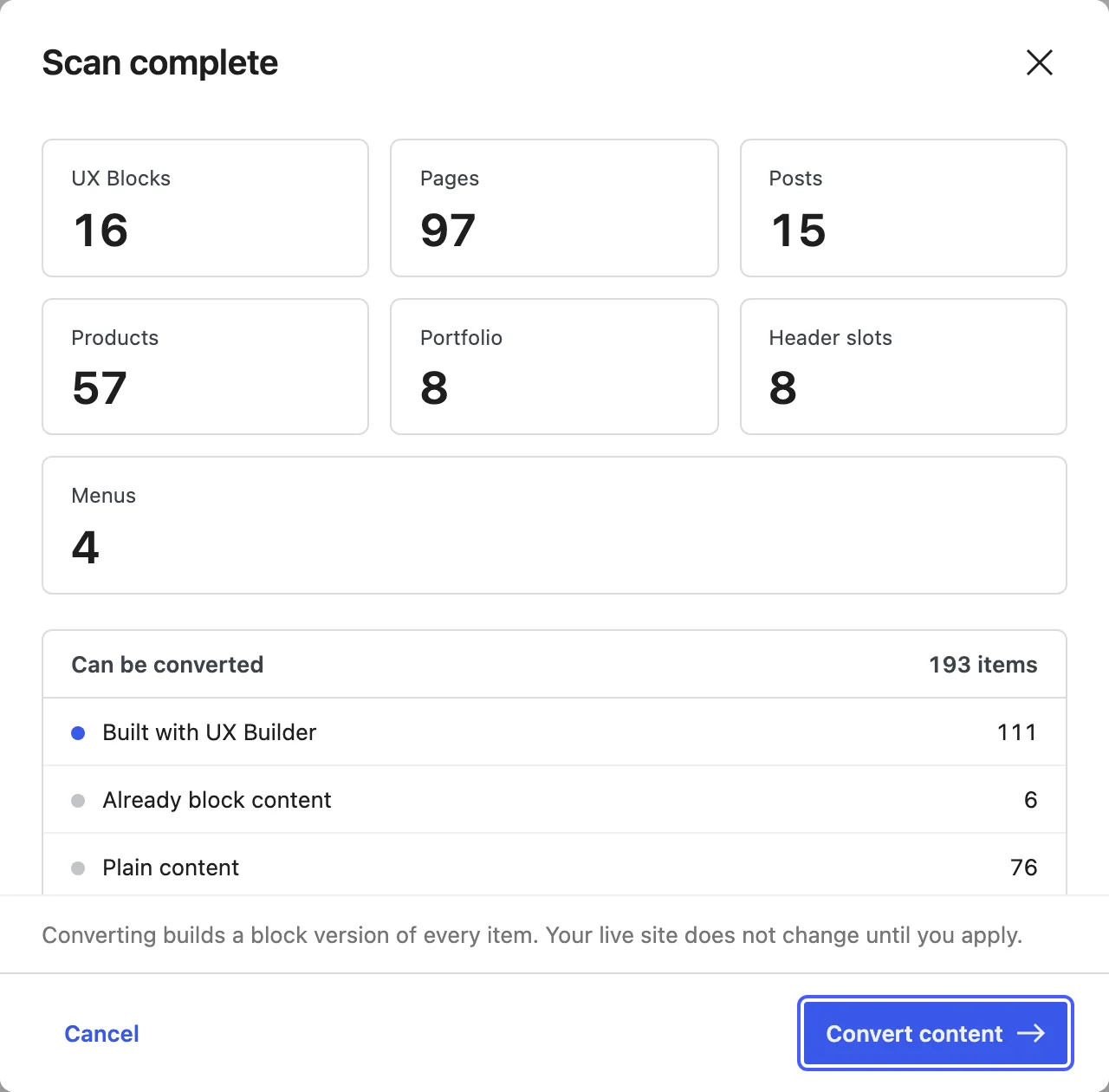
2. Convert
Builds a block version of each item and stores it next to the original as a candidate. UX Blocks are converted first so pages can reference them as patterns. The header, footer, sidebar, menus, templates, and global styles are built last as drafts. Conversion runs in batches while the page stays open. You can close the dialog, and a reload resumes where it stopped.
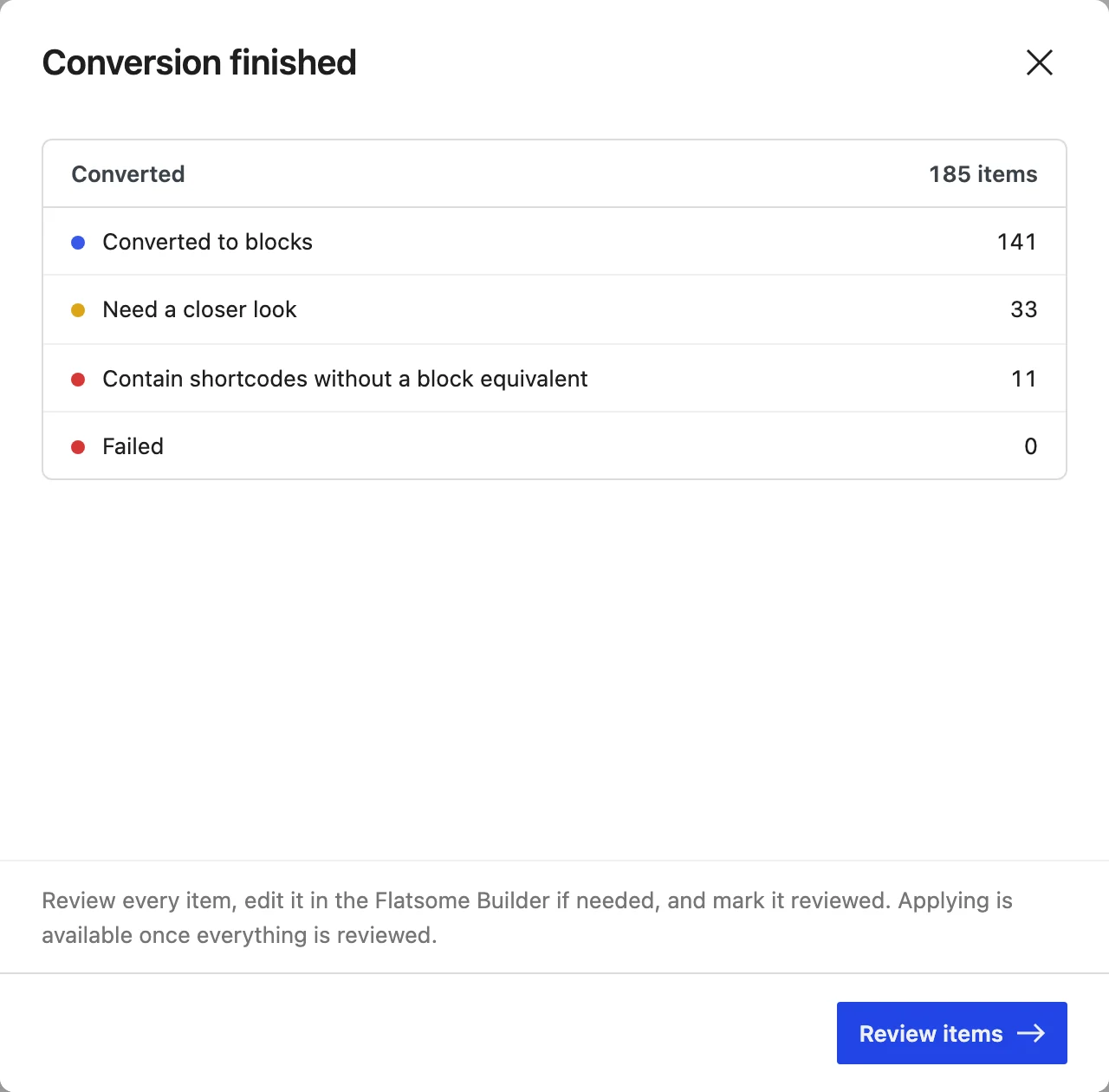
When conversion finishes, the summary shows how many items were Converted to blocks, how many Need a closer look (converted with warnings), how many Contain shortcodes without a block equivalent, and how many Failed. In the review list, these items carry the Converted, Needs review, and Unsupported content badges.
3. Review
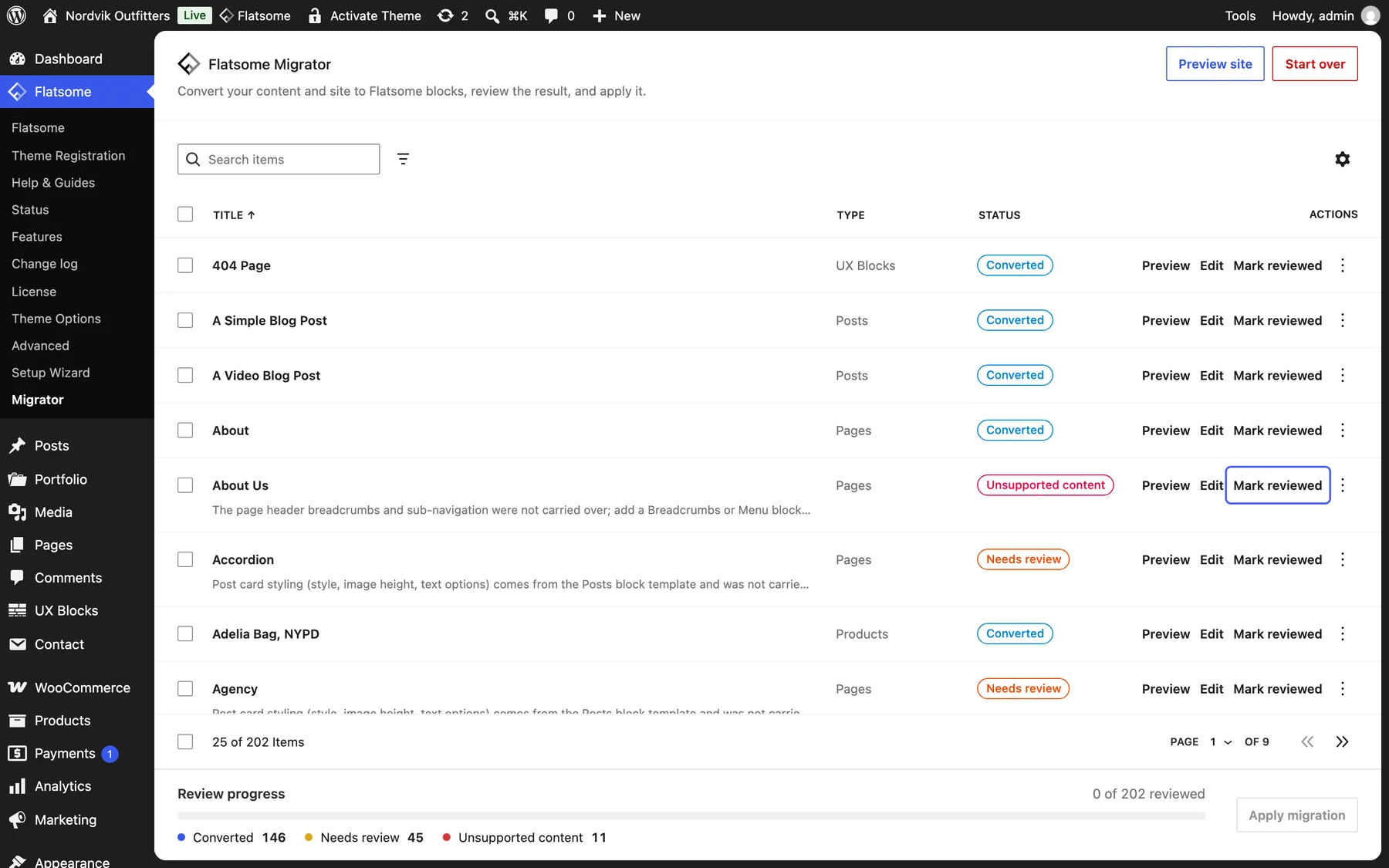
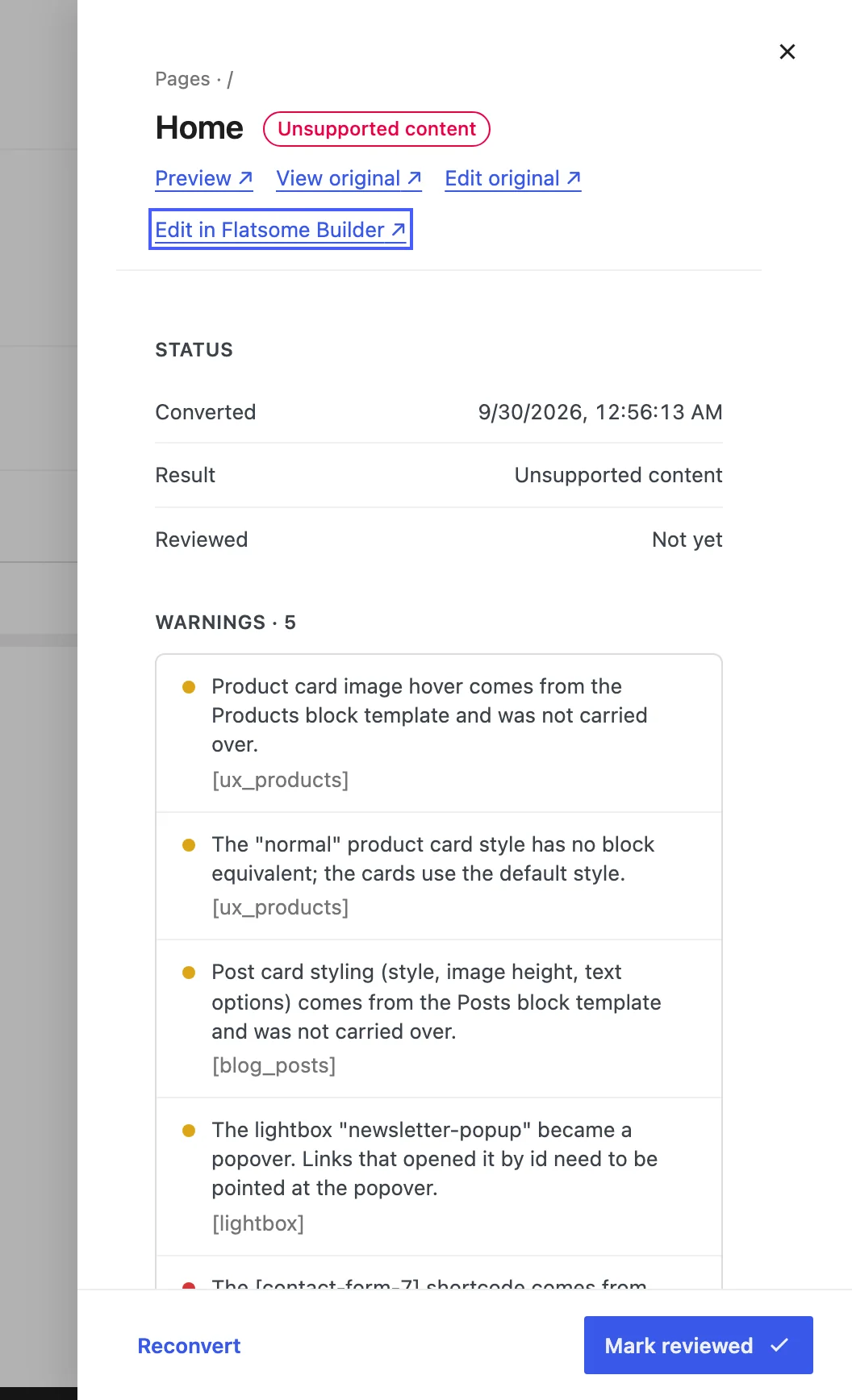
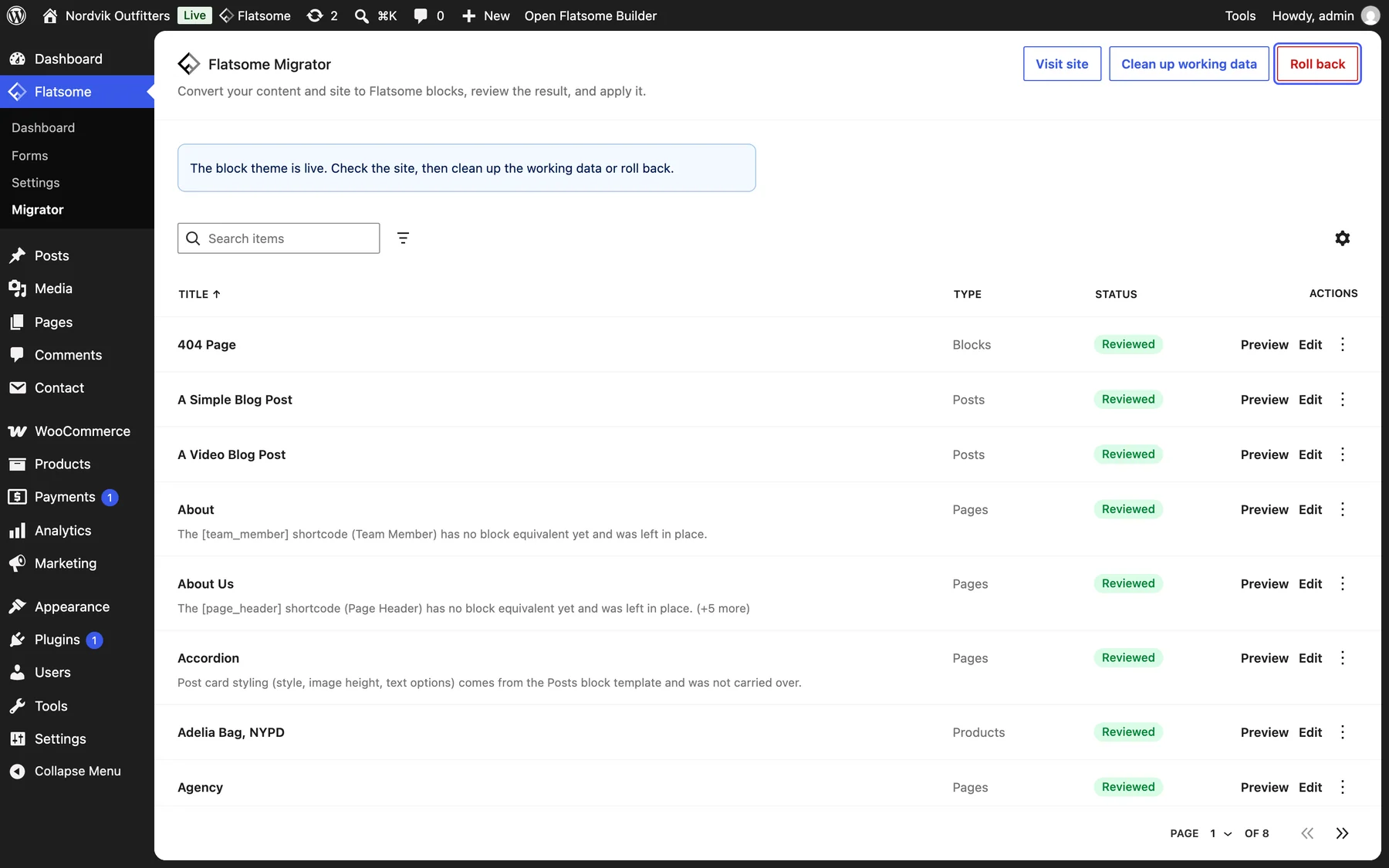
The review list shows every converted item and the site parts with their warnings. For each item you can:
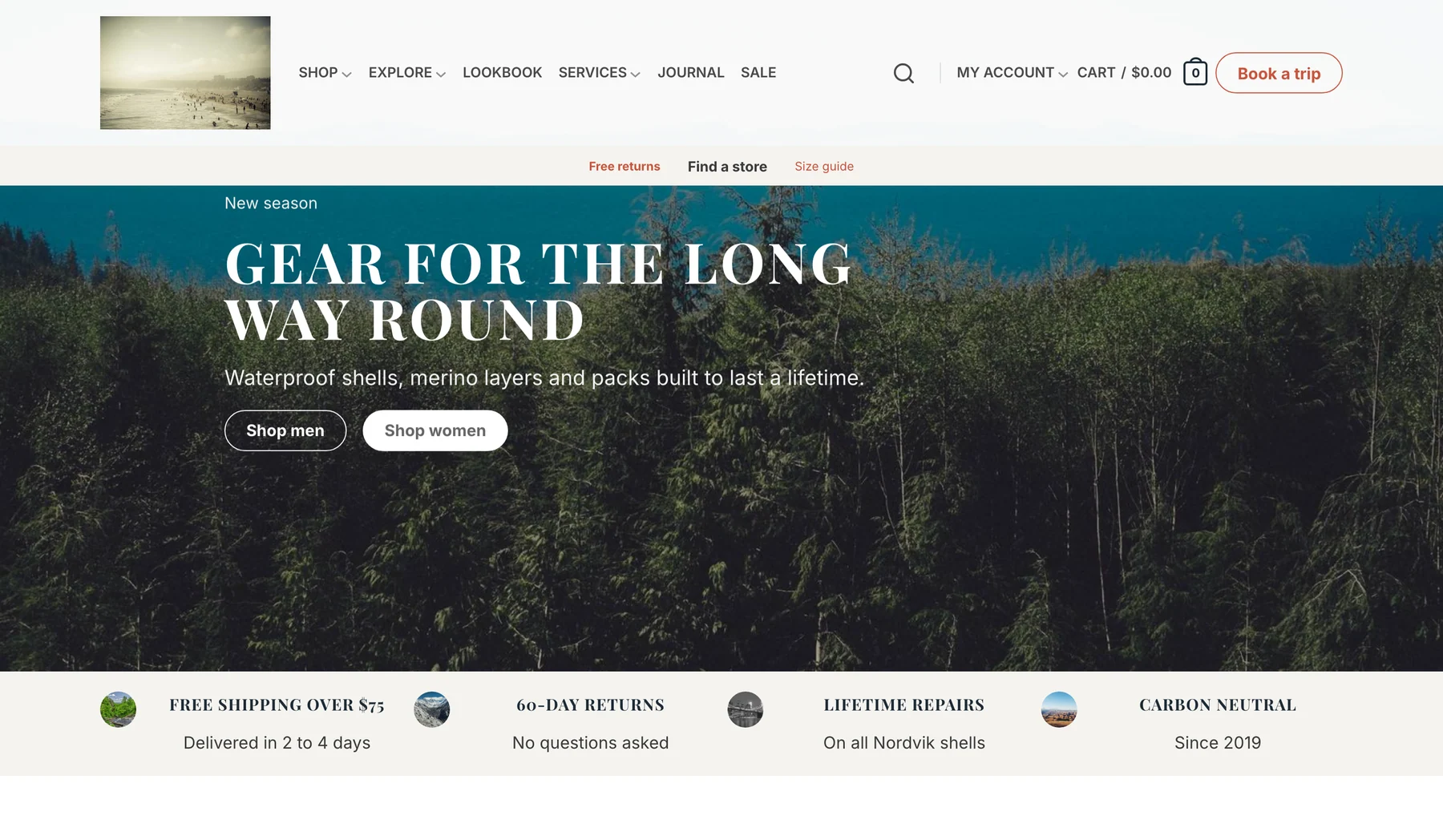
- Preview it. The preview renders the page with the Flatsome block theme and the converted header, footer, menus, and global styles, while visitors keep seeing the Classic site.
- Edit it in the Flatsome Builder. Changes are saved to the converted copy, not the live post, so you can fix layouts before they go live.
- View or edit the original in Classic. Editing the original changes its content, and the item must be reconverted before applying.
- Reconvert an item, or rebuild the site parts, to start over from the current original.
- Mark it reviewed. Apply is available once every item is marked reviewed.
4. Apply
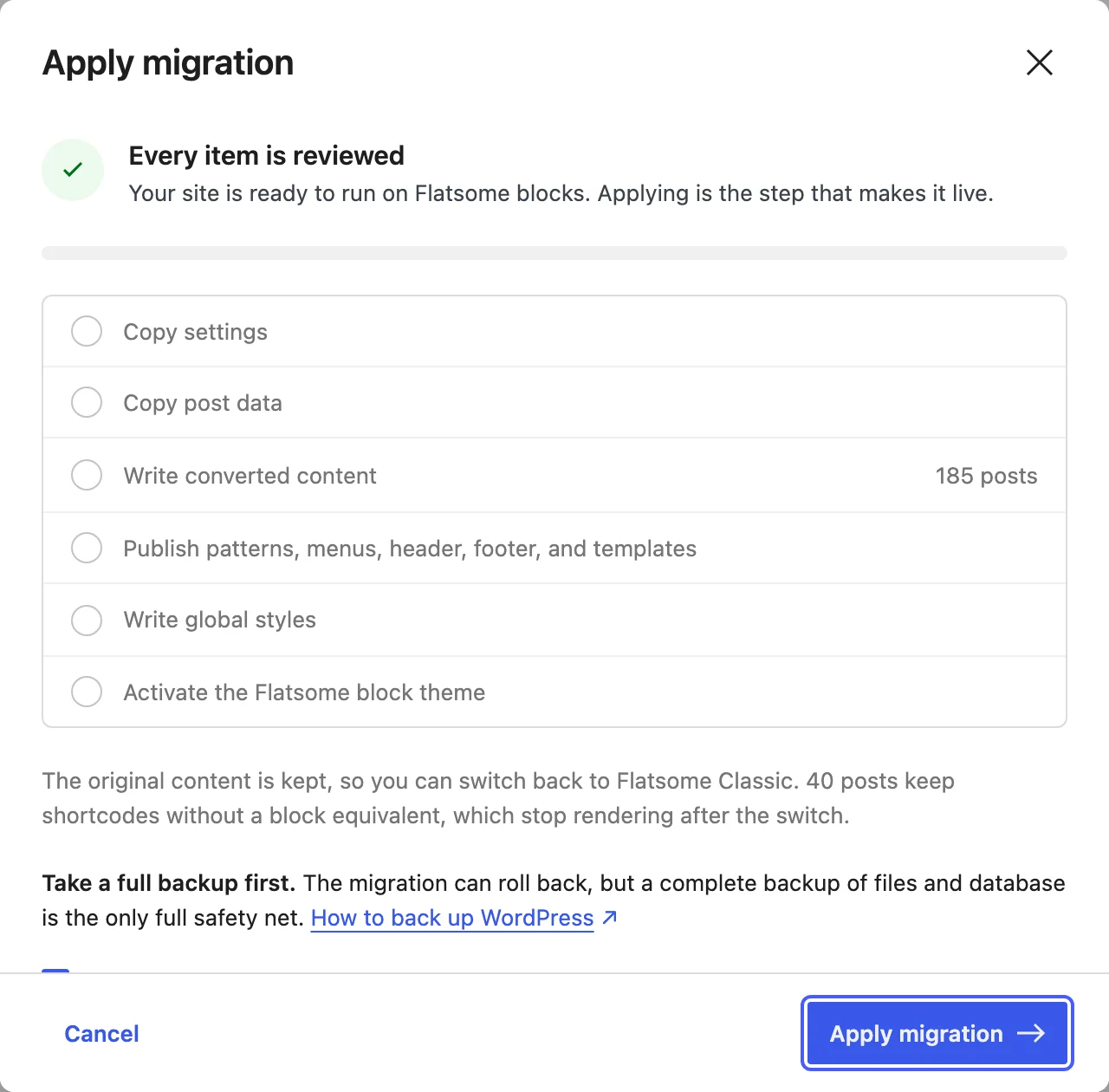
Apply makes the converted site live. It first checks that every item is reviewed, that no post or theme setting changed after conversion, and that the Flatsome block theme is installed. Tick I have a recent backup of this site to enable Apply migration. It then runs these steps in order:
- Copy the Classic theme settings into Flatsome, including cookie notice options and catalog mode.
- Copy post data, such as Classic’s additional variation images, which become WooCommerce variation galleries.
- Write the converted content into each page, post, product, and UX Block. A revision is saved and the original content is kept for rollback.
- Publish the patterns, menus, header, footer, sidebar, and templates.
- Write the global styles.
- Activate the Flatsome block theme and set the site logo.
Visitors see the Classic site until the theme switches in the last step. If the apply is interrupted, open the migrator again and choose Resume. Afterwards, check the important pages on the live site.
What gets migrated
Content
- Pages, posts, and products. UX Builder shortcodes become Flatsome blocks. Content that is already blocks is kept as is, and plain content becomes text.
- UX Blocks become synced patterns, keeping their block categories. Every place that inserted a UX Block now references the pattern.
- UX templates become unsynced patterns.
- Page template assignments carry over where the block theme has an equivalent: Transparent Header, Transparent Header Light, Centered Title, and Landing Page. Blank, cart, checkout, and my account pages use the default page template.
Supported UX Builder elements include sections, rows and columns, stacks, gaps, dividers, titles, text, text boxes, buttons, phone links, accordions, tabs, featured boxes, testimonials, message boxes, countdowns, price tables, bullet items, HTML, follow and share icons, payment icons, search, sidebars, menus, navigation, lightboxes, UX Block references, images, galleries, videos, video buttons, logos, Lottie animations, banners, banner grids, sliders, hotspots, image boxes, maps, Instagram feeds, blog posts, every products and product categories element, and the single product elements used in custom product layouts.
Some elements convert with a warning so you can check them: header buttons become regular buttons, lightboxes become popovers, icon box links and tooltips are dropped, price tables are rebuilt from generic blocks, and card styling for posts and products now comes from the block’s template instead of the element options.
Header and footer
- The header builder layout becomes a Header template part with its rows and columns. Logo, navigation, top bar and secondary navigation, menu icon, search, cart, account, wishlist, social icons, newsletter, language switcher, header buttons, and header UX Blocks are converted. The mobile menu becomes an off-canvas menu.
- Footer widget areas become a Footer template part, including background images. Text, custom HTML, navigation menu, and block widgets are converted.
- The main sidebar becomes a Blog Sidebar template part.
- Menus assigned to a location become navigation menus, including mega menus built with UX Blocks.
Templates
- The 404 page UX Block becomes a 404 template.
- The maintenance mode page or text becomes a Maintenance template.
- A custom single product layout becomes the Single Product template, and per-product custom layouts become their own product templates assigned to those products.
Design and settings
- Primary, secondary, success, and alert colors become the palette. Text, heading, and link colors, site width, button radius, and text transforms become global styles.
- Fonts are registered by name. Fonts that are not bundled with the theme need their font files added in the Builder, or the browser falls back to a system font.
- Custom CSS, including the tablet and mobile variants, moves into the global styles. Selectors written for Classic markup may no longer match.
- The site logo is imported into the media library and set as the site logo.
- Theme options are copied into Flatsome settings, and catalog mode is switched on when it was enabled in Classic.
What is not migrated
These parts have no block equivalent yet. They are reported in the scan and the review list so you can replace them by hand.
- Shortcodes without a block: Products List, Product Flip, Pages, Team Member, Scroll To, Page Header, Portfolio and its slider and grid, Facebook login button, and Translation. They are left in place, and Classic shortcodes stop rendering after the theme switch.
- Shortcodes from other plugins are left in place and keep working as long as their plugin is active.
- Portfolio items and per-category product layouts.
- Header and footer scripts. Add them with a plugin or an HTML block.
- The boxed body layout, single-page navigation templates, and the header-on-scroll template.
- The catalog mode content shown under the product summary.
- Child theme PHP, CSS, and template files.
- Language relations between translated posts. With WPML or Polylang, translated content is converted per post, but you should verify the relations after applying.
After applying
Roll back
Choose Roll back to switch back to Flatsome Classic. The original content and template is restored to every post that has not been edited since the migration, the published patterns, menus, header, footer, and templates go back to drafts, the global styles and copied settings are reverted, and the previous theme becomes active again with its menu locations. Posts edited after applying keep their new content and are listed. The converted items are kept, so you can convert and apply again later.
Clean up
Once you are happy with the result, choose Clean up working data. This removes the migration data stored on posts, the original-content snapshots, and any leftover drafts. Rollback is no longer available after cleanup, but the revision saved for each post remains. You can then deactivate and delete the Flatsome Migrator plugin and the Flatsome Classic theme.
WP-CLI
Large sites can run the scan, conversion, and apply from the command line. Reviewing is done in the admin, and apply still requires every item to be marked reviewed.
wp flatsome-migrator scan
wp flatsome-migrator convert --batch=50
wp flatsome-migrator status
wp flatsome-migrator apply --yes
wp flatsome-migrator rollback