


Optional features in Flatsome are modules. Forms, SEO, Catalog Mode, Dynamic Pricing, Estimated Delivery, and the MCP Server are all modules, and each one can be switched on or off per site. A disabled module loads nothing at all: no scripts, no settings screens, no blocks. Keeping unused modules off keeps the admin simple and the site fast.
Enable or disable a module
- Go to Flatsome → Dashboard and open the Modules tab.
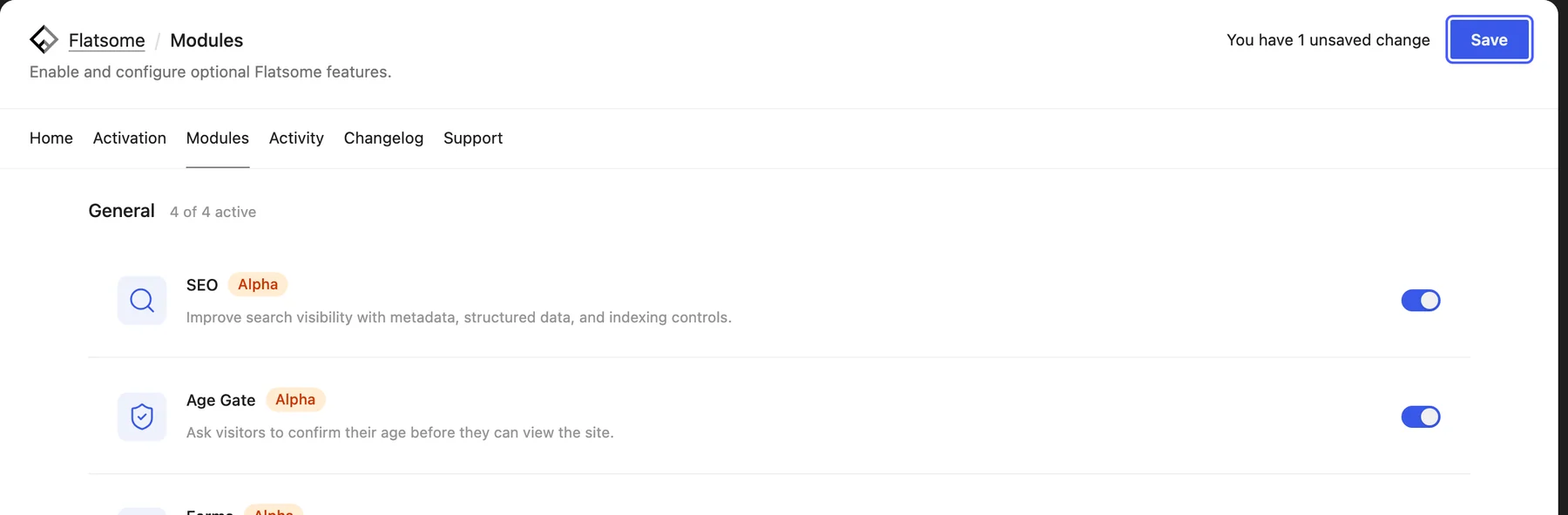
- Find the module in the list and switch it on or off, then choose Save at the top right. Nothing changes until you save.
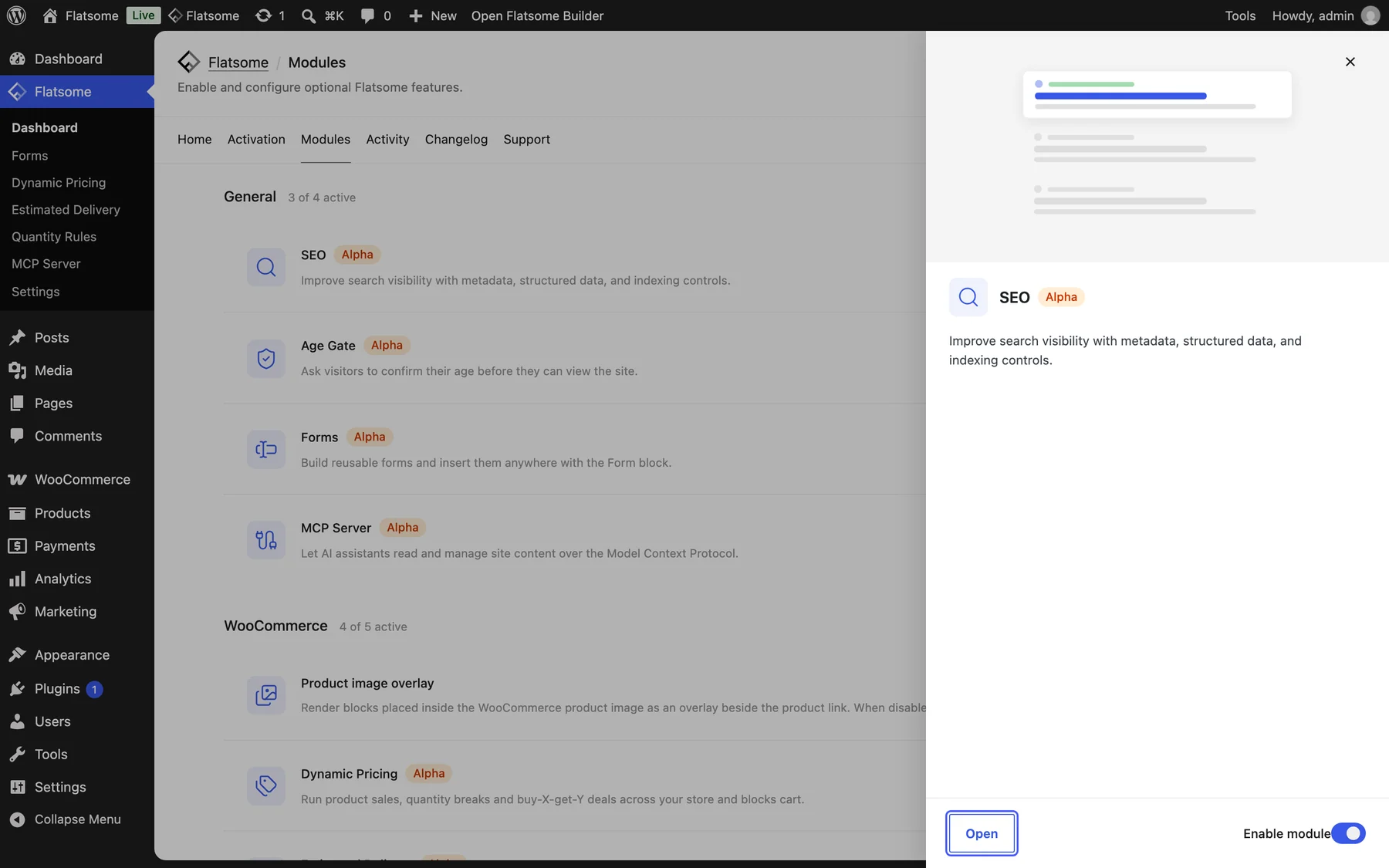
- Click a module to open its details, then choose Open in the panel to get to the module’s settings. This works once the module is enabled and saved. Modules with settings also appear under Flatsome → Settings.
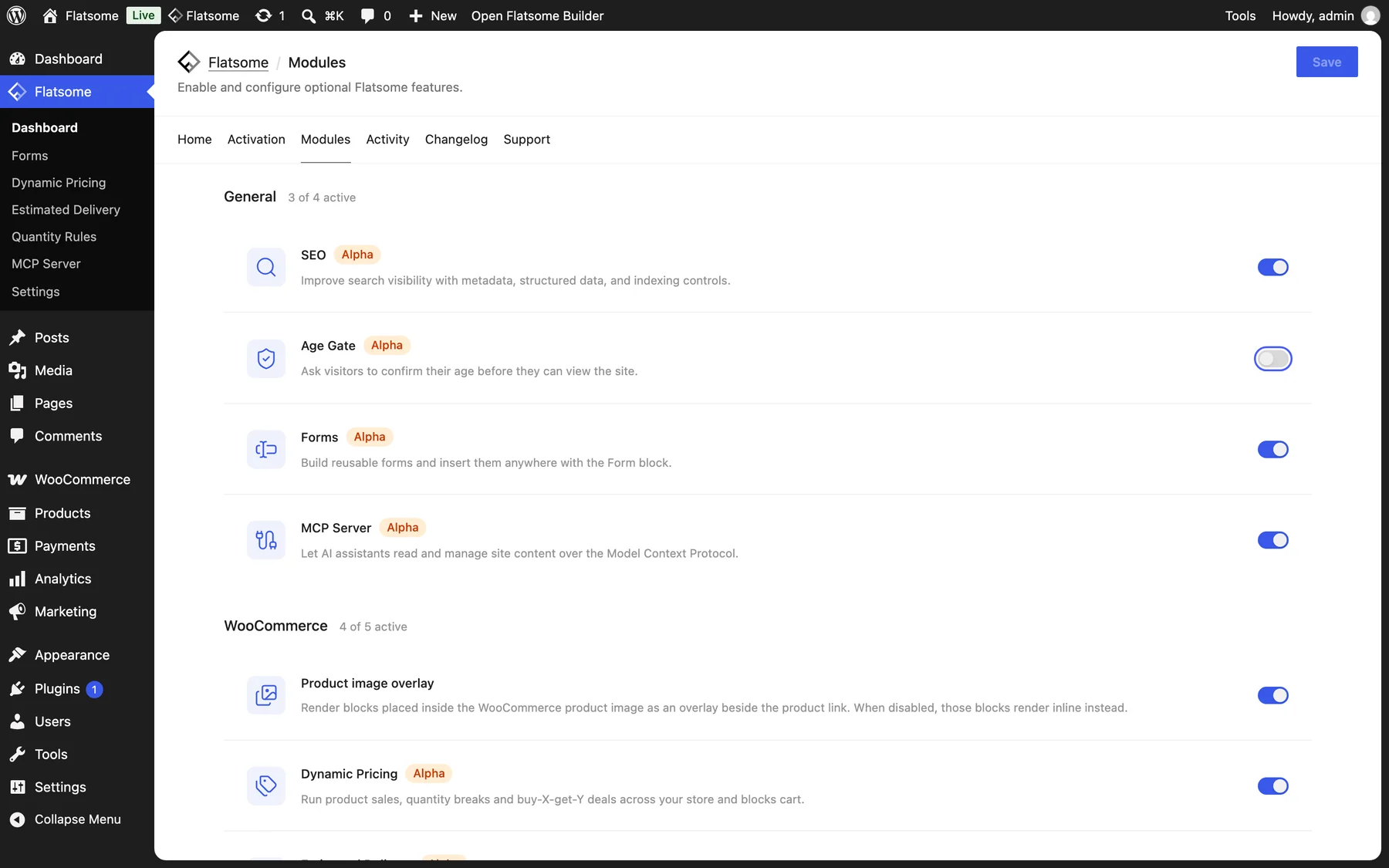
Some modules depend on others or on WooCommerce. The card lists what is required, and the module cannot be enabled until those requirements are met.
Modules that install as plugins
Some modules ship as separate plugins so they can be updated on their own. Their cards show Install and activate instead of a toggle, and they are installed straight from the Modules screen. This needs a registered license, so activate the site first if the card asks you to.
What happens to content when a module is off
Blocks that belong to a disabled module are not rendered on the front end and are not offered in the editor, but the content is kept. Switch the module back on and the blocks render again. Settings are kept as well, so you can turn a module off temporarily without losing its configuration.
Modules marked Alpha or Beta are still changing. Try them on a staging site before enabling them on a live store.