


A license key registers one production website. Once a site is registered, updates for the Flatsome theme and the Flatsome plugin show up in WordPress like any other update, and modules that ship as separate plugins can be installed from the Modules screen.
Find your license key
Sign in to your account at my.flatsome.com. Every license you own is listed there with its key, which looks like FL-1234-5678-ABCD-EFGH. If you do not have a license yet, you can buy one and the key is added to your account right away.
Activate the site
- In the WordPress admin, go to Flatsome → Dashboard, then choose the Activation tab.
- Paste your license key into the License key field.
- Confirm that you understand each key registers one production website, then choose Activate.
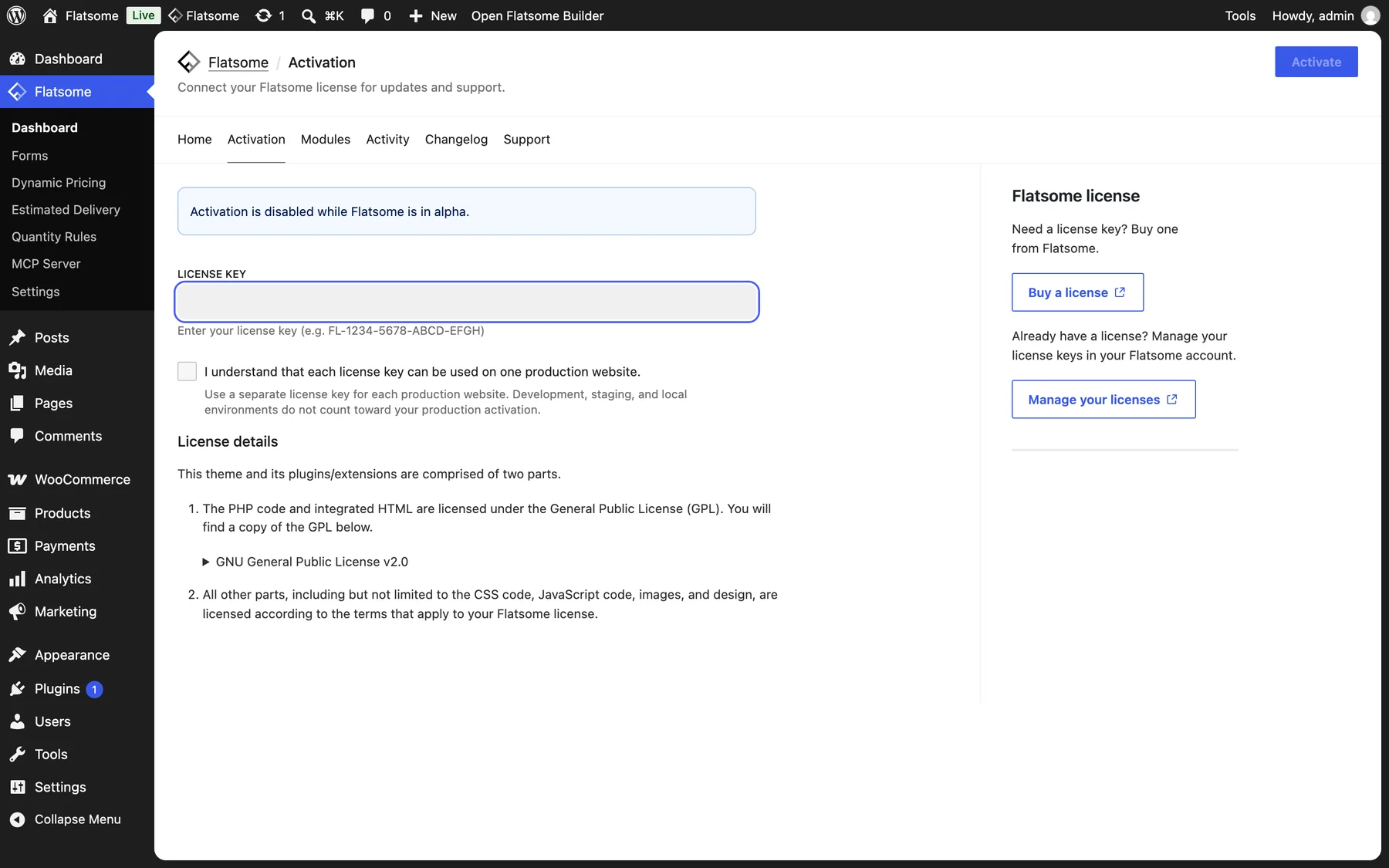
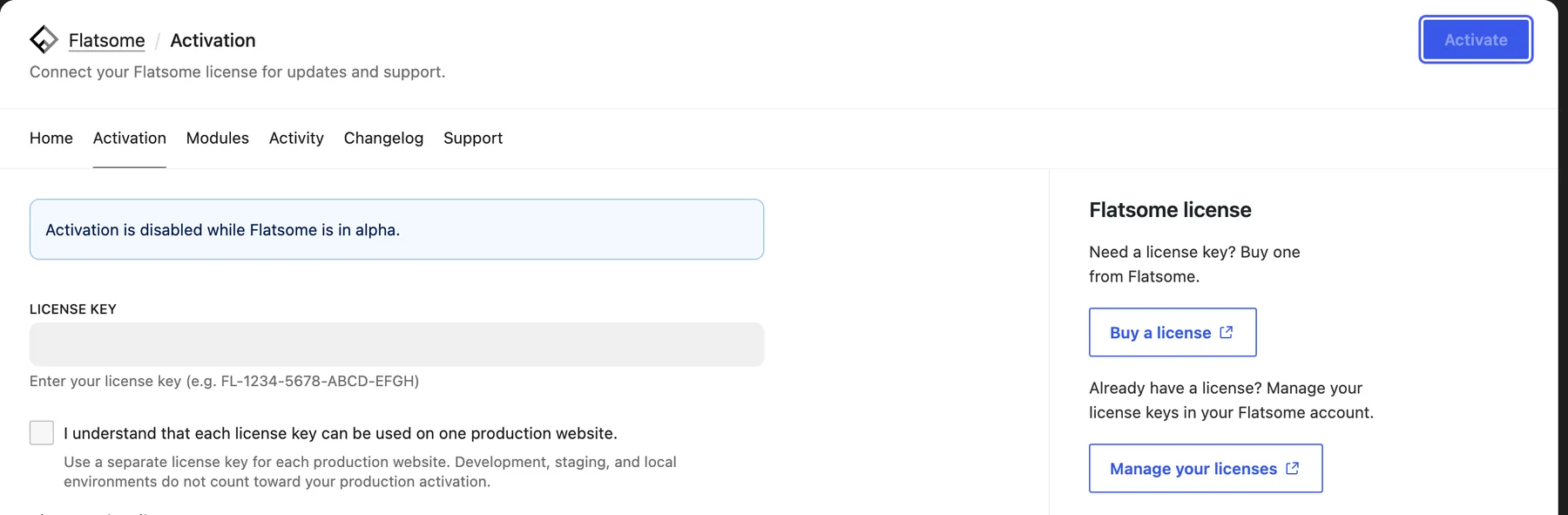
A success notice confirms the site is registered. Development, staging, and local environments do not count toward the production activation, so you can use the same key on your staging copy and on your computer.
Staging and local sites
Flatsome registers each site as production, staging, or local based on the WordPress environment type. Set it in wp-config.php before you activate the license, above the /* That's all, stop editing! */ line:
define( 'WP_ENVIRONMENT_TYPE', 'staging' );- –
stagingregisters a staging site. - –
localordevelopmentregisters a local site. - –
production, or no value, registers a production site.
Some addresses are always registered as staging, whatever WP_ENVIRONMENT_TYPE says: a subdomain named staging, dev, test, or local, optionally followed by a number or a dash suffix (such as staging2.example.com or dev-shop.example.com), and these hosting staging domains:
*.app.github.dev, *.closte.com, *.cloudwaysapps.com, *.cloudwayssites.com, *.ddev.site, *.dreamhosters.com, *.flywheelsites.com, *.flywheelstaging.com, *.gitpod.io, *.goserver.host, *.instawp.co, *.instawp.dev, *.instawp.link, *.instawp.site, *.instawp.xyz, *.kinsta.cloud, *.lndo.site, *.localsite.io, *.mybluehost.me, *.myftpupload.com, *.mysites.io, *.mystagingwebsite.com, *.ngrok-free.app, *.ngrok-free.dev, *.nxcli.io, *.nxcli.net, *.onrocket.site, *.pantheonsite.io, *.pressdns.com, *.savviihq.com, *.servebolt.cloud, *.sg-host.com, *.stackstaging.com, *.stage.site, *.tastewp.com, *.temp.domains, *.tempurl.host, *.updraftclone.com, *.webspaceconfig.de, *.wp.build, *.wp1.sh, *.wp1.site, *.wpbouwlocatie.nl, *.wpcomstaging.com, *.wpengine.com, *.wpenginepowered.com, *.wpstage.net, *.wptiger.fr, *.zonevs.eu, and *-liquidwebsites.com.
Changed the environment type after activating? Deactivate and activate the license again so the site is registered in the right environment.
Update the theme and plugin
Registered sites get updates through Dashboard → Updates, and on the Themes and Plugins screens, exactly like WordPress core updates. Nothing needs to be downloaded by hand.
Choose how early you get new versions under Flatsome → Settings → Updates:
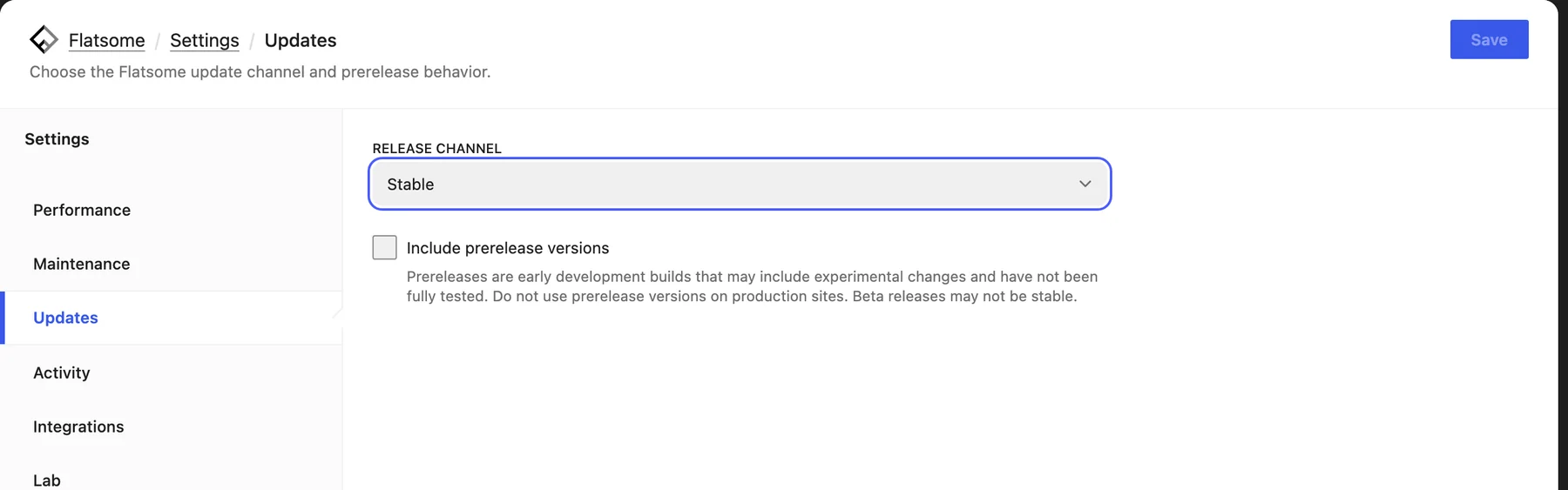
- Release channel: Stable only offers tested releases. Beta also offers beta builds before they become stable.
- Include prerelease versions: also offer alpha and release candidate builds. Use this on a staging site, not on a live store.
Move a license to another site
Open the Activation tab under Flatsome → Dashboard on the old site and choose Deactivate, then activate the key on the new site. If the old site is no longer reachable, remove the activation from the license at my.flatsome.com instead.