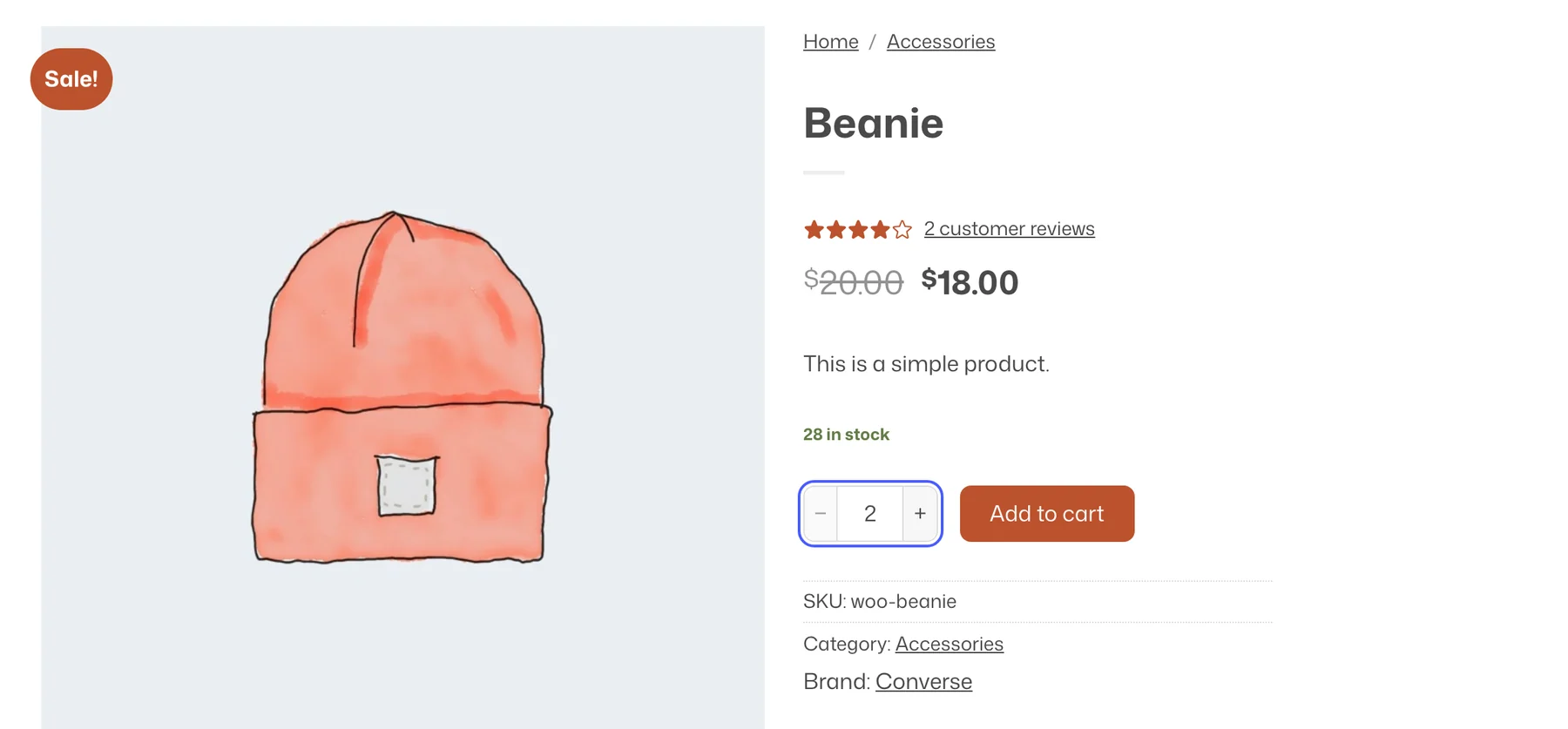
Quantity rules set a minimum, a maximum, and a step for how many of a product can be bought, such as packs of 6 or a maximum of 2 per order. They are enforced on the product page, in the cart, and at checkout, wherever a quantity field appears.
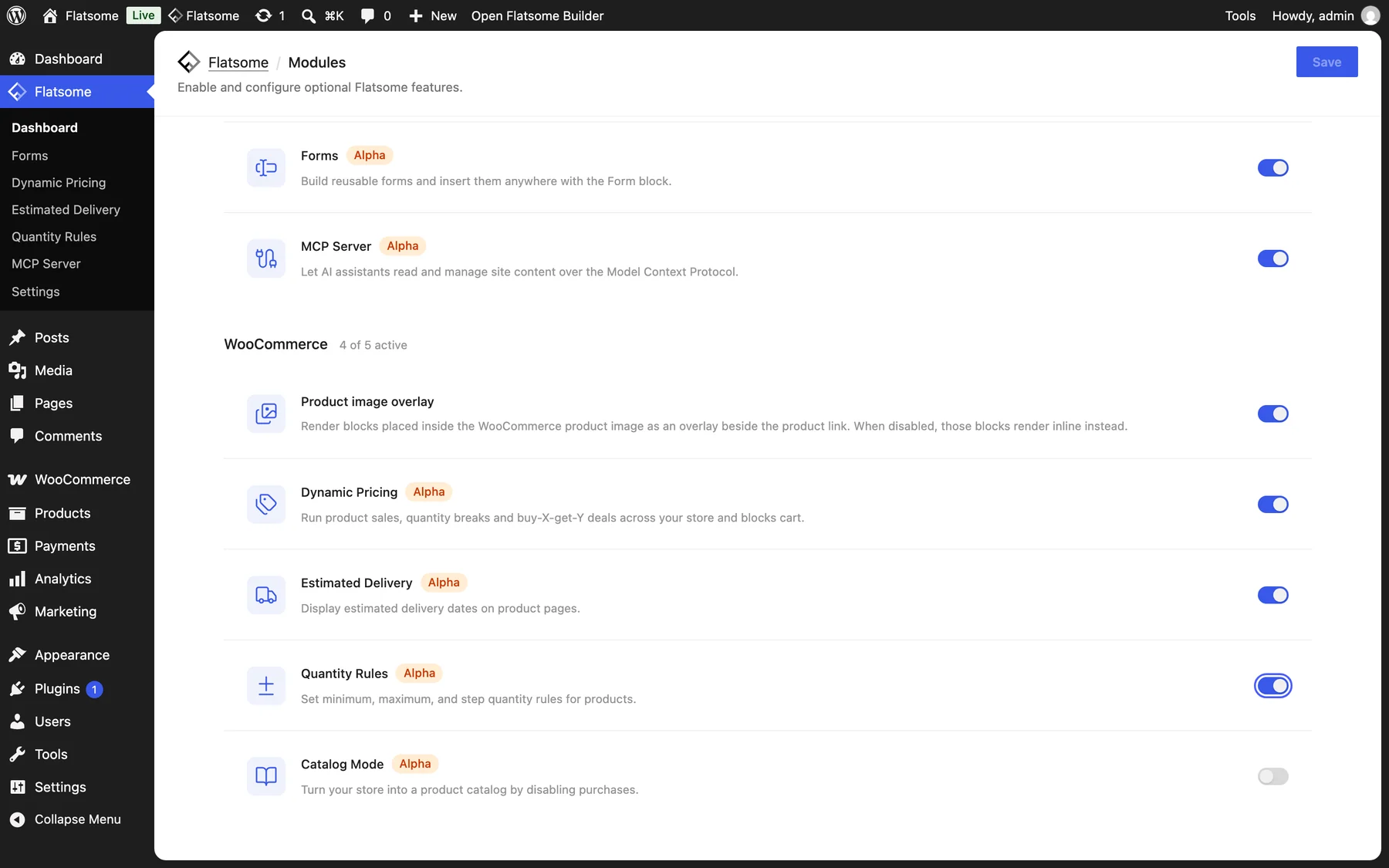
Turn it on
- Enable Quantity Rules under Flatsome → Dashboard → Modules.
- Open Flatsome → Quantity Rules and choose Add rule.
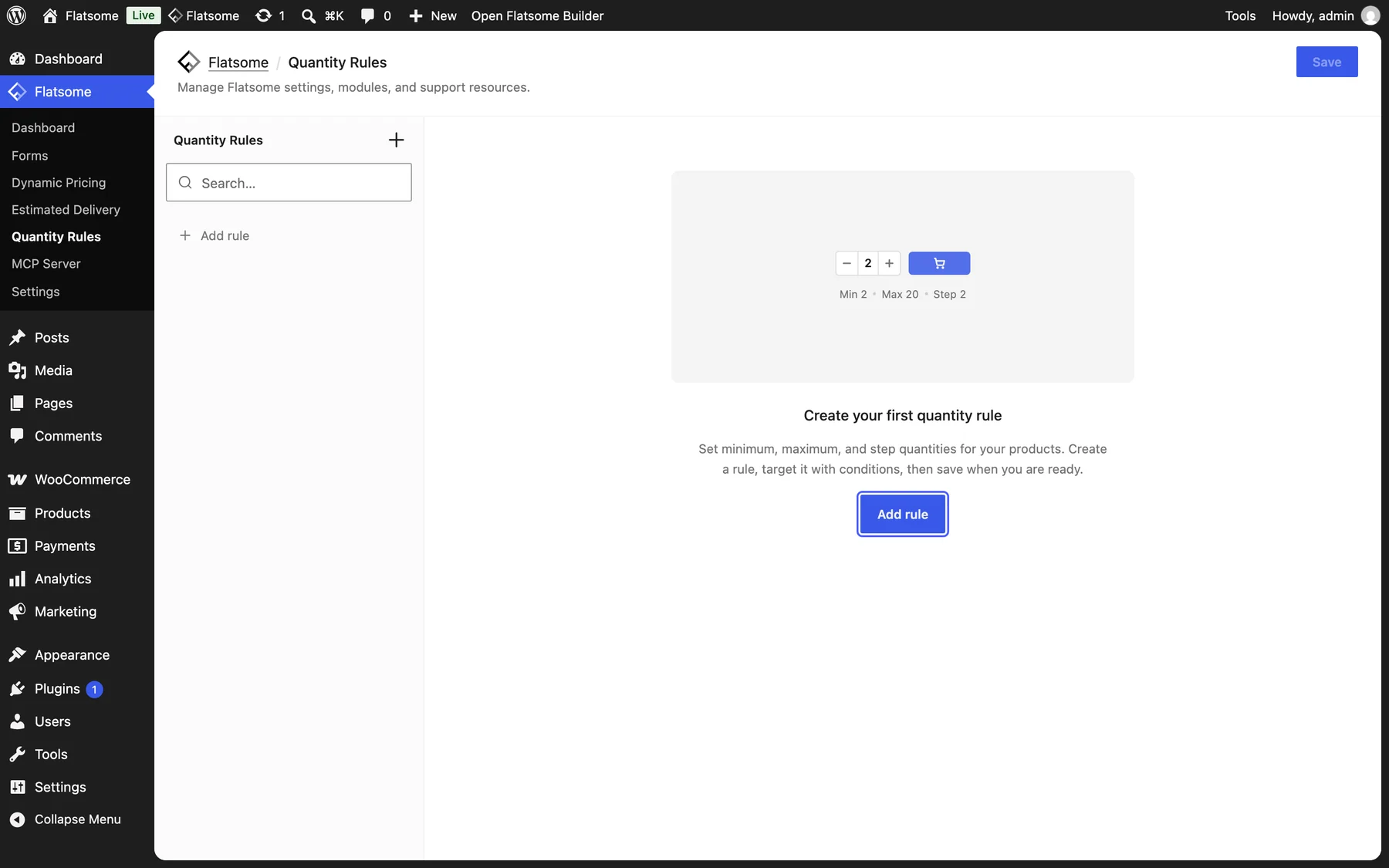
Create a rule
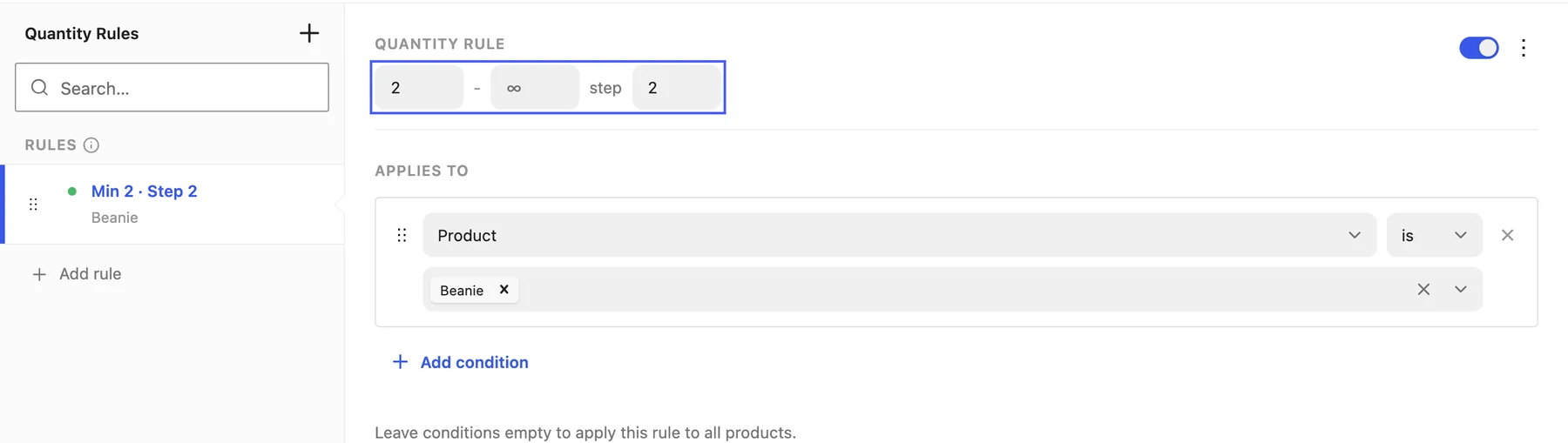
- Under Quantity rule, enter the minimum, maximum, and step on one line. Leave a field empty for no limit.
- Under Applies to, add conditions: a product, category, tag, brand, shipping class, or stock status. Leave it empty for a store-wide rule.
- Choose Save at the top right of the screen.
Rules are checked top-down and the first match wins, so put specific product rules above broad category rules. Variations follow the rule of their parent product, and products sold individually are left alone.
Examples
- Bottles sold by the case: min 6, step 6, for the Wine category.
- Limited drop: max 2, for one product.
- Wholesale minimum: min 10, no conditions.
The Product Quantity block and the cart quantity inputs pick up the rule automatically, and WooCommerce rejects add-to-cart and checkout attempts that break it.