A hover state changes how a block looks while the pointer is over it: lift a card, deepen a shadow, or change a color. A container link makes a whole Flex, Column, or Card clickable.
Add a hover state
- Select the block, open the options menu of the Effects panel, and add Hover.
- Change the properties for the hover state. The canvas shows the hover state while its settings are open.
- Open Transition to set Easing, Duration, and Delay.
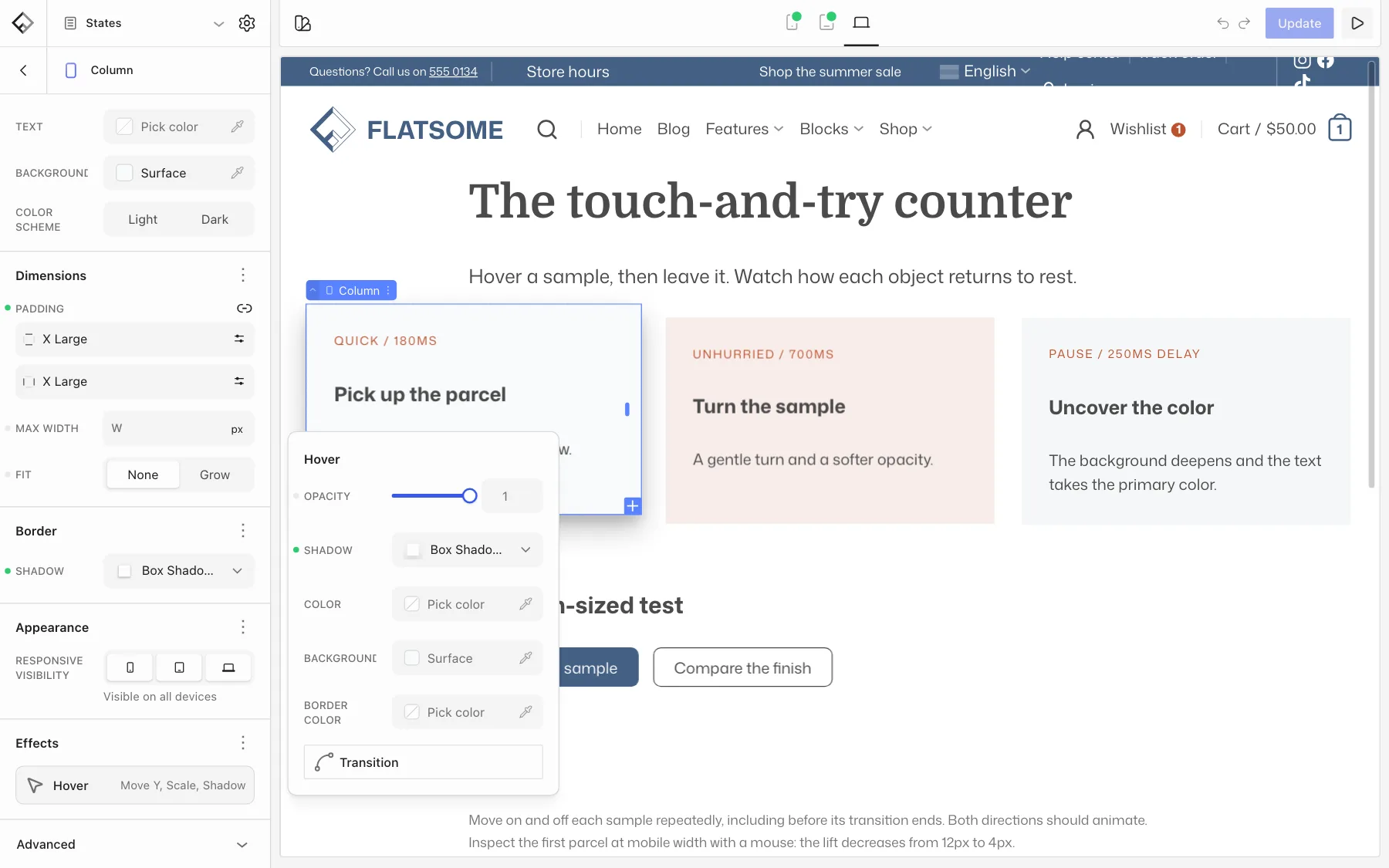
Depending on the block, a hover state can change Opacity, Move, Scale, Rotate, Shadow, Color, Background, and Border color. Hover states are available on blocks such as Button, Image, Video, Card, Flex, Column, Row, Section, and Gallery.
Hover a group at once
Inside a Card or a linked container, child blocks also offer Group hover. Its settings apply while the pointer is anywhere over the parent, so the image can zoom and the title change color together when a visitor hovers the card.
Make a whole container clickable
- Select a Flex, Column, or Card block.
- In the Elements panel, choose Link. If it isn’t listed, add it from the panel’s options menu.
- Pick a Type: Page, Post, Term, Archive, or Custom. Then choose the page or enter the URL. Set Target to New tab to open the link in a new tab.
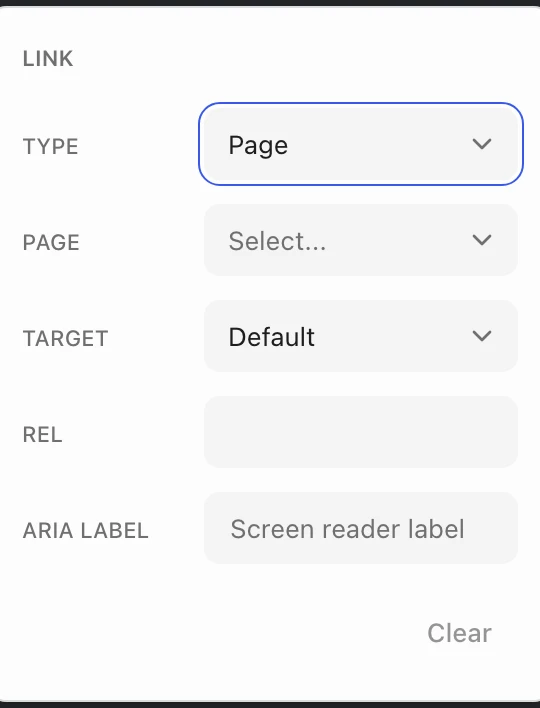
The whole block becomes clickable, while links and buttons inside it keep working. Keyboard users see a focus ring around the block. Add an Aria label when the text in the block doesn’t say where the link goes.
Inside a Posts or Products block, the card shows a Link to Post toggle instead, which links each item to its own page.