The Tabs block shows one panel of content at a time, with tab titles to switch between them. It works for product details, FAQs, pricing plans, and anything else that would make a page long.
Add tabs
- Insert the Tabs block and pick a starting point: Tabs, Vertical, Fill, or Switch.
- Click a tab title to rename it, and add blocks to its panel.
- To add a tab, use the add block button inside the tab panels.
Each tab also has an Anchor. A link to the page with that anchor, such as /shipping/#returns, opens the page with that tab selected.
Style and layout
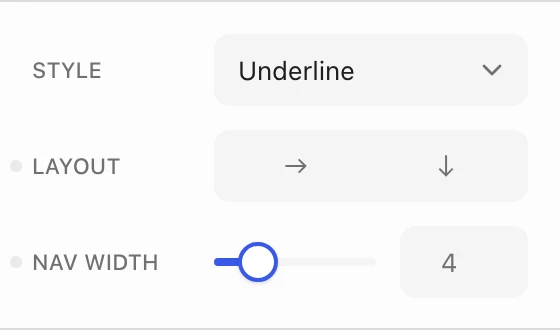
Select the Tabs block to choose a Style (Simple, Underline, Outline, Tabs, Fill, or Switch) and a Layout: Horizontal, or Vertical with the titles beside the content. Nav width sets how wide the titles are in the vertical layout. The layout can be different on each screen size, for example vertical on desktop and horizontal on phones.
Tab titles
Select the Tab List to control the row of titles:
- Overflow: Scroll keeps the titles on one line that scrolls sideways, Wrap moves them onto more lines.
- Gap: the space between titles.
- Navigation: font size, text transform, a divider, and Activate on click or on hover.
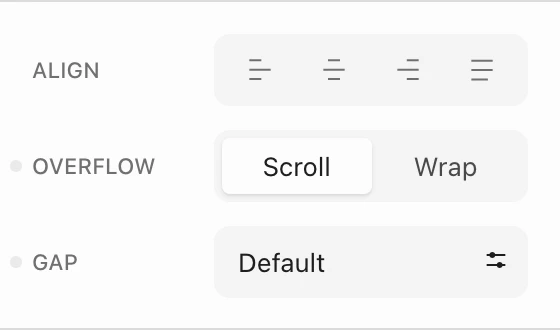
Overflow and Gap apply to the horizontal layout. To put a count or a New label on a title, see Badge.