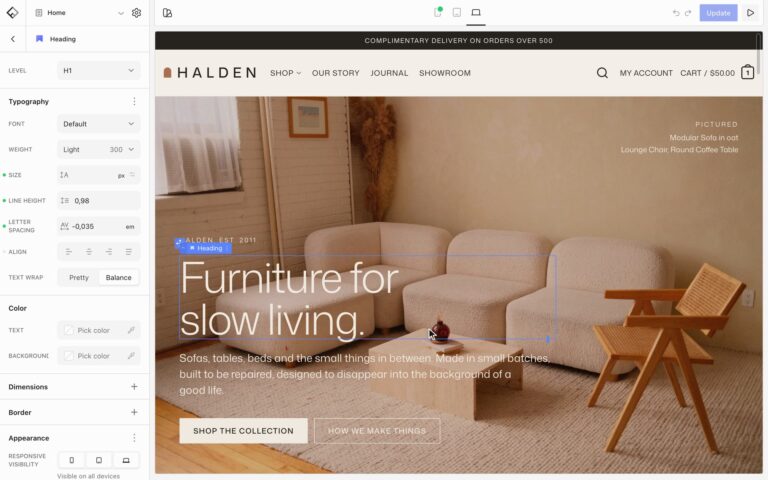
Flatsome includes an MCP server, so AI assistants can create pages, edit templates and menus, upload media, and change settings on your site using the same blocks you use in the Builder. Every connection starts read-only and you grant more as you trust it.
Prefer to watch? This video shows the whole flow: connecting Claude through Flatsome MCP, then asking it to restyle a store, add a product and build a new home page.
Enable the MCP Server module
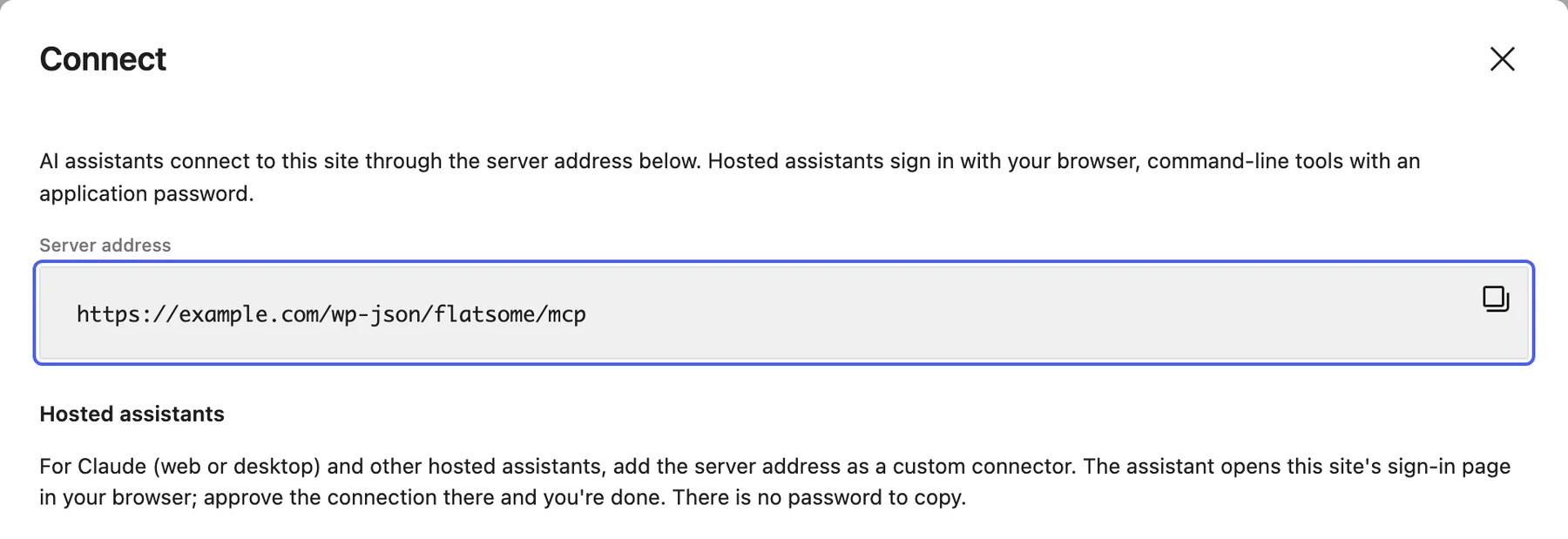
Go to Flatsome → Dashboard → Modules and turn on MCP Server. The module needs the free MCP Adapter plugin from WordPress.org. If it isn’t installed yet, the module shows Install MCP Adapter and enable instead of a switch, and Flatsome installs and activates the plugin for you. Then select the module and choose Open in the details panel. Choose Connect at the top right to see the Server address, which is your site URL followed by /wp-json/flatsome/mcp. Every client uses that address.
If MCP Server was turned on before MCP Adapter became required, the module shows a notice asking you to install it. Install it to keep the connection working after future updates.

Hosted assistants
Claude, ChatGPT, Grok, Muse, Mistral Vibe, and other hosted assistants connect through your site’s sign-in page, so there is no password to copy. Add the server address as a custom connector, and when the assistant opens your site in the browser, sign in and choose Allow access. Pick your assistant for the exact steps.
- In Claude on the web or in the desktop app, go to Customize → Connectors.
- Choose +, then Add custom connector.
- Enter a name, such as your site name, and paste the server address. Leave Advanced settings empty and choose Add.
- Choose Connect next to the new connector. Sign in to your site and choose Allow access.
- In a chat, open the + menu, choose Connectors, and turn on your site.
The Free plan allows one custom connector. On Team and Enterprise plans, an owner first adds the connector under Organization settings → Connectors by choosing Add, then Custom and Web. Members then choose Connect under Customize → Connectors.
Every new connection starts read-only. Administrators can allow changes and deletions on the approval screen, or later in the connections list.
Code editors
Cursor signs in the same way as hosted assistants. Add your site to ~/.cursor/mcp.json to use it in every project, or to .cursor/mcp.json in a single project, with the server address as its url:
{
  "mcpServers": {
    "my-store": {
      "url": "https://example.com/wp-json/flatsome/mcp"
    }
  }
}
The first time Cursor connects, it opens your site’s sign-in page. Sign in and choose Allow access. Cursor asks before it runs each tool, so you approve every change in the chat.
Visual Studio Code and other editors with remote MCP support connect the same way: add the server address as a remote or HTTP server. If an editor only accepts a token or an authorization header, follow Command-line tools below.
Command-line tools
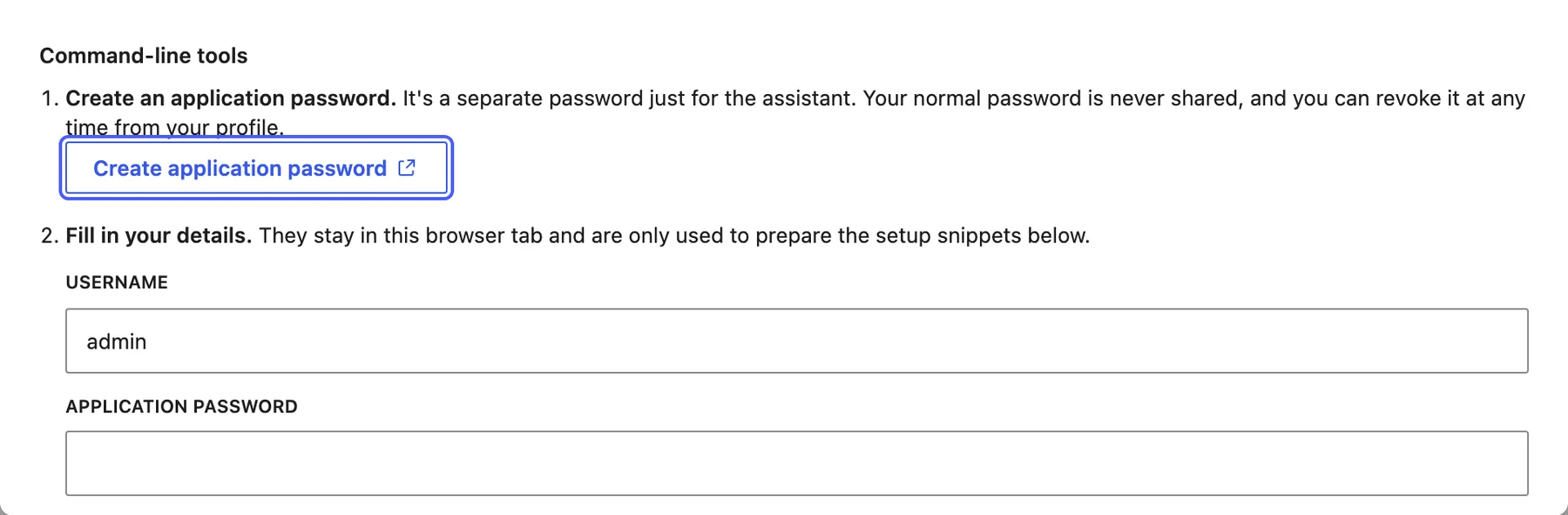
- In the Connect dialog under Command-line tools, choose Create application password. WordPress opens your profile with the application name filled in; create the password and copy it.
- Back in the Connect dialog, fill in your username, the application password, and a connection name that tells you later which tool this is.
- Copy the snippet for your tool: a
claude mcp addcommand for Claude Code, a block for the Codex configuration file, or the authorization header for any other MCP client.
Decide what a connection may do
Every assistant that connects appears in the connections list on the MCP screen with the user it acts as, when it was first seen, and when it was last used. Select a connection to change its access:
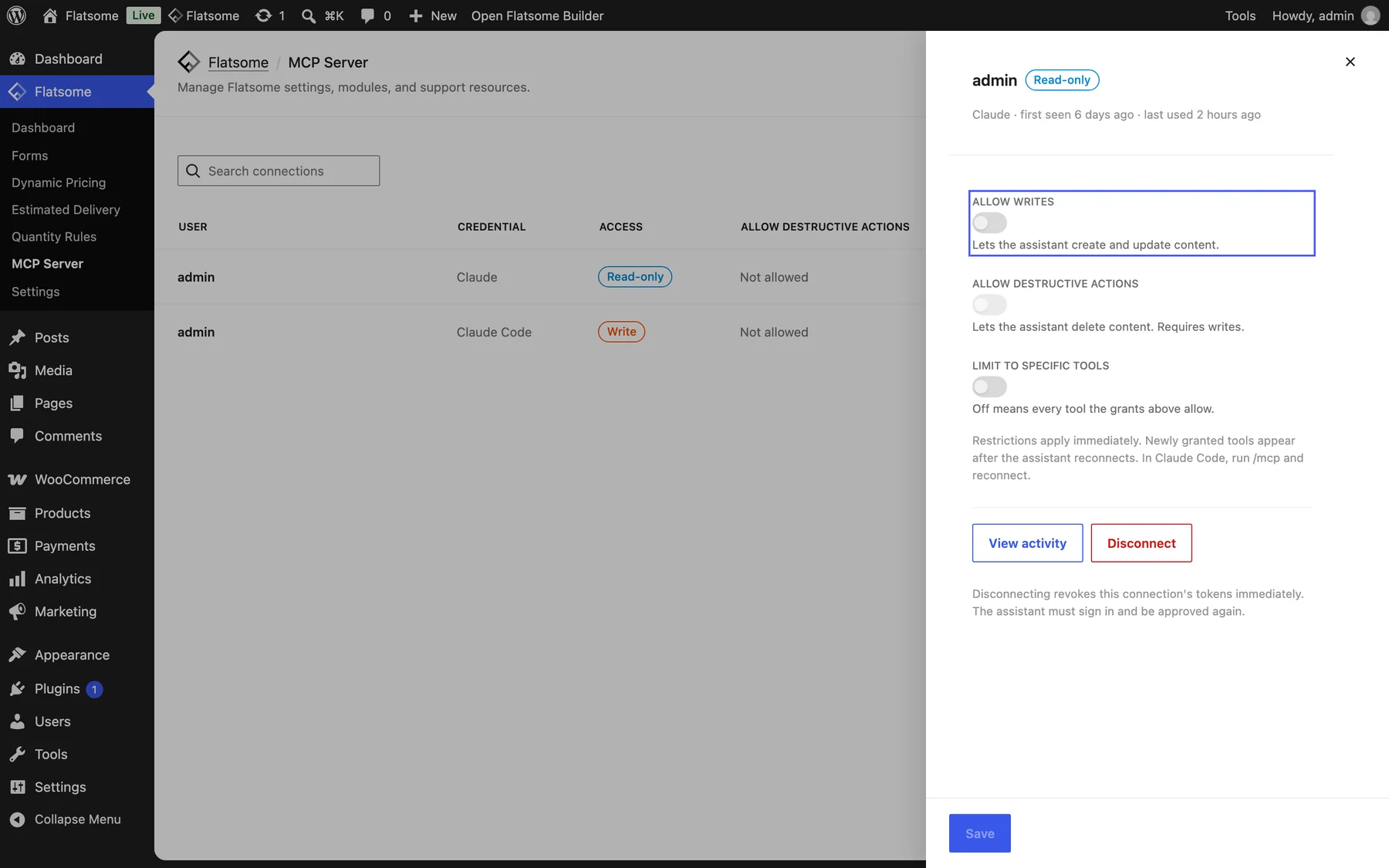
- Read-only (default): shown as a badge while no switch is on. It can read content and settings but not change anything.
- Allow writes: it can create and update content.
- Allow destructive actions: it can also delete content. Requires writes.
- Limit to specific tools: restrict the connection to a chosen set of tools.
Changes take effect on the next request. Reconnect the client to refresh its tool list. The assistant can never do more than the WordPress user it signed in as. Disconnect removes a hosted connection and revokes its access. For an application password connection, Remove clears its grants and Revoke application password revokes the password. To clean up several connections at once, select them in the list and choose Disconnect or Revoke application password. View activity shows everything a connection has done.
Create pages with your assistant
Once your site is connected, you work with the assistant in a normal chat. There are no special commands: describe what you want, and it builds it with the same blocks you use in the Builder.
- Allow changes. New connections are read-only, so select the connection on the MCP screen and turn on Allow writes.
- Make sure your site is turned on in the chat. In Claude, open the + menu, choose Connectors, and turn on your site.
- Describe the page. For example: “Create an About page for my coffee shop with a hero, a short story about us, three reasons to visit, and a contact section.”
The more the assistant knows about your business, the better the result. Mention your products, audience, and the style you like, or point it at an existing page to match. It can also edit templates, menus, and global styles, upload images, and change module settings when you ask. In a store, it can manage Dynamic Pricing deals, quantity rules, and Estimated Delivery windows too, and preview which deal or delivery estimate a product gets.
If the assistant cannot connect
Choose Diagnostics on the MCP screen, then Run diagnostics in the dialog. It checks that the server address is reachable, that authentication works, and that nothing on the host strips the headers the client sends, and it reports what to fix.