Most customization happens with blocks and global styles, but sometimes you need to paste an embed, add a tracking script, or run a PHP snippet. Here is where each kind of code belongs.
Embeds on a page
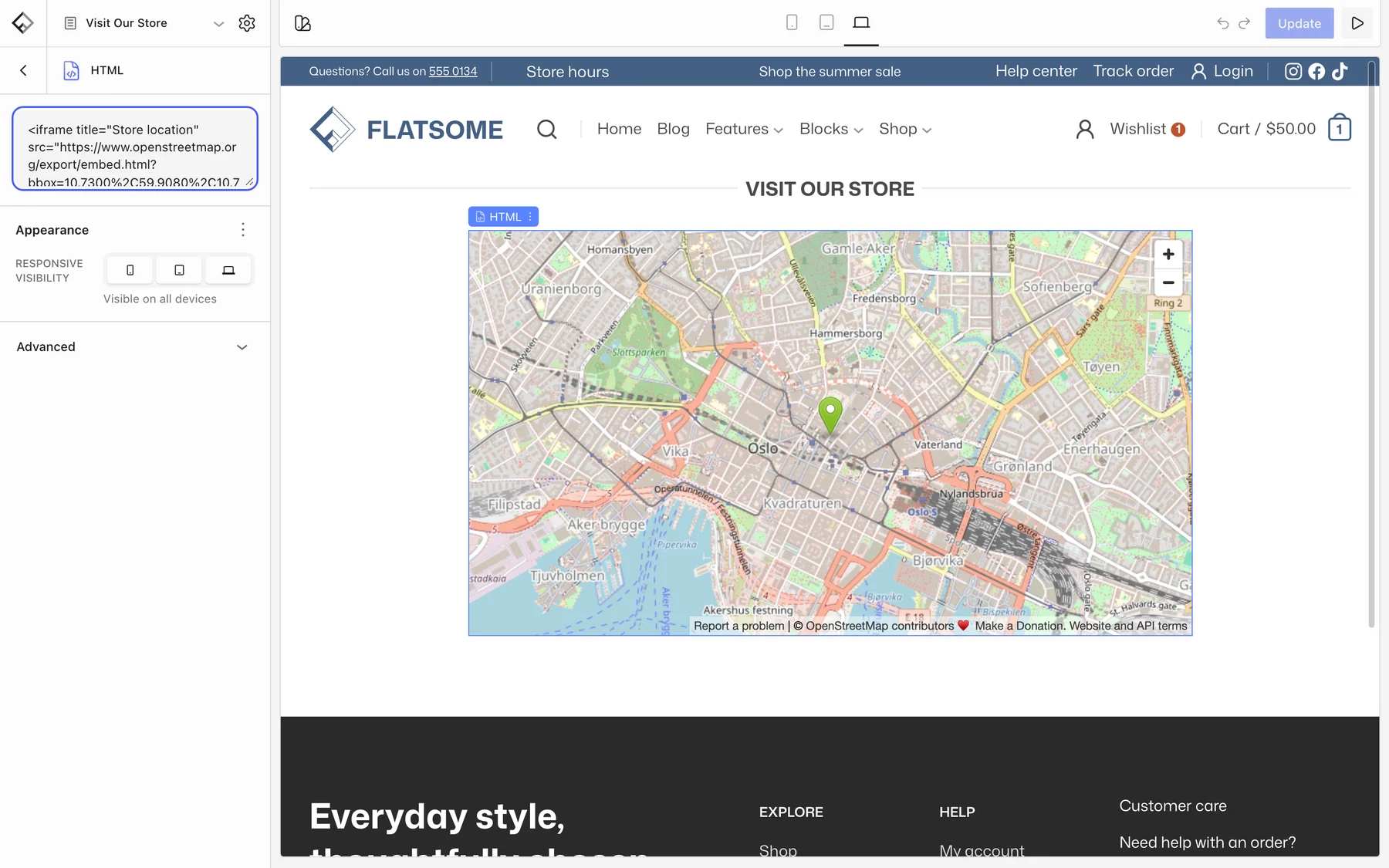
For a map, a video, or a booking widget that comes as an iframe, use the HTML block and paste the markup into the text area at the top of its settings. Use it as a last resort: if a block can build it, use the block. Keep <script> tags out of it; scripts belong site-wide, not inside page content, and the next section covers them.
Tracking and third-party scripts
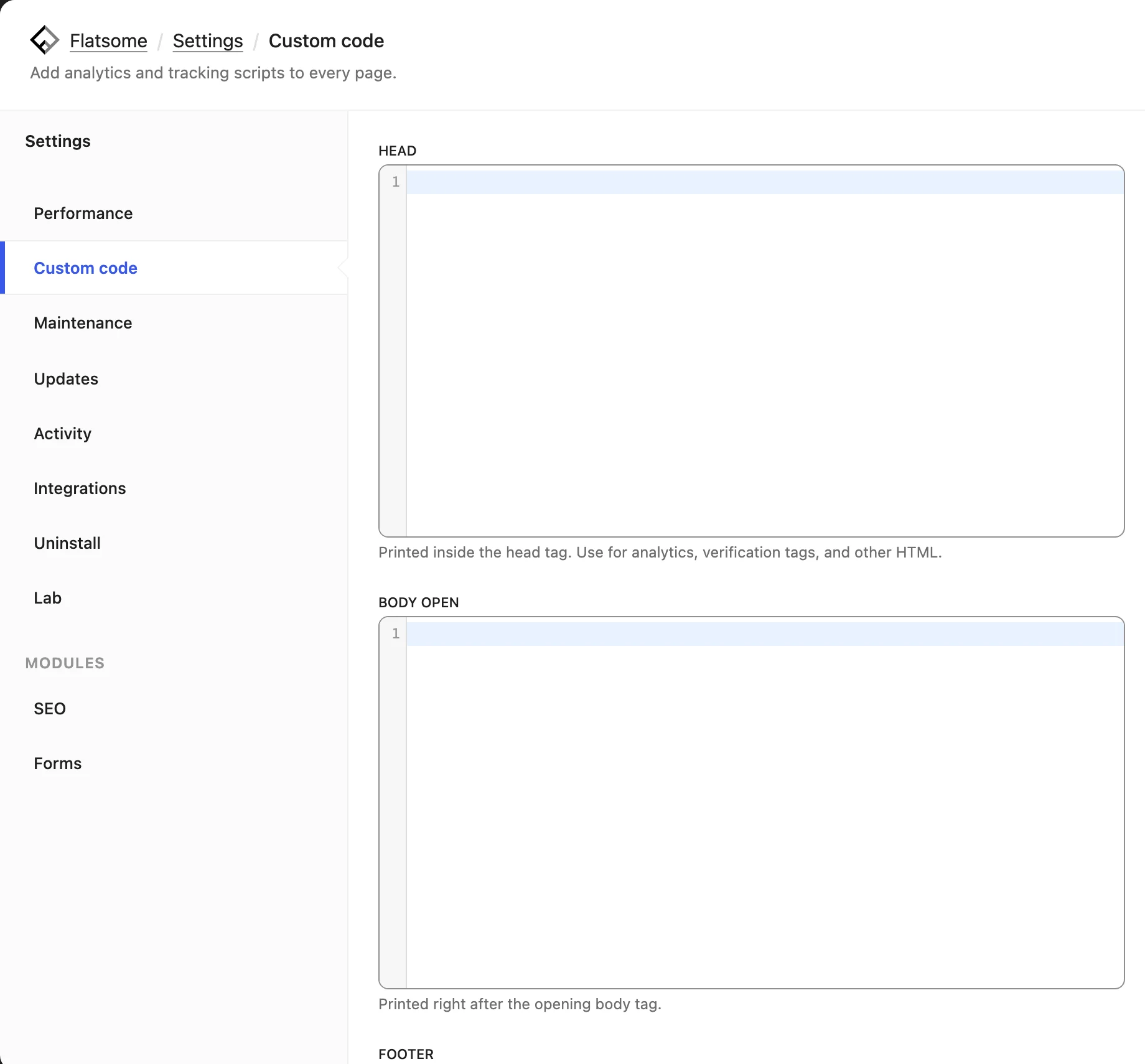
Analytics, pixels, and chat widgets need to load on every page. Go to Flatsome → Settings → Custom code and paste the code into the field the provider tells you to use:
- Head: code for the
<head>of every page, such as Google Analytics or a Meta Pixel. - Body open: printed right after the opening
<body>tag, such as the Google Tag Manager<noscript>snippet. - Footer: printed before the closing
</body>tag, such as chat widgets.
The code is saved in the Flatsome settings, so theme and plugin updates never remove it. Only users who can add unfiltered HTML can edit it, which on a multisite network means the super admin. The code loads for every visitor, so if your region requires consent before tracking, use the provider’s plugin or a consent tool that loads the script after consent instead.
CSS
Go to Styles → CSS in the Builder. See Add custom CSS.
PHP
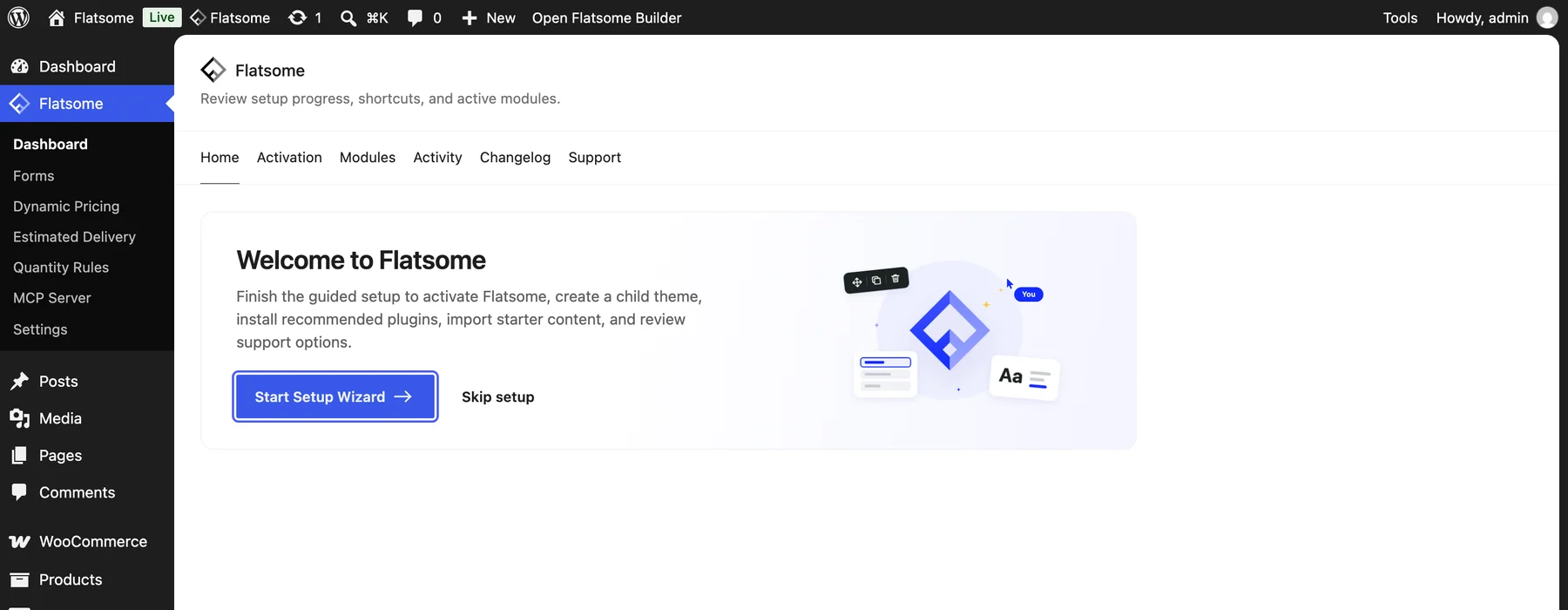
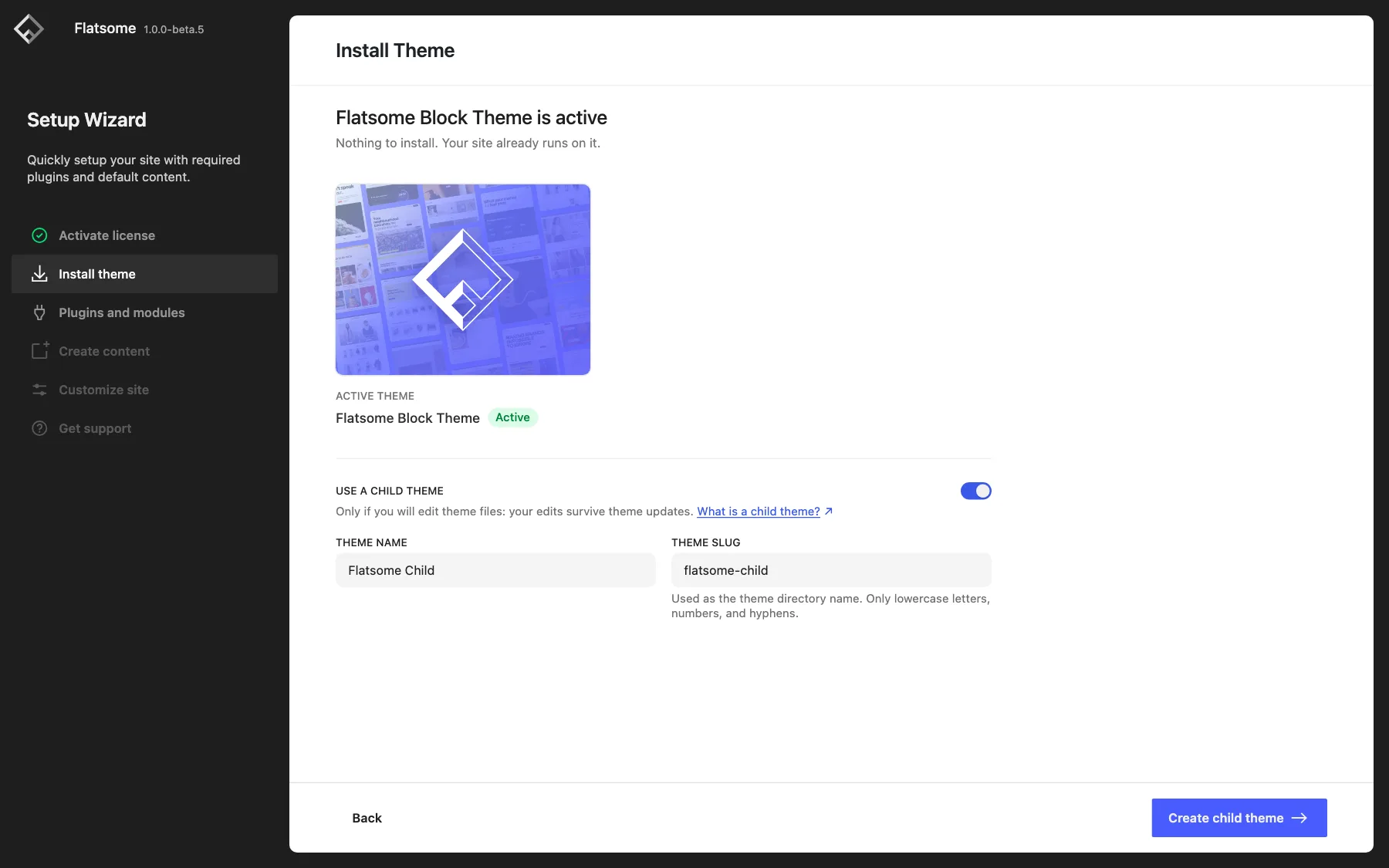
Never edit the theme or plugin files; updates replace them. Put PHP in a child theme or a code snippets plugin instead. The setup wizard creates a child theme for you: open it from Flatsome → Dashboard, go to the Install theme step, turn on Use a child theme, and click Create child theme. It adds a starter functions.php for your code, and the child theme keeps receiving parent theme updates.
For available hooks and filters, see the Developers section.