Conditions decide when a block is shown. Show a members banner only to logged-in visitors, a “Back soon” note only on products that are out of stock, or a “You may also like” heading only when a product has related products. Every Flatsome block has a Conditions panel.
Add a condition
- Select the block and open the Conditions panel, right above Advanced.
- Under Show block when, choose Add condition.
- Pick what to check, such as Visitor or Stock status, then how it should match and the value.
Use Add condition again for more. Between two conditions, choose AND when both must match, or OR when either is enough. A block without conditions is always shown.
Visitor conditions
These work on every block:
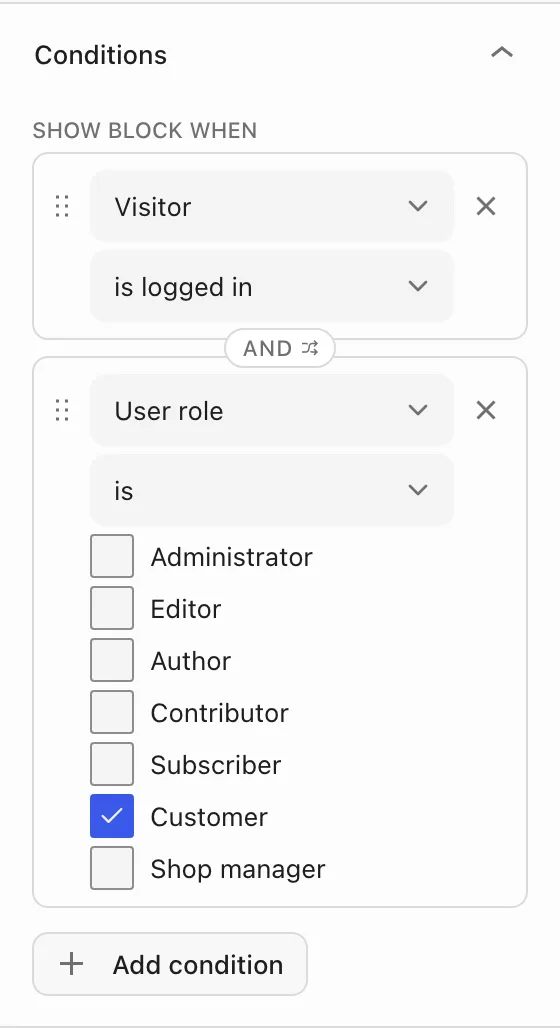
- Visitor: is logged in, or is logged out.
- User role: is or is not a role, such as Customer or Administrator.
Visitor conditions are checked on the server, so the hidden content never reaches the page. They work with page caching plugins, which don’t cache pages for logged-in visitors.
Product conditions
These appear where a block shows a product: in the Single Product template, on a product, and inside the card of a Products block. They check the product the block shows: the current product on a product page, or each card’s own product in a grid.
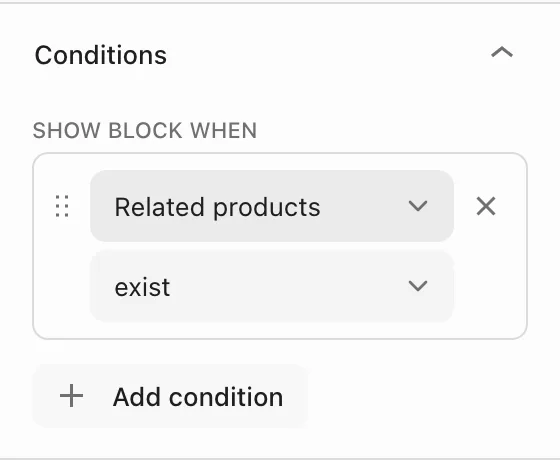
- Related products and Up-sells: exist or don’t exist. A heading with this condition shows exactly when the Product Related or Product Up-sells block has products to show.
- Stock status: In stock, Out of stock, or On backorder.
- Product type: Simple, Variable, Grouped, or External.
- Product category, Product tag, and Product brand.
- Price: compared with a value, such as Less than 20, or Between two values.
State conditions
Inside a Section or Row with states, the panel also offers State, so a block shows only in the states you pick. See Switch content with states.
Preview conditions in the Builder
The canvas hides a block when its product conditions don’t match the product being previewed. Pick another product in the template’s preview menu to check it, and in a product grid each card previews its own product. When the preview hides the block, the Conditions panel says why, for example “Hidden for Beanie, the product being previewed.” Visitor conditions can’t be previewed, so the canvas always shows those blocks.
Layers marks every block that has conditions. Hover the mark to read them, for example “Shown when visitor is logged in”. A gray dot on the mark means the block is hidden in the current preview, and the tooltip says what holds instead.