The site layout puts the whole site in a centered box, with a page background around it. The header, content, and footer all stay inside the box. Use it for a classic boxed look, or leave it off for a full-width site.
Turn on the boxed layout
- Open the Builder and go to Styles → Layout.
- Scroll to Site layout and enter a Width, for example 1200 px. The site is centered in a box of this width.
- Set the margin, shadow, and background, then save.
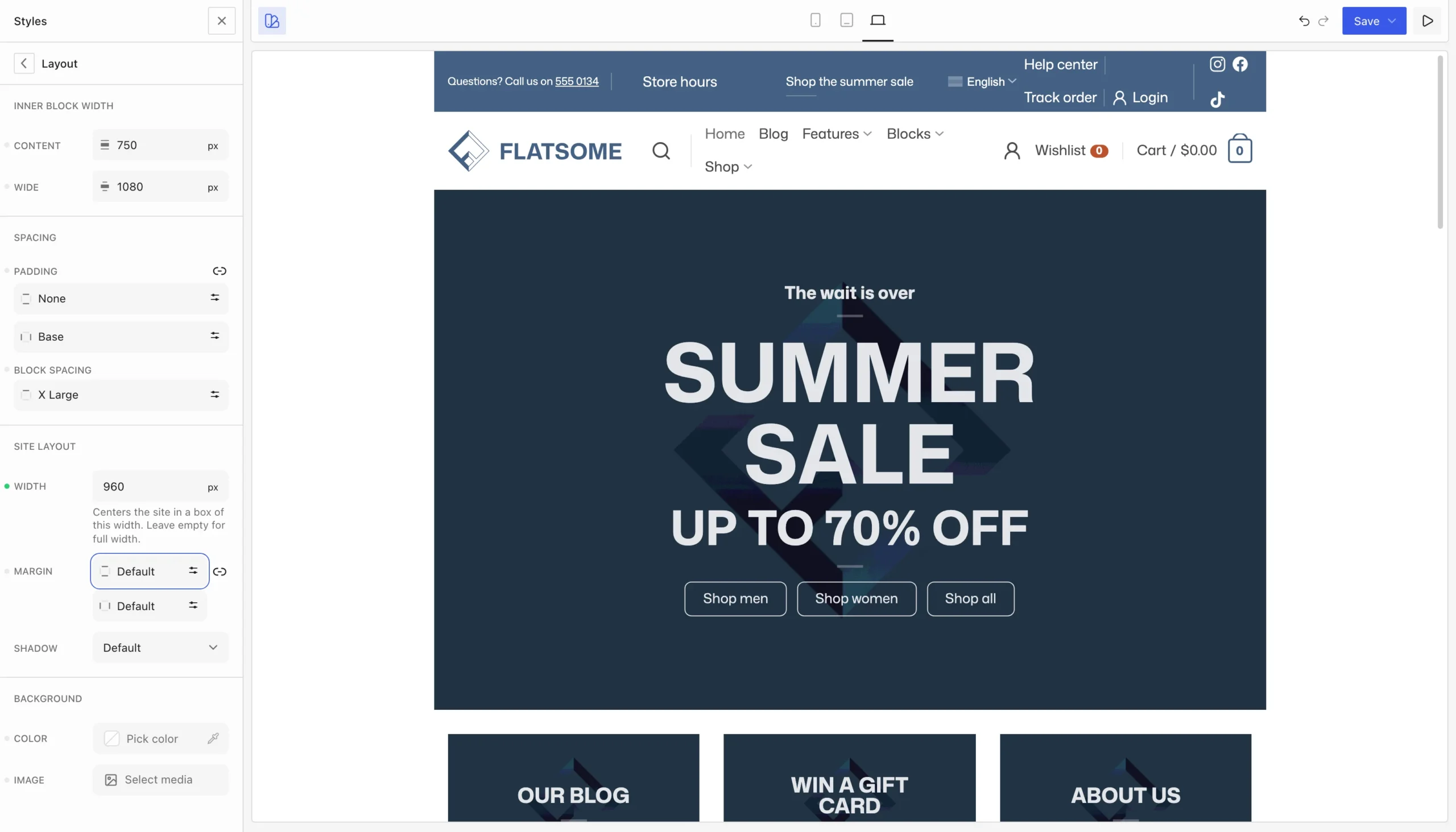
To go back to a full-width site, clear the Width.
Settings
- Width: the width of the box. Empty means full width.
- Margin: space above, below, and beside the box. The side margins keep the box away from the screen edges when the screen is only a little wider than the box. On tablets and phones the margins are dropped and the box fills the screen.
- Shadow: a shadow around the box.
- Background: a Color and an Image for the page around the box, with Size, Repeat, and Fixed for the image.
The box itself keeps the background from Styles → Colors → Background, so choose a page background that stands apart from it.
Good to know
- A sticky header stays inside the box when it sticks.
- Mega menus set to full width are cut off at the edges of the box. Use a narrower mega menu with a boxed layout.
- Coming from Flatsome Classic? The migration turns Classic’s boxed and framed layouts into this setting. See From Flatsome Classic.