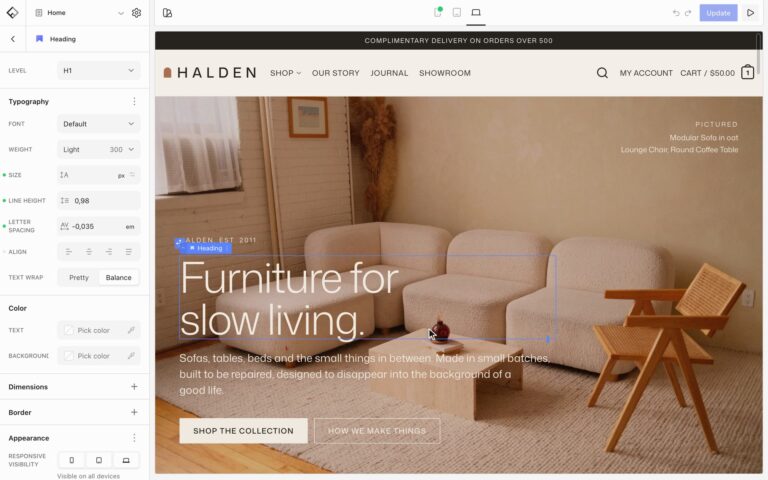

Blocks normally sit in the flow, one after the other. Three settings let you break out of that: Position places a block anywhere inside its parent, Z-index decides what sits on top when blocks overlap, and Overflow clips content that reaches past the edges of its block.
Place a block anywhere
Image, Icon, and Flex blocks can leave the flow and sit on top of their parent, for example a New badge on a product photo or a decoration in the corner of a section.
- Select the Image, Icon, or Flex block and find the Position panel.
- Set Position to Absolute. The block leaves the flow, and the blocks around it close the gap.
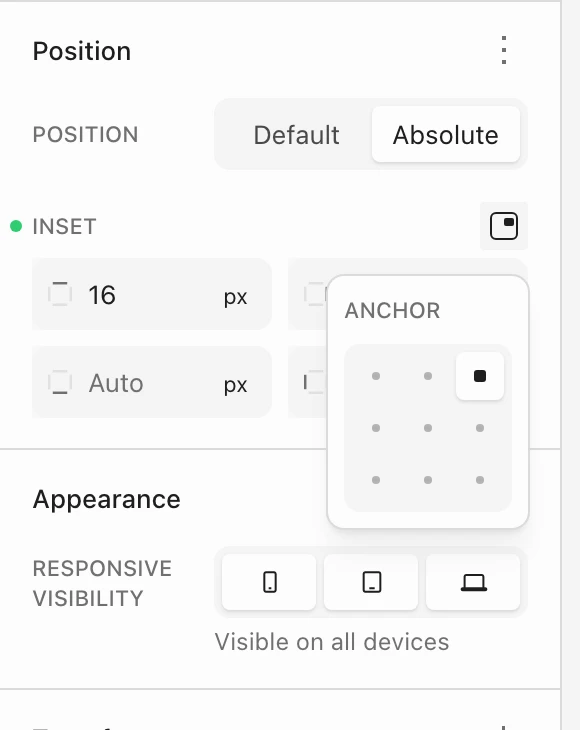
- Under Inset, enter how far the block sits from the top, right, bottom, and left edges of its parent. Sides left on Auto don’t pull the block in that direction.
- To jump to a corner or the center, click the Anchor button next to Inset and pick one of the nine spots.
You can also drag the block on the canvas: select it and drag the move handle at the start of its toolbar. The Inset values follow as you drag, in 8px steps.
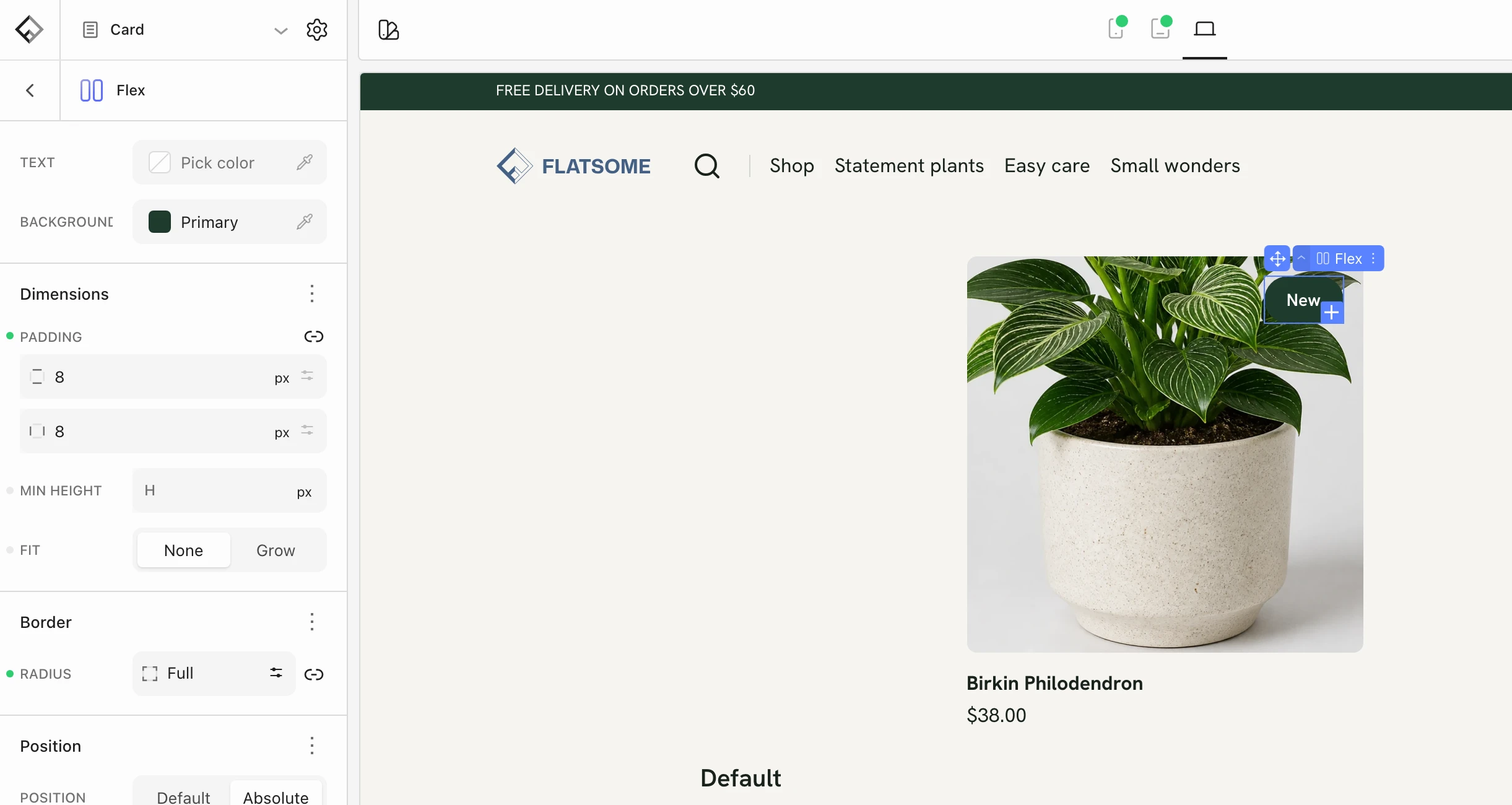
Inset can be different on each screen size: switch the preview to Tablet or Mobile and change it there. Position itself applies to every screen size. See Edit for each screen size.
Blocks inside a Banner are already layers that you move freely, so they don’t show the Position panel.
Choose what sits on top
When blocks overlap, for example a badge over an image or a section pulled up over the one above it, Z-index decides which one is in front. The block with the higher number sits on top.
- Select a Section, Row, Column, Flex, Image, or Icon block.
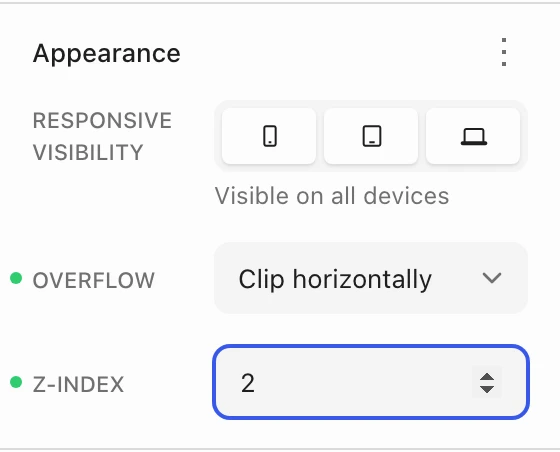
- Open the options menu of the Appearance panel and add Z-index.
- Enter a number, for example 1 or 2, higher than the block it should cover.
Clip content that spills out
Content can reach past the edges of its block, such as an image that bleeds off the side or a badge that hangs over the edge. Overflow decides whether that part shows. Select a Section, Row, Column, Flex, or Card block, open the options menu of the Appearance panel, add Overflow, and choose:
- Visible: everything shows. This is the default.
- Clip: cuts off anything outside the block.
- Clip horizontally or Clip vertically: cuts off only at the sides, or only at the top and bottom. Clip horizontally keeps a wide image from making the page scroll sideways, while it can still hang over the section below.
- Hidden: cuts off like Clip, but sticky blocks inside stop sticking. Prefer Clip unless you need Hidden.
- Scroll: keeps the content inside the block and adds scrollbars.
Overflow can also be different on each screen size, for example clipped on phones only.