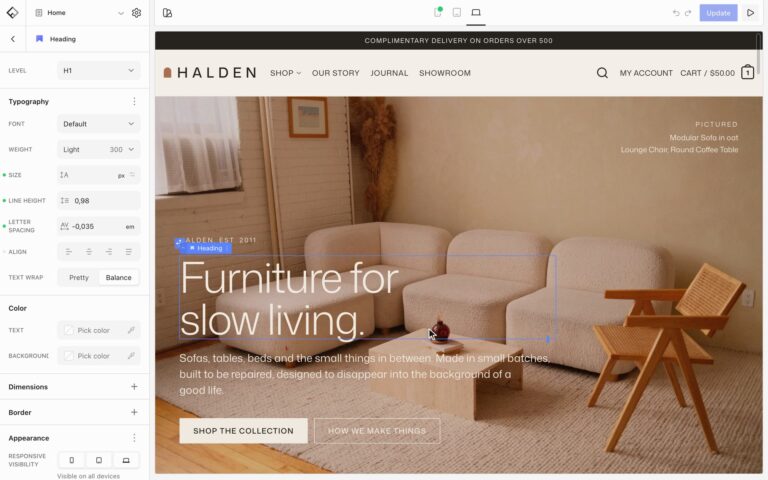
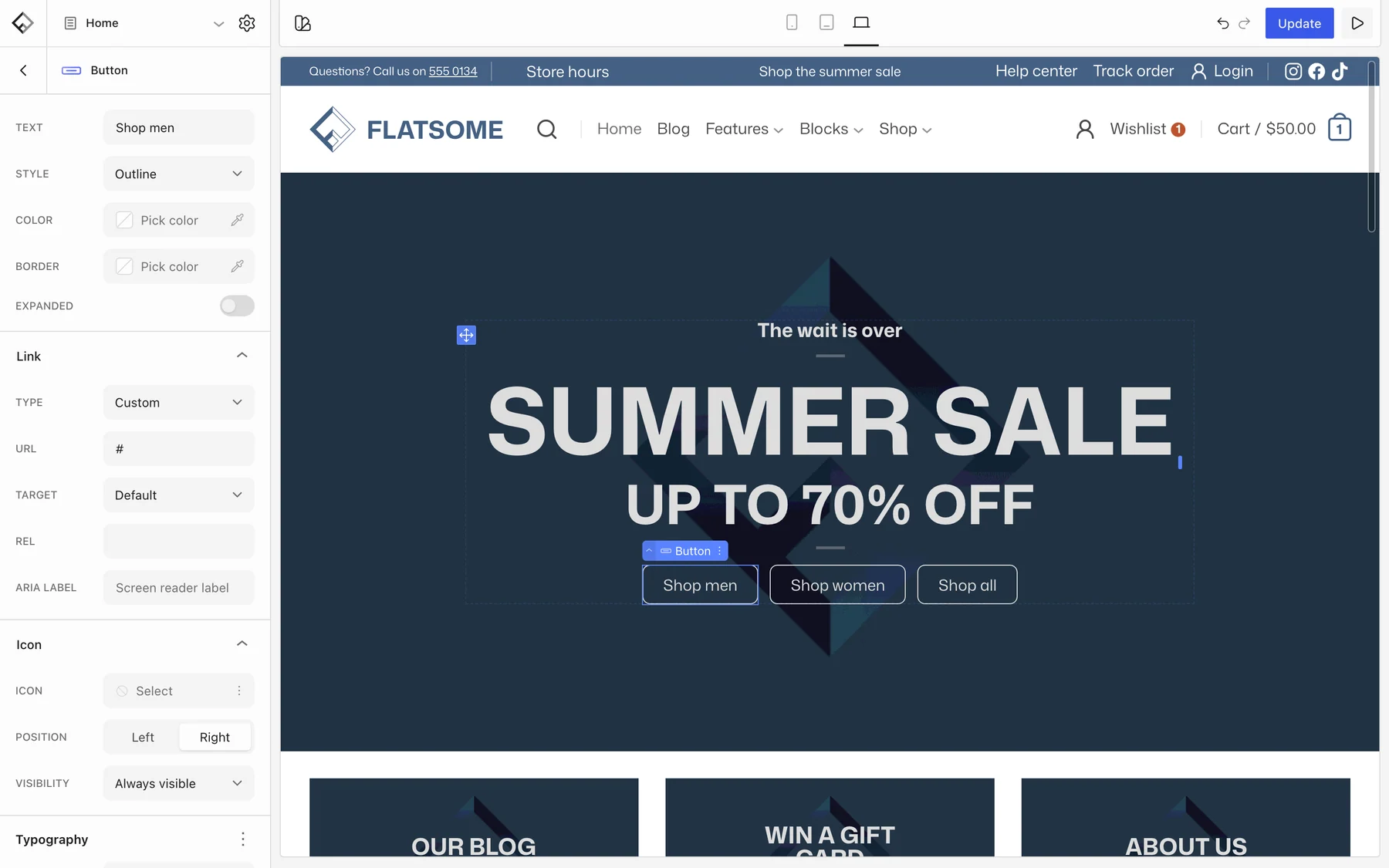
The Builder has three areas. Pages, posts, templates, the header and the footer all use them the same way, so once you’ve built one page you know your way around.

Sidebar on the left
Every block on the page, and the settings for the one you select.

Your page in the middle
What visitors will see. Click anything to change it.

Tools along the top
Switch screen sizes, undo, and save or publish.
Build your first page
1
Open the Builder
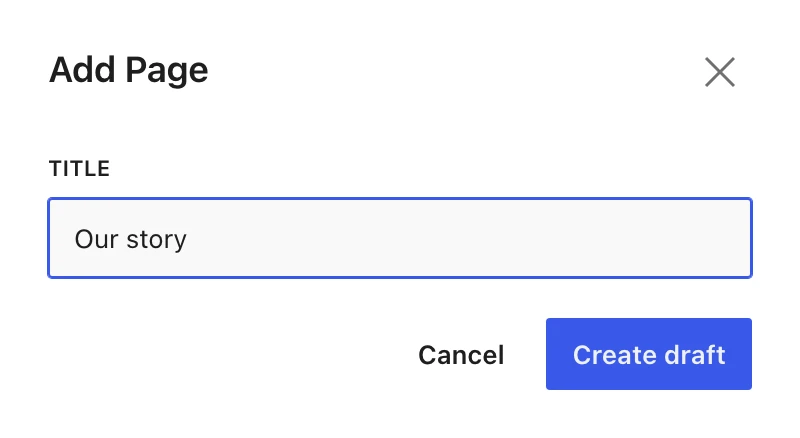
In your WordPress dashboard, choose Open Flatsome Builder in the top bar. To start a new page, open the menu at the top left, go to Pages and choose +. Give the page a title, choose Create draft, then Start editing.
2
Add content
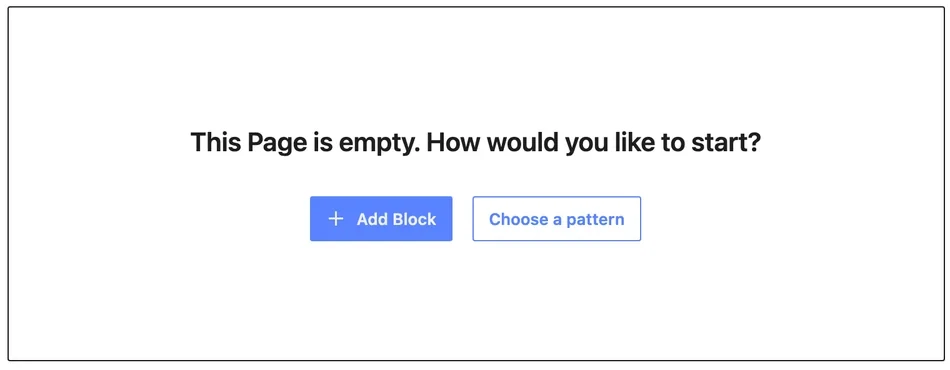
An empty page asks how to start. Choose Browse Patterns for a ready-made section, or Add Block to build your own.
3
Click a block to change it
Its settings open in the sidebar on the left. Want it different on phones? Switch to Mobile in the top bar first. See Edit for each screen size.

4
Save or publish
Save draft keeps the page to yourself. Publish puts it live. Once it’s live, the button says Update.

Landed in the WordPress editor? That’s WordPress’s own editor, and you won’t need it. Choose Edit with Flatsome Builder at the top to switch.
How a page is built
Every page uses the same three layers. Patterns give you all three at once.
Section
Full width, with its own background
Row
Splits the section into columns
Column
Heading
Text
Column
Image
Column
Button
When you’re ready for more, open the editor navigation in the top left to change the header under Template Parts, or your colors and fonts under Global Styles.