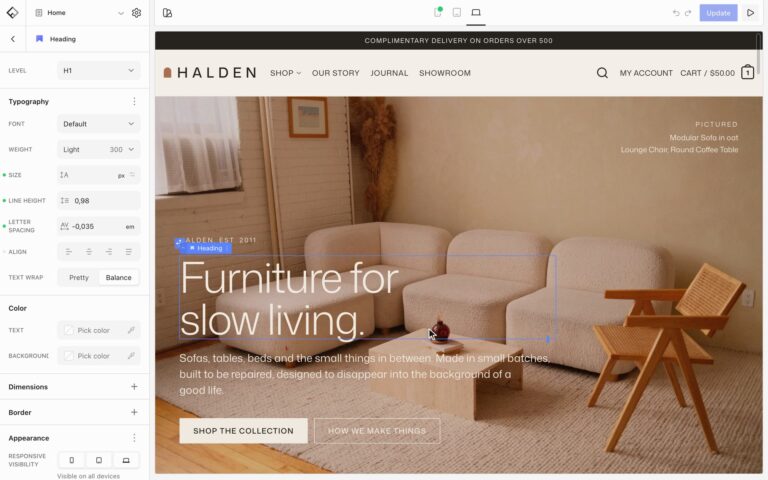

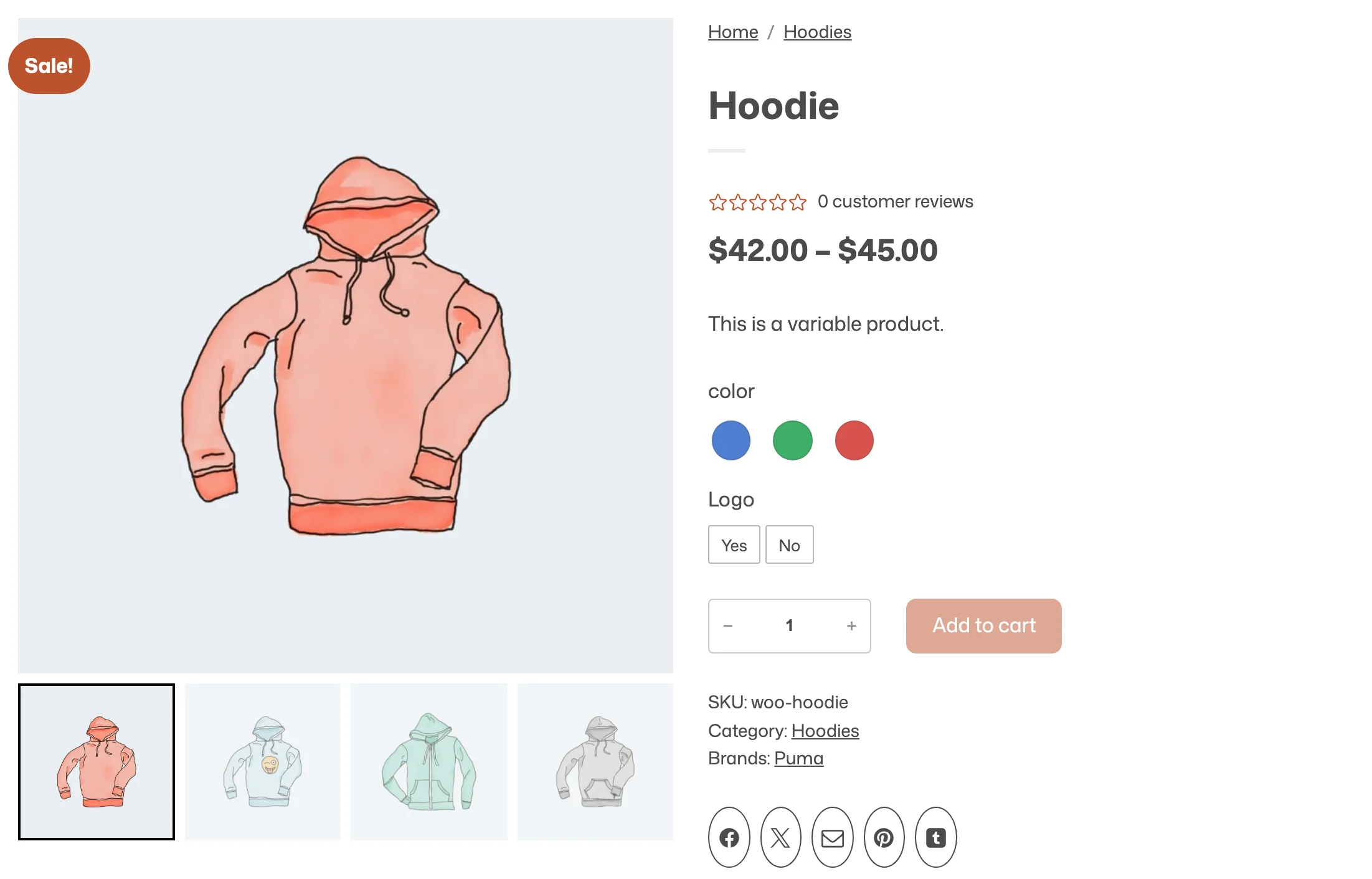
Swatches show a product’s colors or images as small dots instead of a dropdown. Flatsome uses WooCommerce’s own color swatches, so they appear in the variation selector on the product page, in the product filters, and on product cards with the Product Swatches block.
Set up swatches
- Go to WooCommerce → Settings → Advanced → Features and turn on Color swatches for attributes.
- Go to Products → Attributes, edit the attribute, for example Color, and set its Type to Color / image.
- Choose Configure terms and give each term a color, or an image for patterns and materials.
Products that use the attribute for variations now show swatches on the product page and in the product filters.
Swatches on product cards
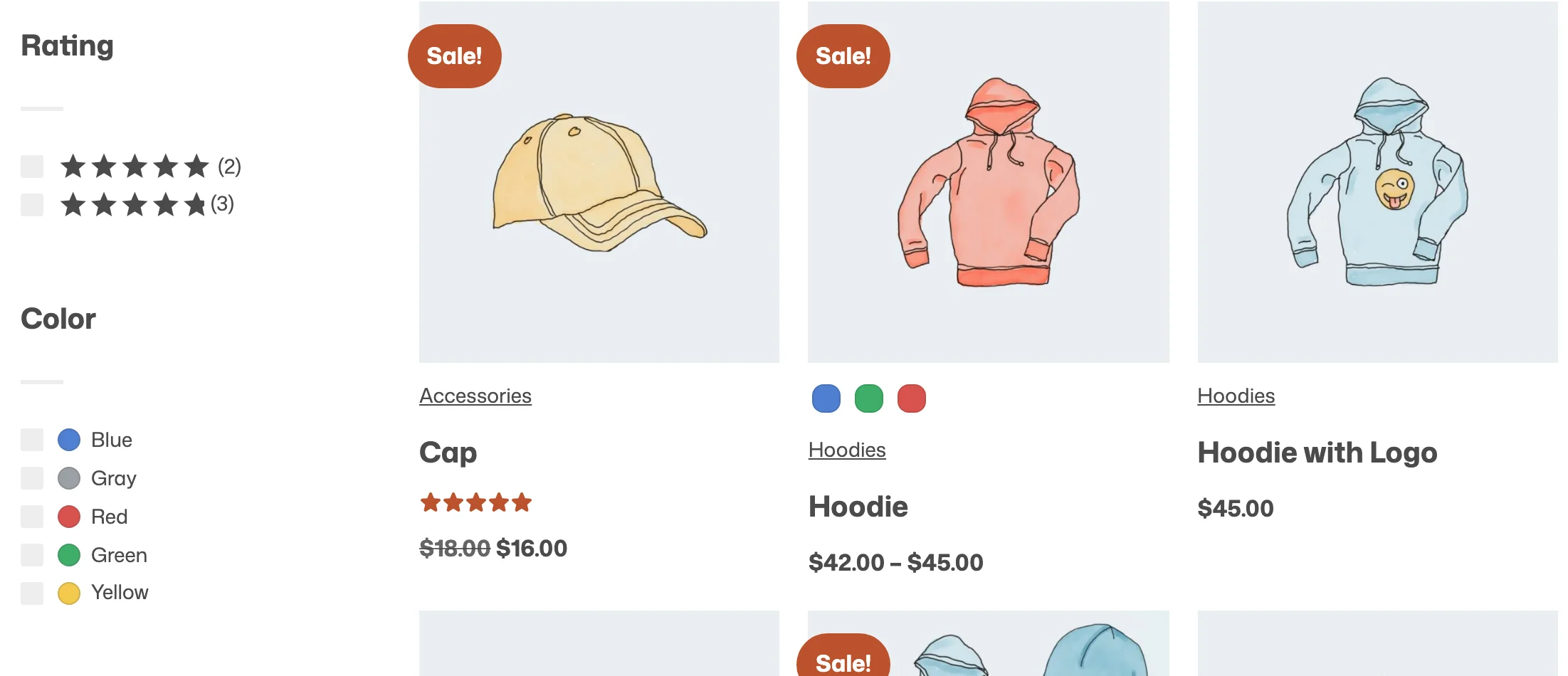
The Product Swatches block shows a product’s swatches on its card. It is already in the default product cards of the shop and in related products. To add it to your own cards, open the product card or product grid in the Builder and insert Product Swatches.
Choosing a swatch on a card shows that variation’s image, and the card links to the product page with the variation already selected. Out-of-stock options are faded, and simple products show nothing.
- Attribute: Automatic uses the product’s first color or image attribute. Pick another attribute to show it instead, for example sizes as text.
- Visible swatches: how many swatches show before a +N button reveals the rest. Set to 0 to show all.
Coming from Flatsome Classic
The migration moves Classic’s color and image swatches to WooCommerce swatches when you apply it. Dual colors, custom labels, and Classic’s swatch size and shape options have no equivalent and are listed in the review list. See From Flatsome Classic.
You can also manage swatches with an AI assistant: it can set the type of an attribute and the colors and images of its terms. See Connect an AI assistant.