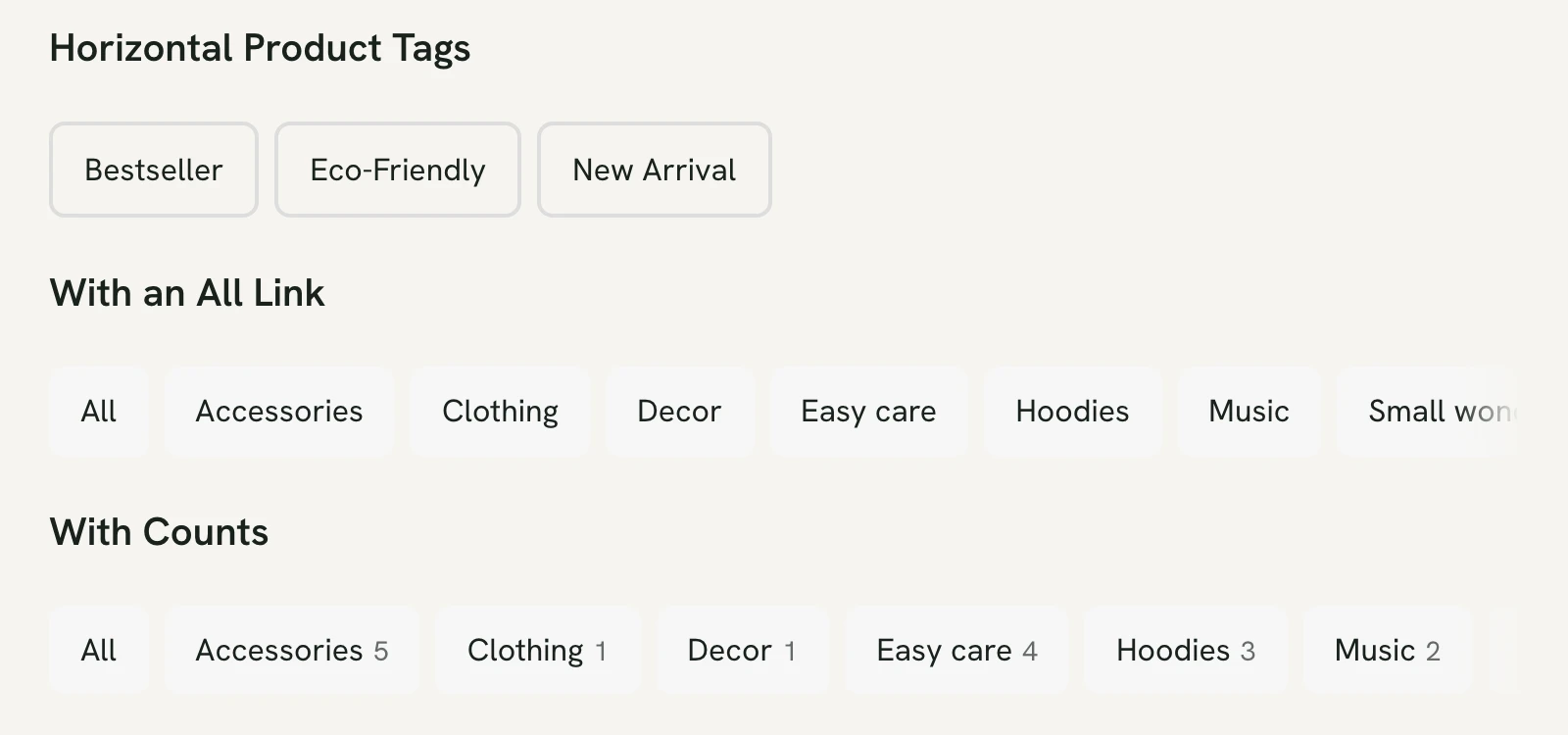
The Terms List block lists categories, tags, or other terms as links, for example product categories in a shop sidebar or blog categories above the posts. It runs vertically or horizontally, and a horizontal list that doesn’t fit scrolls sideways instead of wrapping onto more lines.
Settings
- Taxonomy: what to list, such as Product categories, product tags, or blog categories.
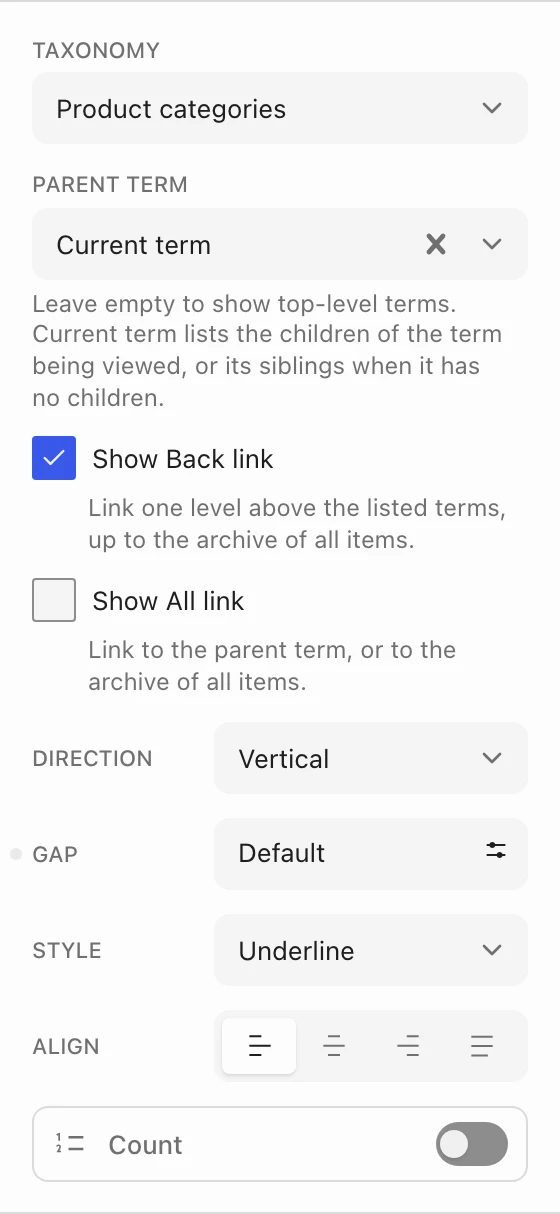
- Parent term: leave it empty to list top-level terms, pick a term to list its children, or choose Current term to follow the page being viewed (see below).
- Show All link: adds an All link to the parent term, or to the archive of all items, such as the shop page.
- Direction, Gap, Style, and Align: vertical or horizontal, the space between the links, their look (such as Underline, Outline, or Fill), and their alignment.
- Count: shows how many items each term has, as Plain numbers or a Badge, with its own size, weight, and colors.
Follow the category being viewed
Add a Terms List to the Product Catalog template, for example in its sidebar, and set Parent term to Current term. On each category page it lists that category’s subcategories, so visitors can narrow down. A category without subcategories lists the categories on its own level instead, so the list never comes up empty.
With Current term chosen, turn on Show Back link to add a link one level up from the current category. For example, on the Clothing page, where the list shows the subcategories of Clothing, the Back link leads to all products.
To show subcategories as image tiles instead, use the Product Categories Query block. See Show subcategories on category pages.
In the mobile menu
A Terms List also works inside an Off-Canvas Menu, so the mobile menu can list your shop categories. See Set up the mobile menu.